
This page contains some frequently asked questions that practices may have when using or adopting Best Health Booking.
A Best Health account allows a patient to make an online booking for themselves or another person through Best Health Booking. Some information is pulled from the patient's demographics in Bp Premier to populate the account details.
For security reasons, Best Health requires two-factor authentication for registering and logging in to a Best Health Account. Patients will need to supply both an email address and their SMS number when creating an account. Verification codes are sent to both email and SMS during account creation.
For Online Bookings to be available 24/7, your laptop must have the correct Power and sleep settings selected to prevent it from powering down.
- Open the Windows Start menu and type Power or Sleep.
- Select Power, Sleep and Battery from the search results.
- Scroll to the Sleep, screen and hibernate section (or similar wording depending on your Windows 11 build).
- For both Plugged in and On battery (where available), set these options to Never:
- Turn off my screen after
- Make my device sleep after
- Hibernate after (if shown).
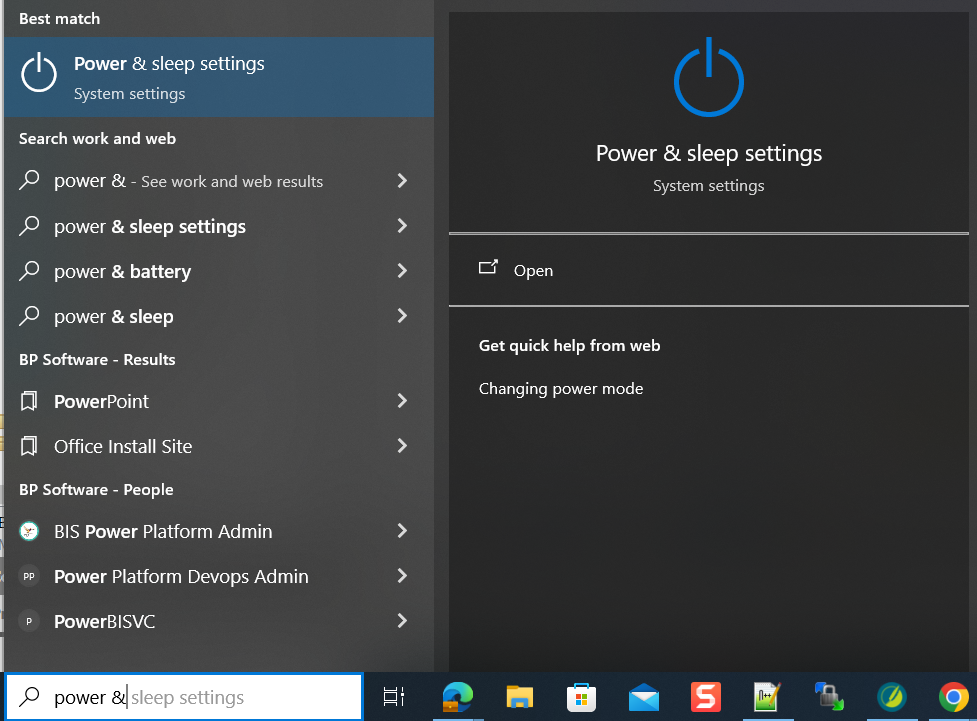
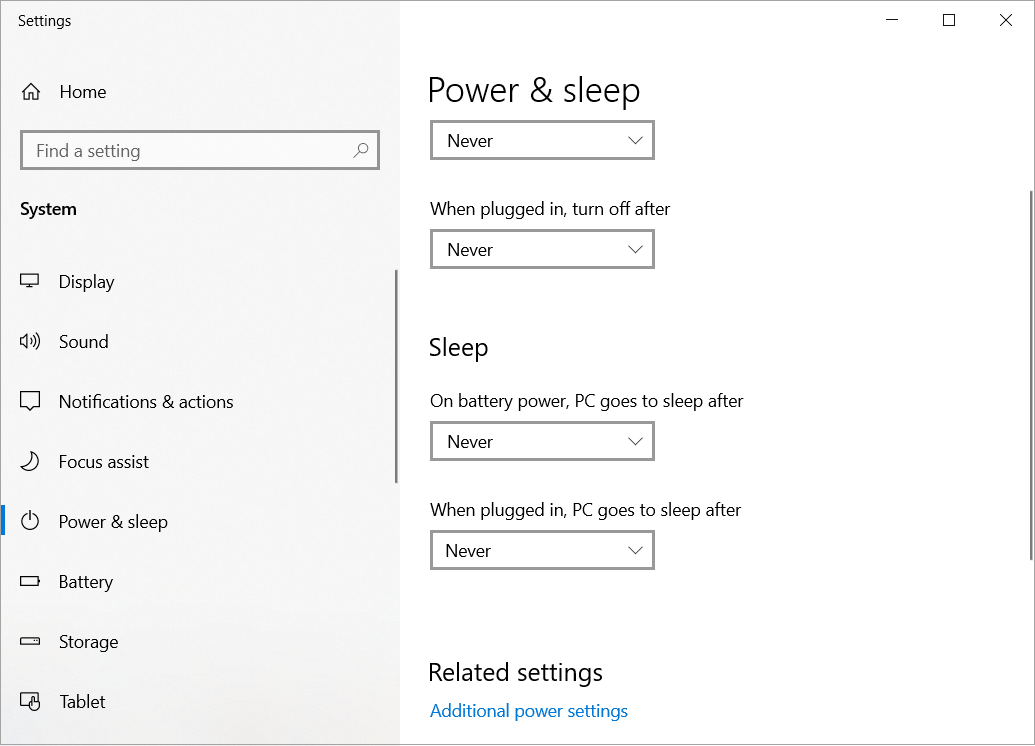
Setting these options to Never keeps the laptop powered on and prevents it from turning off or entering sleep mode.
When you are at home or in the office, make sure your laptop is on, Bp Premier is open, and you have an active internet connection. This allows everything to continue operating even if you lock your laptop screen.
For more information about Power Settings in Windows 11, refer to the Microsoft Support article.
If you have 'On the day' appointments in Bp Premier which are being impacted by online bookings, we recommend inspecting the settings for individual staff and comparing them with the practice hours as one may override the other.
NOTE These appointment types are configurable only from Bp Premier.
To learn how to set up these sessions, see the Bp Premier Knowledge base article on how to Set up appointment book sessions.
Alternatively, settings in PrOS can be used for 'On the day' appointments specifically for online booking by utilising the patients can book an appointment online setting shown in step 6 of the Online Settings article. Exclusion Periods can too be set aside per doctor for this purpose but be sure to consider that this type of appointment is typically set aside for high priority appointments.
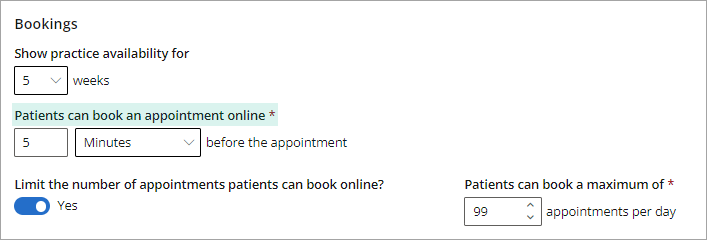
You can report on online appointment bookings over a time period in three ways:
- From the left-hand menu, select Best Health Booking > Providers.
- Select the Provider to edit or remove the modified availability for.
- Select the Appointment type.
- Select the pencil icon to edit the availability or select the trash can icon to delete it.
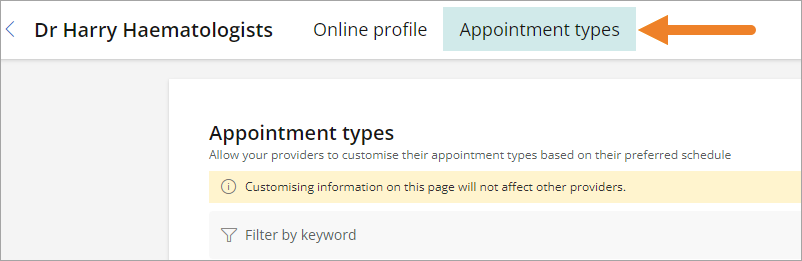

To learn more about modified availability, see Modify availability and customise patient and appointment types.
Best Health Booking relies on the patient to select the correct patient type ('new patient' or 'existing patient'). While there's no automatic check against medical records, this honesty based system ensures a smoother booking experience.
The definition of an 'existing patient' can vary greatly for a patient (for example; having seen the doctor before, having previous appointments, having transferred records). This approach prioritises accurate information and efficient database management.
Last updated: 15 May 2026.



 AU
AU 