
This article explains how to configure Bp Premier for Medcast and MedLuma and launch the platform from the Bp Premier main screen or the patient record.
- Medcast is an Australian organisation known for delivering accredited clinical education, continuing professional development (CPD) and governed clinical guidance. It provides access to courses, webinars, learning hubs and other professional development activities. It also maintains each user’s learning history and CPD record.
- MedLuma is an AI-powered clinical knowledge and learning tool designed for Australian healthcare professionals. It helps you quickly find referenced, current and relevant medical information grounded in trusted clinical sources as you work, while supporting your ongoing learning and continuing professional development. MedLuma is designed to support, not replace, your clinical judgement. You can earn RACGP-accredited CPD hours for learning activities you complete after a MedLuma search.
What is MedLuma?
MedLuma is an AI-powered clinical knowledge and learning tool designed for Australian healthcare professionals.
It helps you quickly find referenced, current and relevant medical information grounded in trusted clinical sources as you work, while supporting your ongoing learning and continuing professional development.
MedLuma is designed to support, not replace, your clinical judgement.
How do you ensure the quality and accuracy of MedLuma’s responses?
MedLuma uses a layered, continuous validation process which combines automated testing, expert clinical review by humans and ongoing monitoring. Our aim is to reduce risk and error rate, but clinical judgement will always be required.
We regularly test typical clinical questions asked in primary care, challenging clinical scenarios and questions that previously identified problems.
AI-assisted evaluation screens responses for errors, omissions, unsupported claims and safety concerns. Trained clinicians then review high-risk and flagged responses, alongside a sample of answers that passed automated checks. They assess clinical accuracy, currency, completeness, medication safety, recognition of red flags, citation support and appropriate acknowledgement of uncertainty.
Identified problems are corrected and retested. Any change to MedLuma requires documented clinical safety approval against agreed criteria.
After release, clinician feedback and safety monitoring inform investigation, improvement and further testing, with oversight from our Clinical Governance Committee.
Can I claim CPD for using MedLuma?
Yes. You can earn RACGP-accredited CPD hours for learning activities you complete after a MedLuma search. Read an answer, then choose the activity you want to claim. Your hours are recorded in your Medcast CPD tracker.
What does MedLuma cost?
MedLuma is available through a subscription model.
Medcast Explorer is free and includes 50 MedLuma searches a month.
Medcast Plus is a paid subscription that includes 200 MedLuma searches a month, unlimited automatic CPD tracking and premium Medcast education. For current pricing, visit the Medcast website.
Does MedLuma access or change my patient’s record in Best Practice Premier?
No. MedLuma works separately from the patient record. It can’t see your patient’s file, and your questions and MedLuma’s answers aren’t saved to it.
Please don’t include patient or personally identifiable details in your searches.
IMPORTANT If you are using the same Windows account as other users, before you configure, open your browser and check that no one else is signed in to Medcast or MedLuma. If they are, sign them out first. Otherwise their account will be saved to your Bp Premier user profile, and your MedLuma searches and CPD will be recorded against their account.
There are two ways to create and configure your Medcast credentials in Bp Premier:
- From the main screen of Bp Premier or the patient record, click the MedLuma icon or go to View > MedLuma to launch the Medcast login screen. Once you have logged in, your credentials will be saved in the Integration credentials of your user profile.
- In the Edit user details screen, open the Integration credentials window and launch the Medcast login screen via the Configure button.
- From the main screen of Bp Premier or in the Patient record, select the MedLuma icon from the top toolbar or go to View > MedLuma.
- A window will display in Bp Premier 'Continue signing in from your browser'.
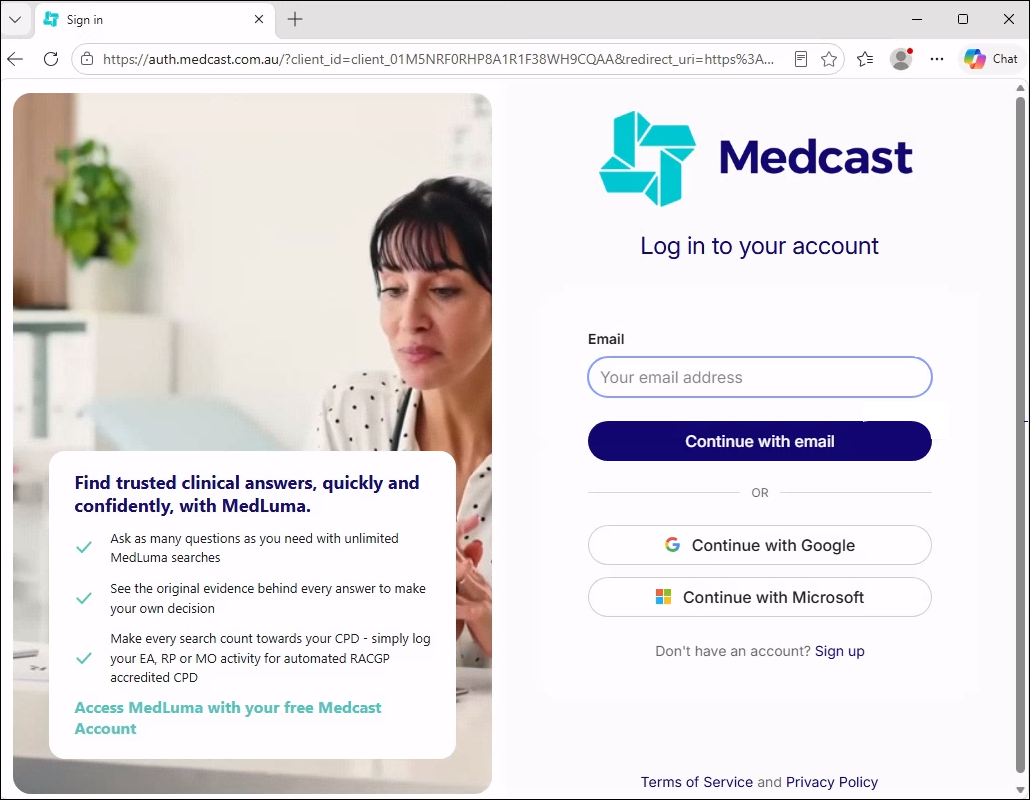
- The Medcast login screen will display:
- Enter your Medcast email address and click Continue with email, or click Continue with Google or Continue with Microsoft if that’s how you normally sign in to Medcast.
- If you do not have a Medcast account, click the Sign up link at the bottom of the screen. Enter your first name, last name and email address, then click Continue.
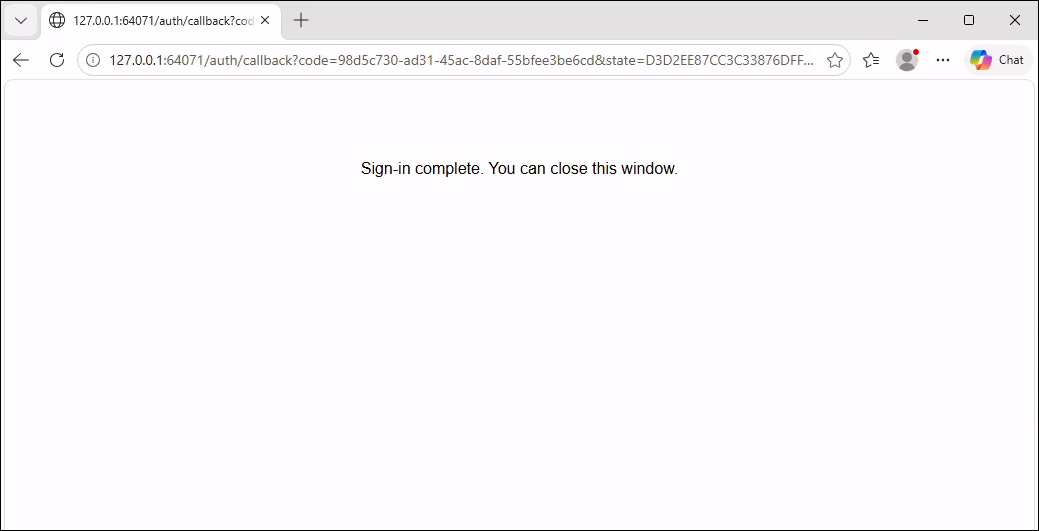
- An external browser window will launch and the screen will read 'Sign-in complete. You can close this window.' if you:
- Are already logged in to Medcast on your device
- Have successfully signed in to your Medcast account
- Have successfully created a Medcast account.
- After closing the browser, MedLuma will launch with your saved credentials in a new window. If the browser window is still open MedLuma will launch in a new tab.

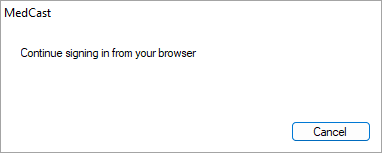
IMPORTANT If the Cancel button is selected in this window, the Medcast login screen will still launch in a browser window, but credentials entered will not be saved to Bp Premier.
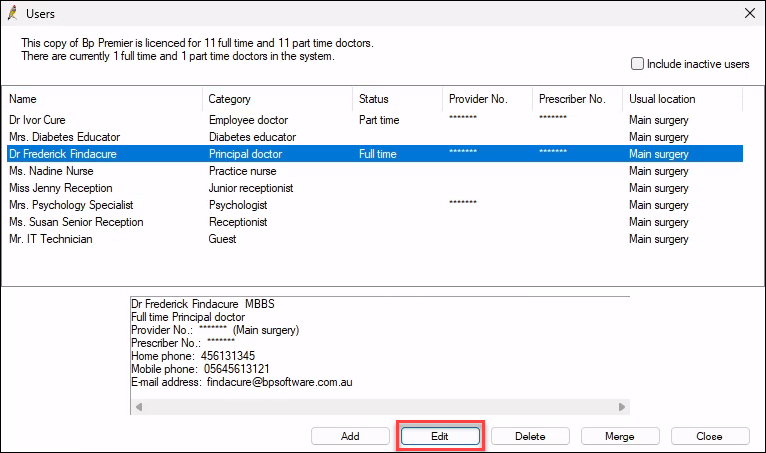
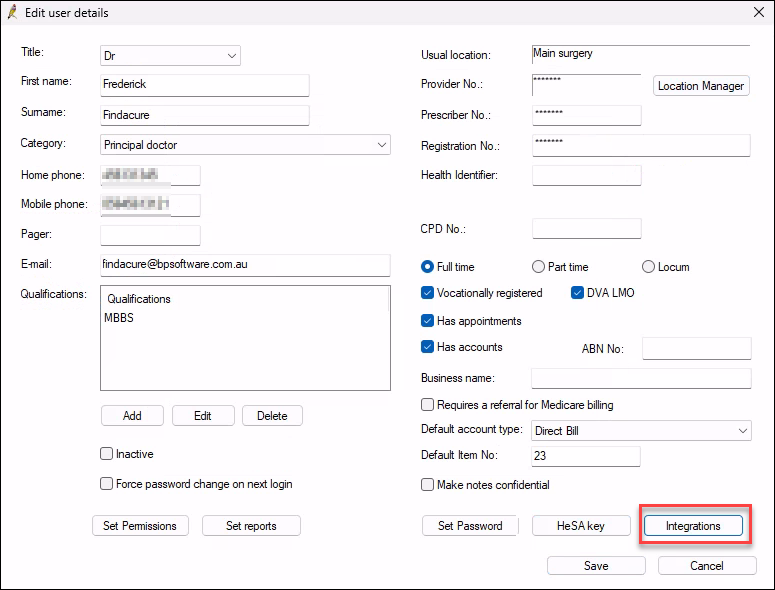
- From the Bp Premier main screen, go to Setup > Users.
- Select the user you would like to configure for Medcast and click Edit.
- In the Edit user details screen, click Integrations.
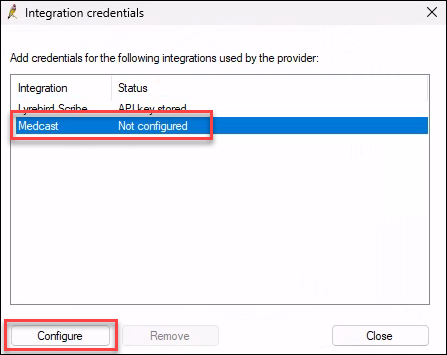
- In the Integration credentials window, select Medcast and click Configure.
- A window will display in Bp Premier 'Continue signing in from your browser'.
-
If the Cancel button is selected in this window, the Medcast login screen will still launch in a browser window, but credentials entered will not be saved to Bp Premier.
- The Medcast login screen will display:
- Enter your Medcast email address and click Continue with email, or click Continue with Google or Continue with Microsoft if that’s how you normally sign in to Medcast.
- If you do not have a Medcast account, click the Sign up link at the bottom of the screen. Enter your first name, last name and email address, then click Continue.
- An external browser window will launch and the screen will read 'Sign-in complete. You can close this window.' if you:
- Are already logged in to Medcast on your device
- Have successfully signed in to your Medcast account
- Have successfully created a Medcast account.
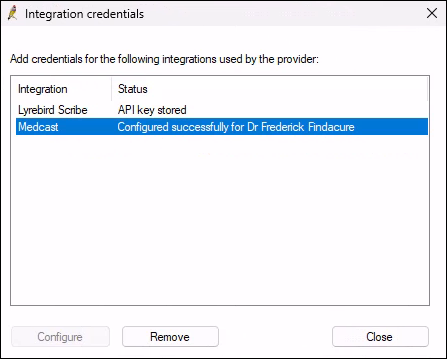
- After closing the external browser window the Integration credentials screen will show the Status of Medcast as 'Configured successfully'. Click Close.
- From the Edit user details screen, click Save to save and close.
IMPORTANT If the Cancel button is selected in this window, the Medcast login screen will still launch in a browser window, but credentials entered will not be saved to Bp Premier.
- From the main screen of Bp Premier or in the Patient record, select the MedLuma icon from the top toolbar or go to View > MedLuma.
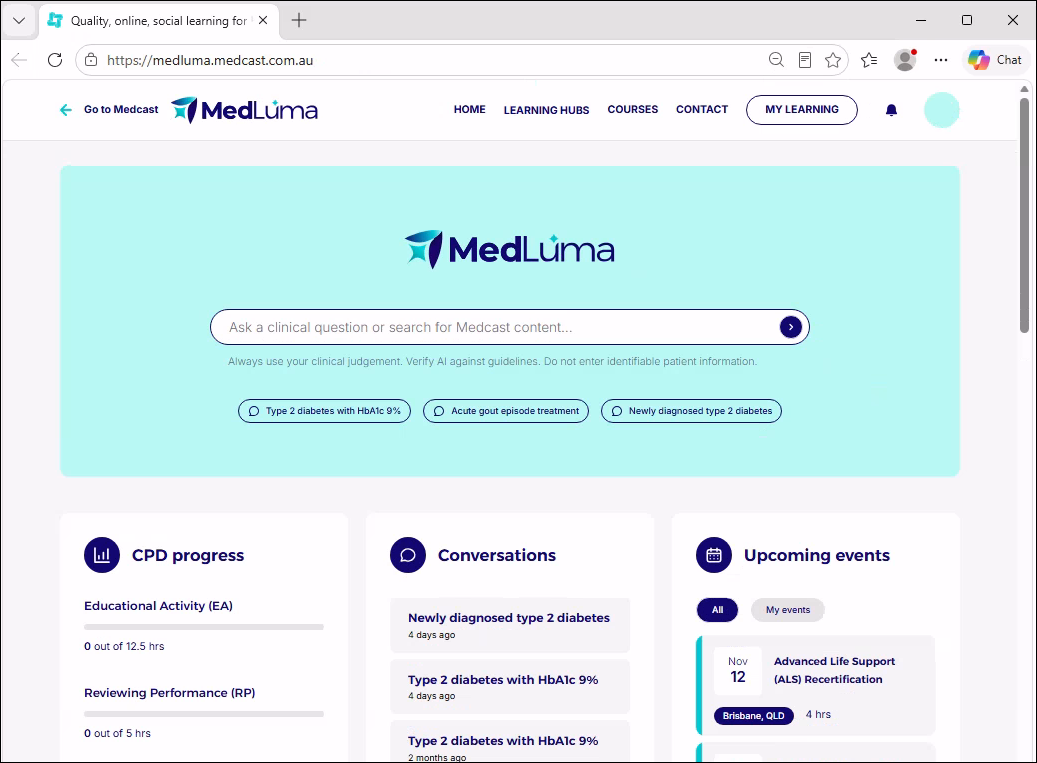
- MedLuma will launch in an external browser window.
- From the main screen of Bp Premier or in the Patient record, select the MedLuma icon from the top toolbar or go to View > MedLuma.
- MedLuma will launch in an external browser window.
- Click the Go to Medcast button in the top left-hand corner of the screen.
- The browser will redirect to the Medcast homepage.

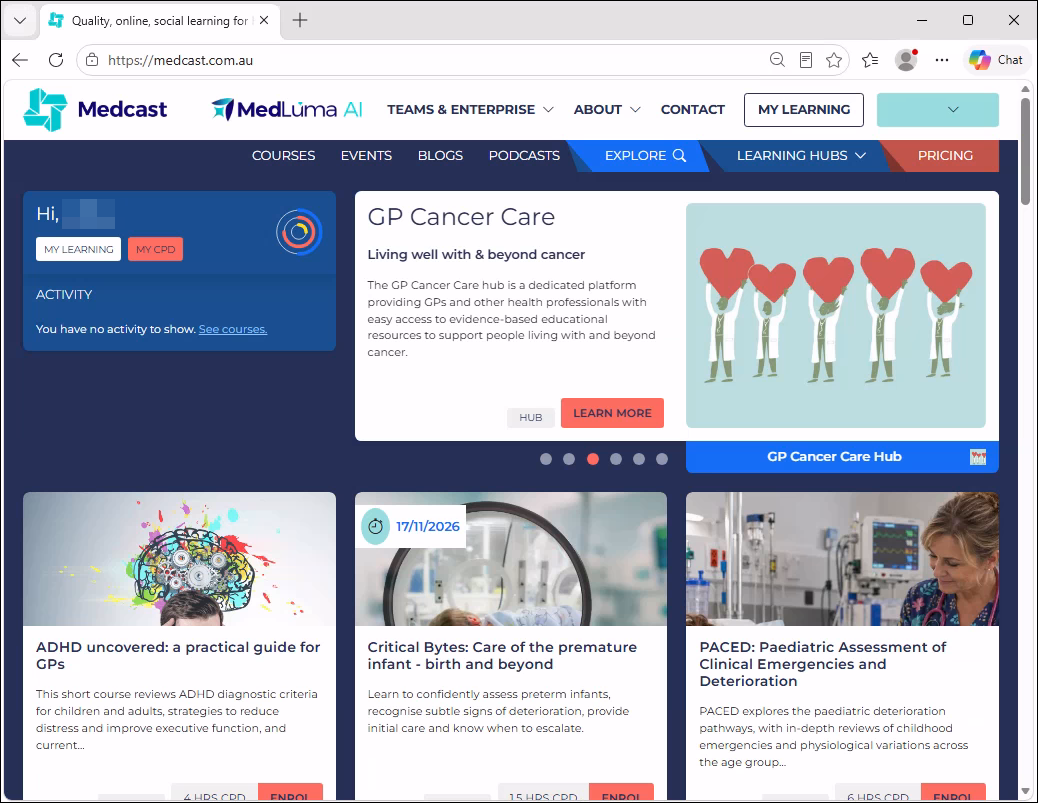
If the Medcast login screen is launched from Bp Premier and the user does not enter their login credentials or create an account via the browser, the following error will occur in Bp Premier after a period of five minutes with no input.
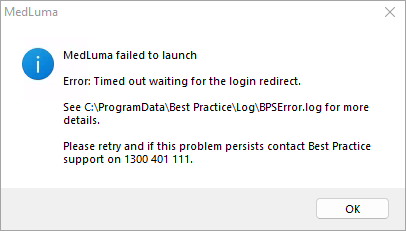
Click OK and close the browser window before relaunching the Medcast login screen from Bp Premier.
Information correct at time of publishing (30 October 2026).


 AU
