
As part of our ongoing commitment to provide products and services that add value to our users, the following is a summary of known issues that may occur in supported versions of Bp Premier, including the version in which the issue was fixed, and workarounds where available.
See End of support (sunset) for older versions for more information.
Issues are grouped by version detected, and where indicated if the issue affects earlier versions also.
Identifying an issue by callstack
Where relevant, the callstack identifier for an issue is included in the issue description below. This is the text that appears near the top of a 'callstack' alert that provides details about an error. This can be useful searching the known issues list.
TIP Click the column header to sort the tables by Bp Function, Issue, Fixed in Version, or Key.
Oxford SP1
|
Bp Function |
Issue |
Fixed In |
Key |
|---|---|---|---|
|
Installation |
When installing Bp Premier Oxford SP1 from an ISO file and selecting a custom install location in the Wizard, the installation will fail. |
Not yet resolved. |
84871 |
|
Installation |
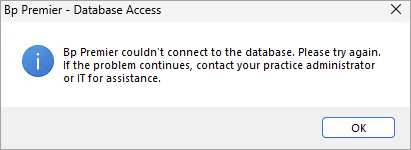
Some Bp Premier users have reported connection issues between the server and client, and between third-party integrations using the HALO link, after running the Oxford version Service Pack 1 (SP1) Program Update. "Bp Premier couldn't connect to the database. Please try again. If the problem continues, contact your practice administrator or IT for assistance."
Follow the instructions in Troubleshooting Bp Premier Oxford SP1 Installation to Run the Update Database utility and Restart Halo Link Service in sequence to resolve the issue. |
Not yet resolved. |
84825 |
|
Assignment of Benefit |
When creating an invoice or adjusting an invoice and adding item numbers that do not match the Basic Service Description in the Pre-assignment of benefit agreement, Bp Premier will prompt the user to generate a new Post assignment of benefit form but the pre-assignment of benefit is still available to select. If the pre-assignment of benefit form is selected Bp Premier will not generate a new post assignment of benefit form for the additional item numbers. |
Not yet resolved. |
84103 |
|
Assignment of Benefit |
When printing a pre or post assignment of benefit form with Prompt for printer enabled in Setup printers, Bp Premier will not prompt the user to select a printer and the default printer will be used. |
Not yet resolved. |
84712 |
|
Allergies / Adverse Drug Reactions |
When adding a new reaction and using the tab key to navigate through the available fields the tab order is not in a logical sequence. |
Not yet resolved. |
85290 |
Oxford
|
Bp Function |
Issue |
Fixed In |
Key |
|---|---|---|---|
|
Assignment of Benefit |
When Print 2 copies of vouchers is enabled in Setup > Configuration > Online Claiming and printing an assignment of benefit form, only one copy is printed. Workarounds: One of three workarounds can be used in this scenario.
|
Oxford SP1 |
83577 |
|
Assignment of Benefit |
Assignment of benefit forms are not correctly fitted to the page when printing with A5 vouchers enabled in Setup > Configuration > Online Claiming:
Workaround: Practices can modify the external printer settings to print A5 sized landscape AoB forms accordingly. |
Oxford SP1 |
83579 |
|
Assignment of Benefit |
When editing details of an invoice in the Account details screen accessed from Online claiming or the Patient billing history, the Assignment of Benefit fields do not function correctly. Workaround: This error does not effect the workflow and the details can still be updated without issue. An Assignment of Benefit form does not need to be generated unless changes to the services are made. |
Not yet resolved. |
83545 |
|
Assignment of Benefit |
If an invoice is linked to an Assignment of Benefit form with a status of Delivery failed it will stay in the All outstanding results of the Follow up Assignment of Benefit screen when the invoice is cancelled. |
Oxford SP1 |
83614 |
|
Assignment of Benefit |
When using the Bulk resend from the Follow up assignment of benefits screen the Contact note generated will display the Recorded by user as Practice and not the user who sent the SMS via Bulk resend. |
Oxford SP1 |
83556 |
|
Assignment of Benefit |
Assignment of benefit forms cannot be generated if a patient does not have a mobile number or home phone number entered in the Patient details. Workaround: Prior to generating a pre or post assignment, ensure patient(s) have a mobile or home phone information added. |
Not yet resolved. |
83211 |
|
Assignment of Benefit |
If Prompt for Printer is enabled in the default printer settings, when generating a printed Assignment of benefit form, if the users switches to a different Bp Premier window and back to the Appointment book, the Prompt for Printer window will be hidden causing Bp Premier to be locked. Workaround:
|
Not yet resolved. |
83485 |
|
Assignment of Benefit |
If Prompt for Printer is disabled in the default printer settings, when printing an Assignment of benefit form the Prompt for Printer screen will still appear. |
Oxford SP1 |
83480 |
|
Bp Utilities |
When opening and closing Logged on computers from Bp Utilities some users may experience a callstack error. |
Not yet resolved. |
65292 |
|
|
When sending an email from the Word Processor and opting to not use a PIN for PDF attachments, emails will still send with the text "A PIN is required to view the contents of the PDF file" though no PIN is required to open the file. Workaround: No PIN is required to open the file, the message can safely be ignored. |
Not yet resolved. |
82948 |
|
Immunisations |
When using the Prevnar 20 vaccine for Pneumococcus in the Childhood immunisation schedule for a patient under 8 years of age with an Ethnicity of Aboriginal and/or Torres Strait Islander, the Sequence field for the 12 month immunisation will incorrectly populate to 3. Workaround: The sequence number must be manually adjusted to 4 for the 12 month immunisation. |
Not yet resolved. |
83601 |
|
Log Utilities |
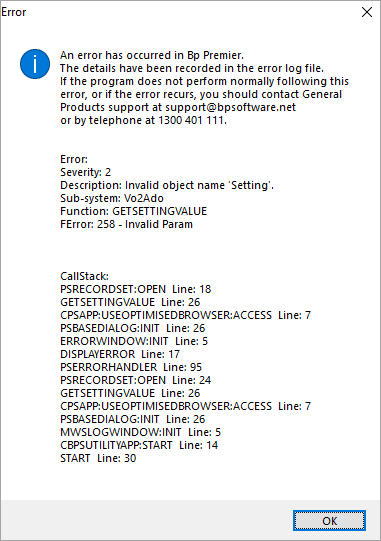
When launching the View ePrescription Log or View MWS Log utilities users will encounter a callstack error.
Workaround: Users can click OK through the error and use the utility as normal. |
Oxford SP1 |
82186 |
|
Patient details |
If the network connection to the server is interrupted while the Patient details screen is open, a callstack error will occur. Workaround: Click OK to continue, then close and re-open the Patient details screen to confirm the network disruption is resolved by confirming any changes have been saved |
Not yet resolved. |
83342 |
|
Follow up assignment of benefit |
When using the Bulk resend from the Follow up assignment of benefits screen the Contact note generated will display the Recorded by user as Practice and not the user who sent the SMS via Bulk resend. |
Oxford SP1 |
83556 |
Spectra SP1 Revision 3
|
Bp Function |
Issue |
Fixed In |
Key |
|---|---|---|---|
|
Payment Integrations |
After upgrading to Spectra SP1 Rev 3, sites using CommBank Smart Health as their payment provider may encounter a configuration error with the Bp Payments Utility. This issue may prevent invoice viewing or payment processing. Workaround: CommBank Smart Health customers will need to reconfigure the integration by entering the API key again after the upgrade. |
Not yet resolved. |
80522 |
|
Bulk Payments |
if a long disconnect occurs while Bp Premier is committing a bulk payment, the payment lines may not commit fully. Please contact Bp Support on 1300 40 1111 for further assistance if this occurs. |
Not yet resolved. |
84695 |
|
Security Configuration |
When updating the Minimum password length in Setup > Configuration > Security, Bp Premier will prompt users on their next login with the incorrect pop-up regarding password complexity. |
Not yet resolved. |
84124 |
Spectra SP1 Revision 2
|
Bp Function |
Issue |
Fixed In |
Key |
|---|---|---|---|
|
MySL |
The Date Created column in MySL responds differently to two scenarios. For new prescriptions, the Date Created will be the Date the medication was initially prescribed. However, if the doctor prescribed the medication with repeats, the Date Created will be updated to reflect the Date the repeat was last dispensed from the pharmacy. This will be updated in a future program release to always show the original prescription date. |
Oxford |
80240 |
|
Document Viewer |
After emailing multiple investigation results via either Add Investigation or Results import and reopening a patient record, the Word Processor documents fail to render content. The document viewer will either display a blank screen or trigger a TX Text Control error. Workaround: Closing and reopening Bp Premier will resolve the error. |
Not yet resolved. |
80077 |
|
Database Connections |
If a network connectivity error occurs, i.e. a disruption between the client workstation and server, at the same time a patient record is being reopened and the "Do you want to continue adding to those notes" prompt is displayed, clicking yes can result in a visit being incorrectly linked to a Visit ID of 0, causing notes not to be saved or recoverable. Workaround: If a network connectivity error occurs when a patient record is being reopened and a Retry prompt is displayed, the patient record should be closed and reopened. |
Not yet resolved. |
80913 |
|
Database Synchronisation |
When new patients are created in a remote database mode and head of family is not set/ left blank, when this patient is bulk imported through synchronising the database to the server then for this new patient the Head of Family will be set as the internal ID +1 of the last previously imported patient. For example, if a list of patients is imported with internal ID's of 27/44/50 and a new patient with the internal ID of 66 is added, Bp Premier will set the Head of Family to 51 as the internal ID, if the last patient imported is 50. |
Not yet resolved. |
82162 |
|
Bulk Patient Verification |
When running a Bulk Online Patient Verification, users will be prompted with the error message “Online Claiming has not been set up correctly in Setup/Configuration” if there is no specified Path to certificate store set in the Online Claiming configuration settings. This Medical Certificate store has been replaced with PRODA B2B devices. Workaround: Go to Setup > Configuration > Online Claiming and click Change next to Path to certificate store to set up a path. Enter a password of preference when the interface prompts.
|
Not yet resolved. |
74670 |

Spectra SP1 Revision 1
|
Bp Function |
Issue |
Fixed In |
Key |
|---|---|---|---|
|
Database Connections |
When a connection issue occurs, the Retry prompt appears prominently in front of the active window, preventing users from switching to other windows or using Bp Premier in the background. However, if the user opts to navigate to other windows using Shortcut keys, there is a risk of data loss. Workaround: To minimise the risk of data loss, users should avoid using Shortcut keys while Bp Premier is attempting to reconnect to the Bp Premier database server. |
Not yet resolved. |
80048 |
Spectra SP1
|
Bp Function |
Issue |
Fixed In |
Key |
|---|---|---|---|
|
Suspect Databases |
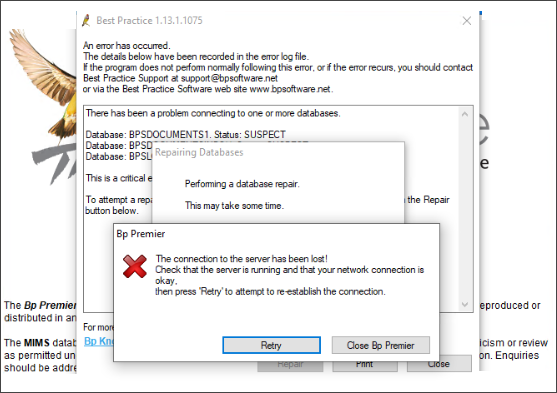
When a Suspect Database error occurs, and the Repair option is selected, a connection to the server error notification is displayed, and the Repair cannot be completed.
Workaround: Contact Bp Premier Support at 1300 40 1111, options 1, 1, 5 if any errors occur. |
Spectra SP1 Revision 1 |
79665 |
|
Remote Database |
When selecting Clinical > Unchecked reports in the patient record from a Remote Database workstation, a non-fatal callstack error will occur. Callstack Identifier:
Workaround: Unchecked reports are not available in a remote database and should not be selected. |
Not yet resolved. |
79683 |
|
Remote Database |
When a Remote Database workstation reconnects to the Bp Premier (BpInstance) database server instead of connecting to the BPSClient remote database, any patient information entered will not be saved. Workaround: Users must ensure their remote database workstation (BPSClient) has been disconnected from the Bp Premier server (BpInstance) network before entering patient information. |
Not yet resolved. |
79681 |
Spectra
|
Bp Function |
Issue |
Fixed In |
Key |
|---|---|---|---|
|
Results Import |
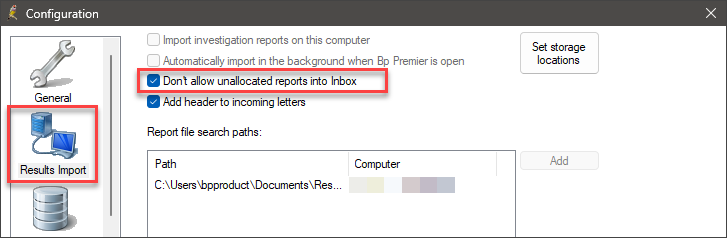
When the setting Don't allow unallocated reports into Inbox is enabled in Setup > Configuration > Results Import, the Inbox will only show unallocated reports and will not display allocated reports.
Workaround: To display all reports in the Inbox, go to Setup > Configuration > Results Import and untick the setting Don't allow unallocated reports into inbox. |
Fixed in Spectra Build: 1.13.0.1061 |
78181 |
|
Tx Control Utility |
Following the upgrade to Spectra, a small number of users reported that they are encountering the following error messages when accessing the Inbox:
Workaround: Perform the following steps on the affected machine:
See Resolve TX Control Errors for more information on installing the Tx Control Utility. |
Fixed in Spectra Build: 1.13.0.1061 |
78171 |
|
Patient Education Material |
When searching for leaflets in Patient Education Material, a fatal call stack error will occur in Bp Premier. Callstack Indicator:
|
Spectra SP1 |
78720 |
|
Waiting Room |
When an Appointment status is updated using the Legend in the Waiting Room, the appointment is incorrectly moved and assigned to the wrong user. |
Spectra SP1 |
78727 |
|
Installer |
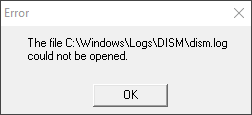
When upgrading to Bp Premier version Spectra, a small number of practices have reported a DISM error during the installation process.
Workaround: If you encounter a DISM error message during the installation process, we recommend: restarting the Server or Workstation before reinstalling Spectra. |
Fixed in Spectra Build: 1.13.0.1061 |
78769 |
|
Correspondence In |
In the Correspondence In screen, when searching for a document using Search details, no record will be highlighted after clicking the Search button. A callstack error will occur if the user selects the View or Record Note buttons. |
Not yet resolved. |
85296 |
Information correct at time of publishing (03 August 2026).



 AU
AU 