
This article describes how to activate Integrated Surcharging for HICAPS and Tyro payment integrations in version Spectra SP1 of Bp Premier and highlights how Integrated Surcharging will be incorporated into the billing and reporting workflows in Bp Premier.
As part of the payment integration changes in Spectra SP1, your practice will now have the option to activate Integrated Surcharging in Bp Premier. A surcharge is an additional fee charged to the customer in addition to the price of goods or services offered to cover the expenses of accepting card payments. By enabling surcharging at your practice, you can recover a portion or the entirety of the costs associated with accepting card payments.
In this Frequently Asked Questions (FAQ) article, you’ll find answers to your questions about regulatory responsibilities, how it works in Bp Premier, and where to get further resources to enable surcharging with your chosen payment integrator.
NOTE Surcharging is enabled and configured externally to Bp Premier, and your payment integrator manages the entire process. After enabling surcharging with your payment integrator, all you have to do is Activate Integrated Surcharging in Bp Premier and you're ready to go.
In Spectra SP1, Surcharging is only supported for Tyro and HICAPS payment integrations. Customers of CommBank Smart Health will have access to Integrated Surcharging in a future release of Bp Premier.
To activate integrated surcharging with Bp Premier, the following steps must be completed:
- Ensure that Bp Premier version Spectra SP1 or later is installed on the server and all workstations.
- Confirm that your chosen payment integrator has been configured in Bp Premier. See Configure Tyro for Direct Billing or Configure the HICAPS terminal for more information.
- On the EFTPOS terminal, enable the Surcharging feature and set the surcharge rates. Surcharging is enabled and configured externally to Bp Premier, and your payment integrator manages the entire process. After authorising surcharging with your payment integrator, all you have to do is Activate Integrated Surcharging in Bp Premier and you're ready to go.
For information on how to enable and configure Surcharging, refer to the payment integration links provided below:
IMPORTANT Best Practice Software recommends that Practices familiarise themselves with the Australian Competition and Consumer Commission’s (ACCC) Payment surcharges guide and the Reserve Bank of Australia’s (RBA) Card Payments Regulation guide before introducing a payment surcharge.
IMPORTANT You must enable and configure the Surcharging functionality with your Payment Integrator before activating Integrated Surcharging in Bp Premier.
- Log in to Bp Premier and navigate to Setup > Configuration > Payments.
- In Configure Payment Integration, select your preferred payment integrator, Tyro or HICAPS from the drop down list.
- Tick Activate integrated surcharging and click Save.
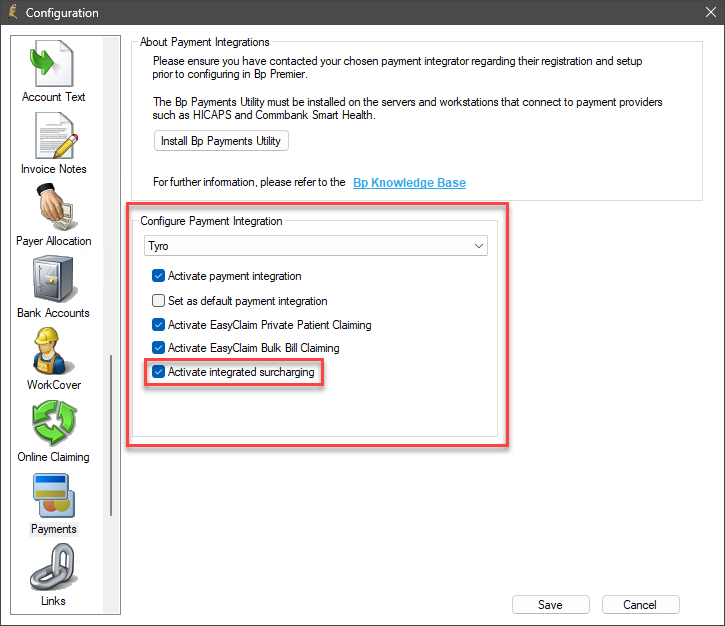
Integrated Surcharging has been activated in Bp Premier. See the next panel for information on the Integrated Surcharging Process in Bp Premier.
Given that surcharges are configured directly with the payment integrator, Bp Premier does not have visibility of the surcharge amount until the invoice is sent through to the EFTPOS terminal for payment; only after the invoice has been processed and payment has been received is the surcharge amount returned to Bp Premier.
An overview of the integrated surcharging process in Bp Premier:
- Surcharging is enabled, and the surcharge rates are set up directly with the payment integrator via the EFTPOS terminal.
- The invoice or deposit is generated as usual in Bp Premier; there is no need to add or create a custom surcharge item.
- The invoice or deposit is sent to the EFTPOS terminal for payment.
- The EFTPOS terminal processes the payment and returns the surcharge amount to Bp Premier.
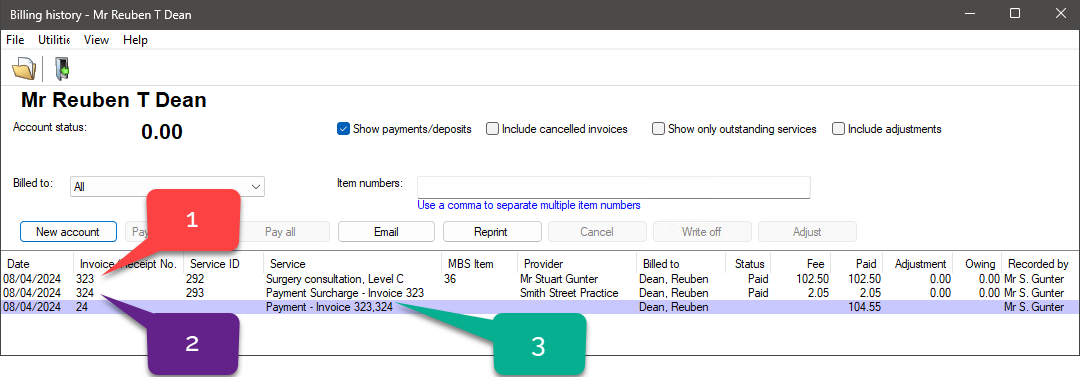
- For Invoices: the Payment Record will be created in Bp Premier and will consist of two invoices:
- The first invoice will reflect the services that were billed.
- A second invoice will be created to reflect the surcharge amount.
- As shown in Invoice 323, the patient was charged $102.50 for MBS item 36.
- The payment surcharge amount of $2.05 for invoice 323 is shown on invoice 324.
- The Payment Record comprises two invoices: Invoice 323, for the services billed and Invoice 324, which reflects the applicable surcharge.
- As shown in Invoice 323, the patient was charged $102.50 for MBS item 36.
- The payment surcharge amount of $2.05 for invoice 323 is shown on invoice 324.
- The Invoice Total shows the sum of the billed services plus the applicable surcharge.
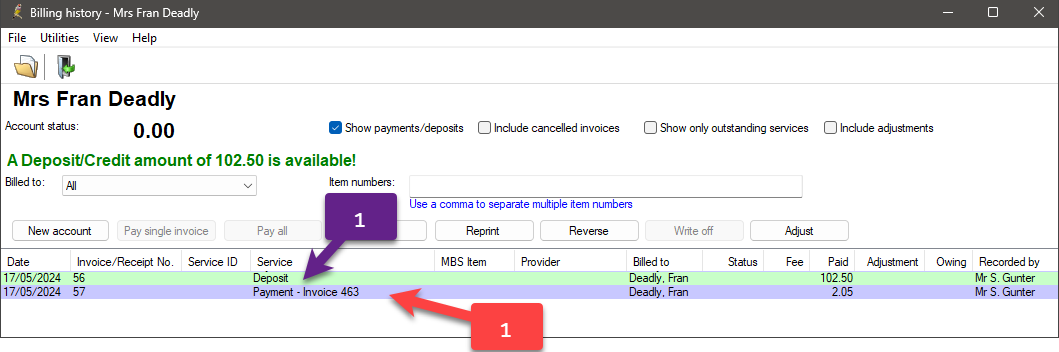
- For Deposits: The Deposit Credit and the Payment Record will be created in Bp Premier.
An example of a Invoice and Payment Record, to which a surcharge has been appended, is displayed in the image below.
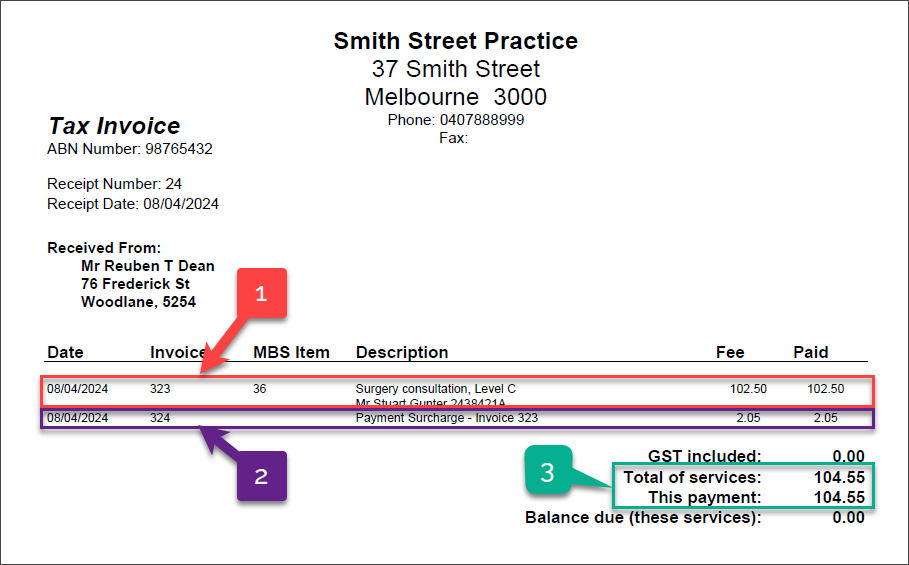
The Payment Receipt will include an additional line item to reflect the surcharge amount.
An example of a Payment Receipt, to which a surcharge has been appended, is displayed in the image below.
.
When considering surcharges and the potential implications of GST, it is important to evaluate the nature of the supply or service and determine if there is a sufficient connection. In most cases, if the supply is GST-free, the payment surcharge for credit and debit cards will also be GST-free. Likewise, if the supply is taxable, the surcharge will include GST.
Visit the Australian Taxation Office's website and access the publication Goods and Services Tax Ruling: Treatment of ATM Service Fees, Credit Card Surcharges, and Debit Card Surcharges for additional information regarding the credit and debit card surcharges and the GST considerations.
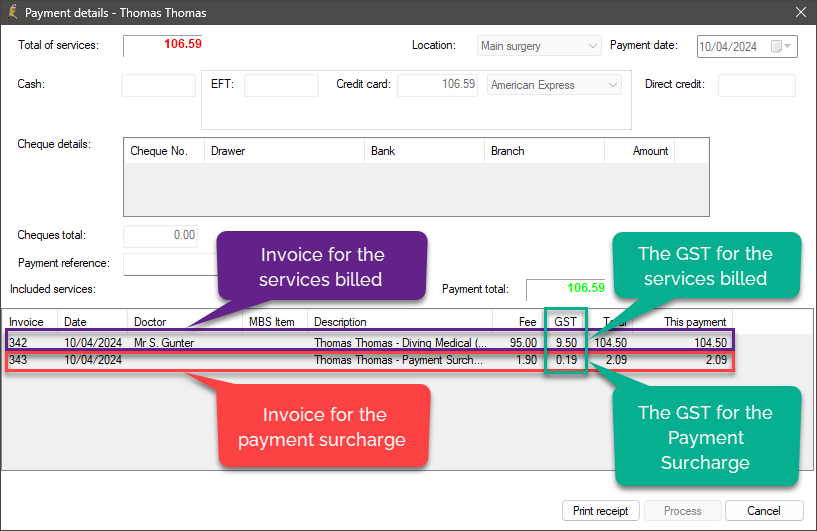
If all services billed on a single invoice are subject to GST, the Payment Surcharge will also be subject to GST.
The GST for the Payment Surcharge is calculated by dividing the surcharge amount by 11.
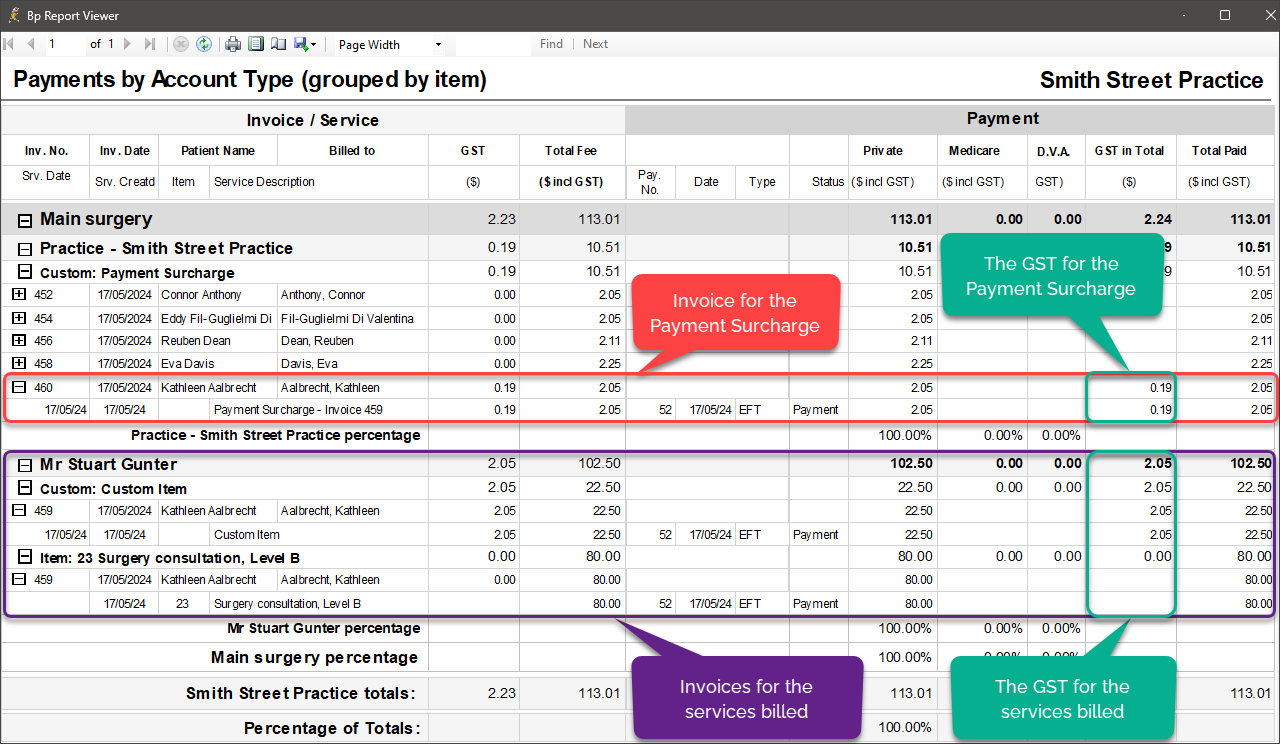
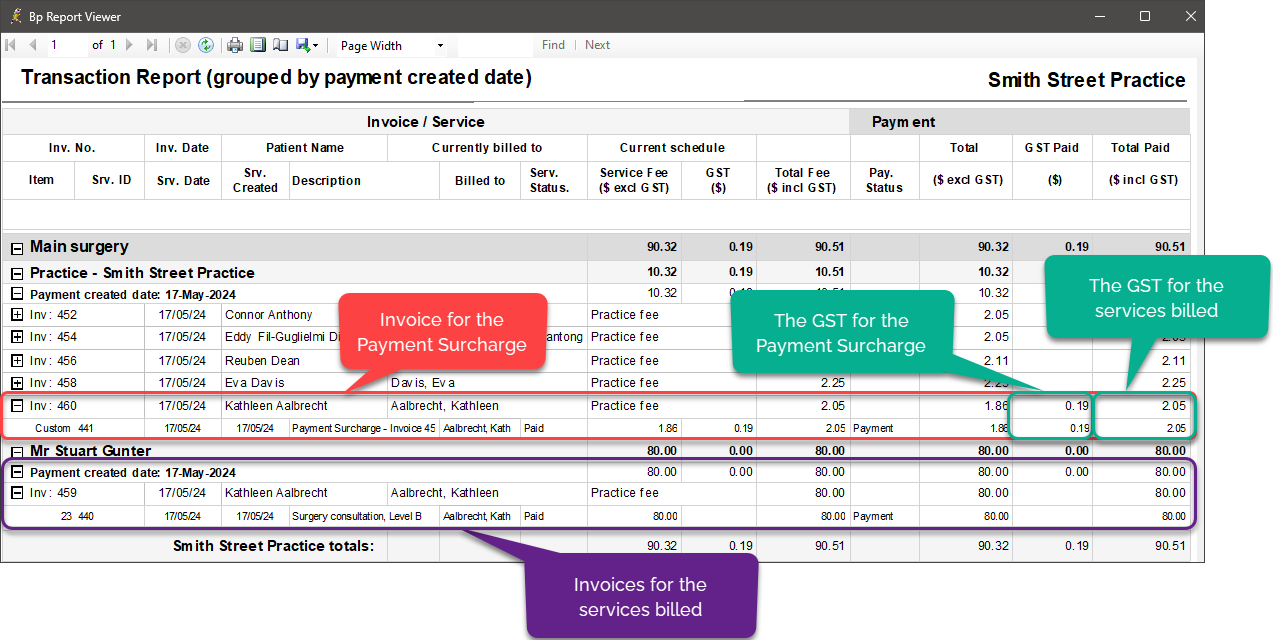
The GST for the Payment Surcharge can be seen in the following screens:
- When accessed from the account holder history or patient billing history screens, the Payment Details screen will display an invoice for the services billed as well as an invoice for the payment surcharge, in addition to the fee, GST, and total amount associated with each invoice.
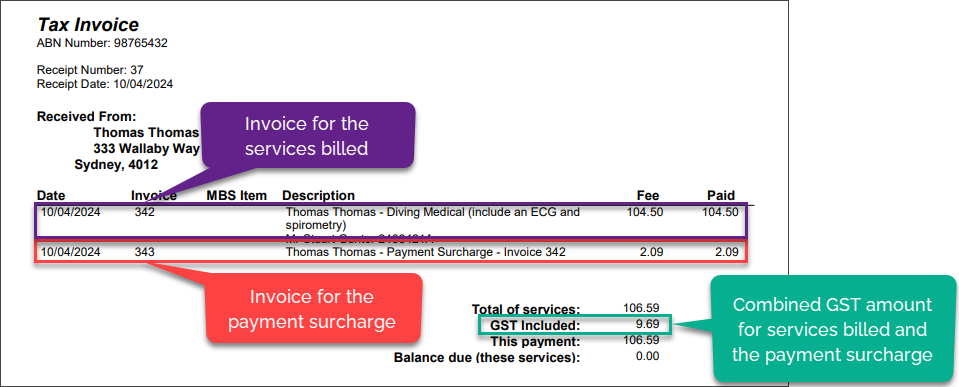
- When the Payment Receipt is printed or emailed as a PDF, it will include two invoices: one for the services billed and one for the payment surcharge.
The combined GST amount for services billed and the payment surcharge will be displayed in the GST Included field.
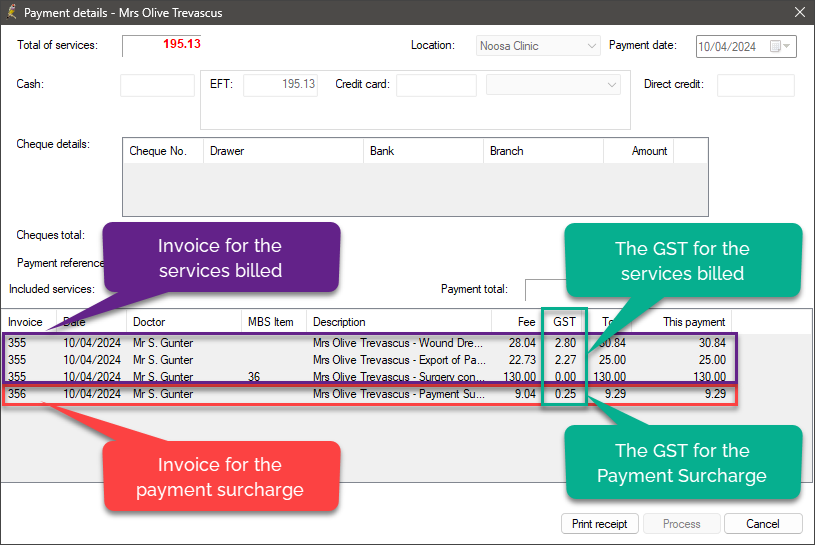
When the Pay All option is selected from the account holder history or patient billing history screens, and a single invoice featuring a mix of GST-free and GST-included items are paid for in a single transaction, the GST for the payment surcharge is calculated based on the portion of the supply that is GST-included only.
The GST for the Payment Surcharge can be seen in the following screens:
- When the Pay All option is selected from the account holder history or patient billing history screens, and a single invoice is paid for in one transaction, the following will be displayed on the Payment Details screen:
- An invoice for the payment surcharge.
- For each service billed, a separate invoice line item will be displayed.
- The fee, GST, and total amount charged will be indicated for each line item.
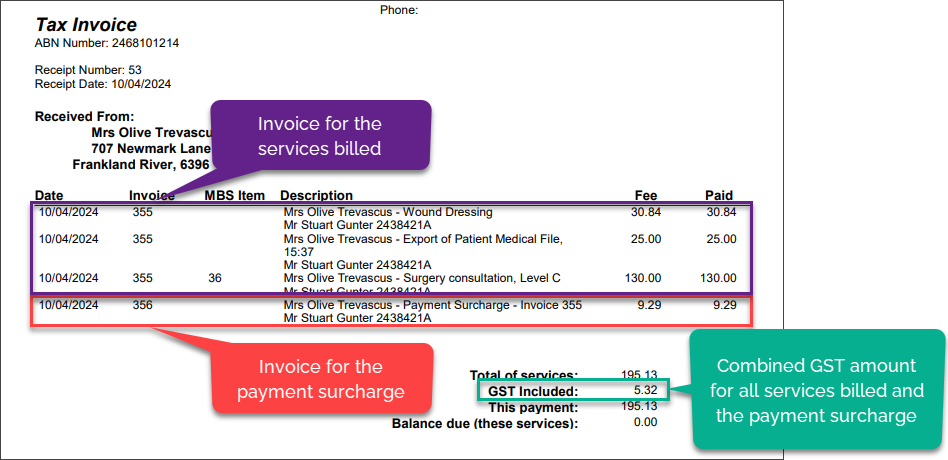
- When the Payment Receipt is printed or emailed as a PDF, it will include two invoices: one for the services billed and one for the payment surcharge.
The combined GST amount for all services billed and the payment surcharge will be displayed in the GST Included field.
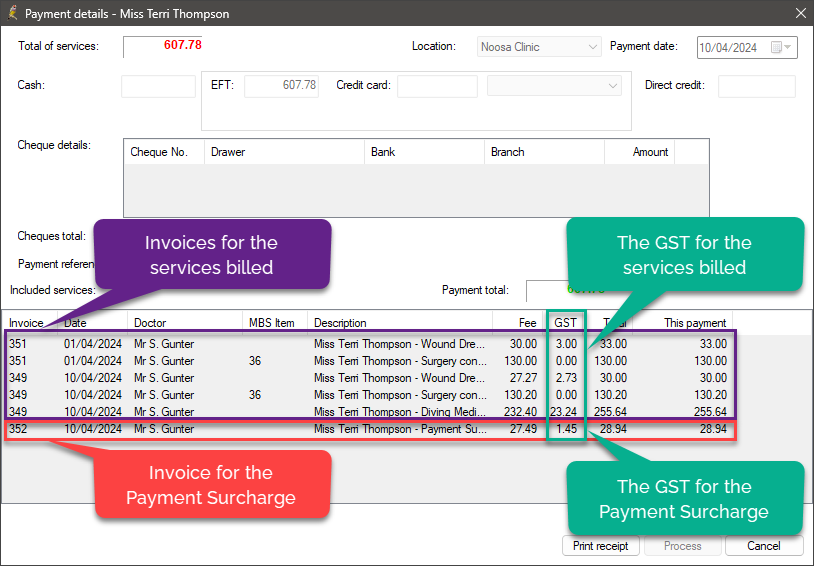
When the Pay All option is selected from the account holder history or patient billing history screens, and multiple invoices featuring a mix of GST-free and GST-included items are paid for in a single transaction, the GST for the payment surcharge is calculated based on the portion of the supply that is GST-included only.
The GST for the Payment Surcharge can be seen in the following screens:
- When the Pay All option is selected from the account holder history or patient billing history screens, and multiple invoices are paid for in a single transaction, the following will be displayed on the Payment Details screen:
- An invoice for the payment surcharge.
- For each service billed, a separate invoice line item will be displayed.
- The fee, GST, and total amount charged will be indicated for each line item.
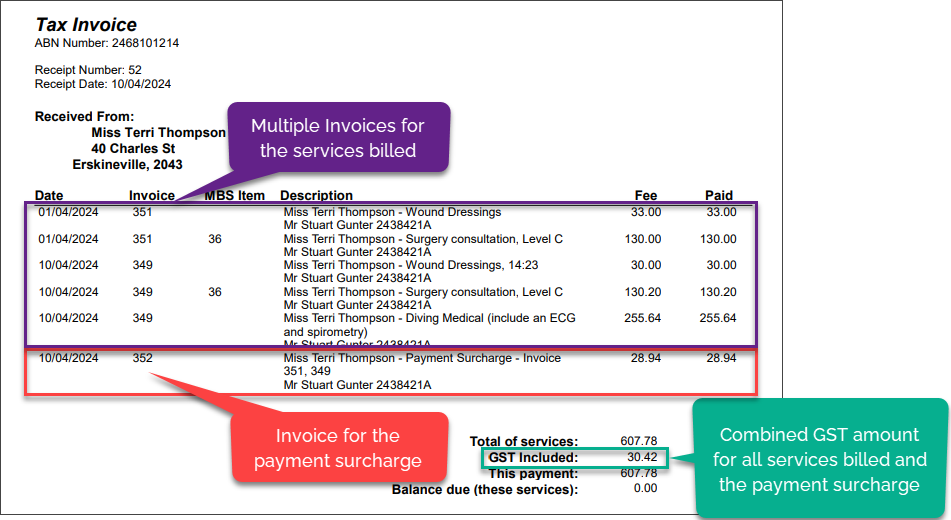
- When the Payment Receipt is printed or emailed as a PDF, it will include multiple invoices showing all the services billed and one invoice for the payment surcharge.
The combined GST amount for all the services billed and the payment surcharge will be displayed in the GST Included field.
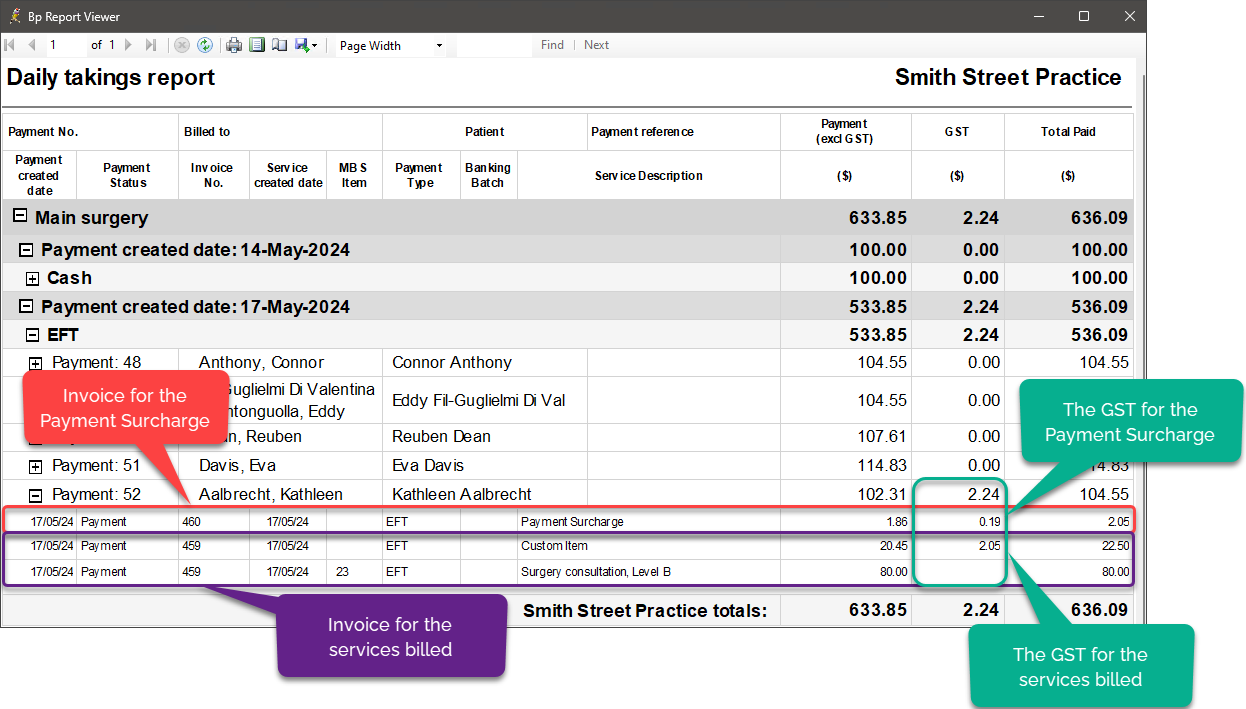
The following Management Report types will show an invoice for services billed, an invoice for the payment surcharge, and any applicable GST amounts associated with the services billed and payment surcharge:
Daily Takings Reports
The Daily Takings Report lists all payments created within the specified date period. It can be used prior to creating a banking batch to ‘balance’ the various payment methods totals against EFT machine report, Cash drawer and Cheques held.
The following Daily Taking Report types will show the invoice, payment, surcharge, and GST amounts:
- Daily takings report
- Daily taking report by payment date.
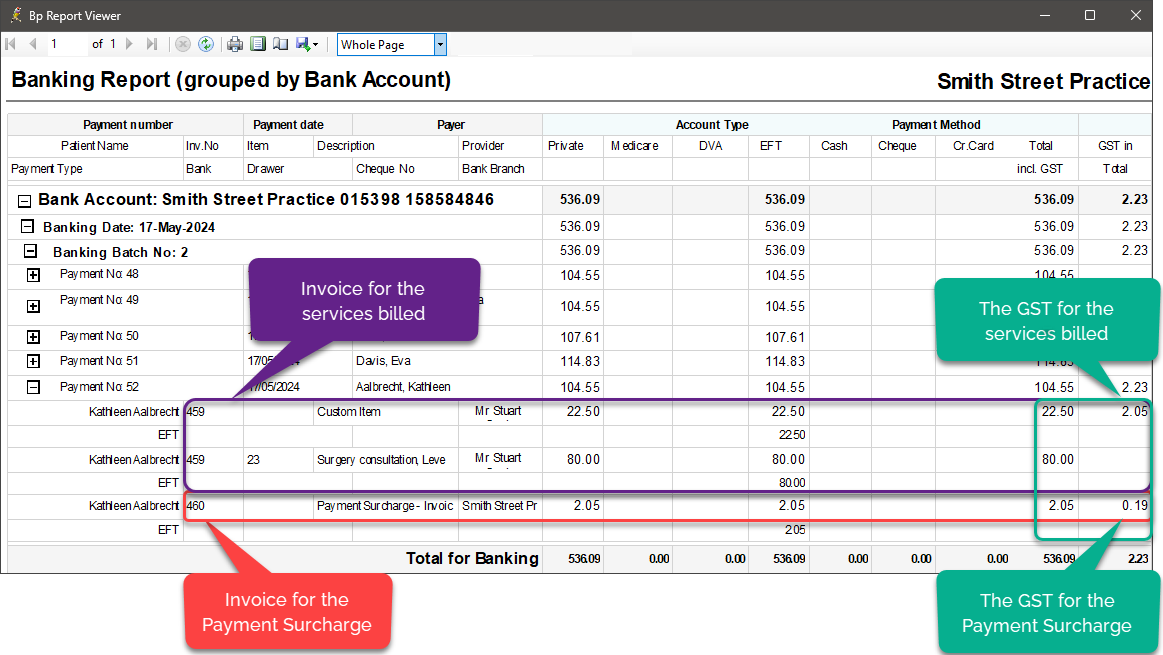
Banking Reports
This Banking Report lists all banking batches banked during the selected date range. The report is broken into two groups of columns: Account Type (such as Private, Medicare, DVA) and Payment Method (such as Cash, Cheque, EFT), with totals per group for each column.
The following Banking Report types will show the invoice, payment, surcharge, and GST amounts:
- Banking (grouped by bank account)
- Banking (grouped by bank account) using payment created date
- Banking (grouped by date)
- Banking (grouped by date) using payment created date
- Banking (grouped by provider)
- Banking (grouped by provider) using payment created date
Payments Reports
Payment reports provide information about payments and details of associated invoices and services. Reports also include details on deposits taken and allocated to Invoices. Adjustments or reversals of payments show in the period that they occurred and are taken into account in the totals.
The following Payment Report types will show the invoice, payment, surcharge, and GST amounts:
- Payments – by Account Type (grouped by item and incentive)
- Payments – by Account Type (grouped by item and schedule)
- Payments – by Account Type (grouped by item), including related services
- Payments – by Account Type (grouped by item) using Payment Date
- Payments – by Account Type (grouped by payment created date), including related services
- Payments – by Account Type (grouped by payment date)
- Payments – by Payment Method (grouped by date), including related services
- Payments – by Payment Method (grouped by payment date)
Transaction Reports
Transaction reports combine services and payments on one report. All invoices and services created or paid and payments created within the selected date range are shown with their related records, providing a single report that can be used to pay providers for work done or fees taken.
The following Transaction Report types will show the invoice, payment, surcharge, and GST amounts:
- Transaction Report (grouped by item)
- Transaction Report (grouped by item and schedule)
- Transaction Report (grouped by payment created date)
- Transaction Report (grouped by service created date)
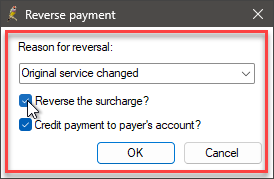
When reversing payment transactions that include a surcharge, you will be able to choose whether to reverse the surcharge payment:
- Reverse the payment and surcharge in Bp Premier
- Reverse the payment but not the surcharge in Bp Premier
NOTE When a surcharge is reversed, it should not be included in management reports as a collectable debt. Therefore, when reversing a surcharge payment, the associated surcharge invoice will be written off.
Reverse and Refund Surcharges FAQ
|
Question |
Answer |
|---|---|
|
Can we set a default practice wide setting for reversing the surcharge? |
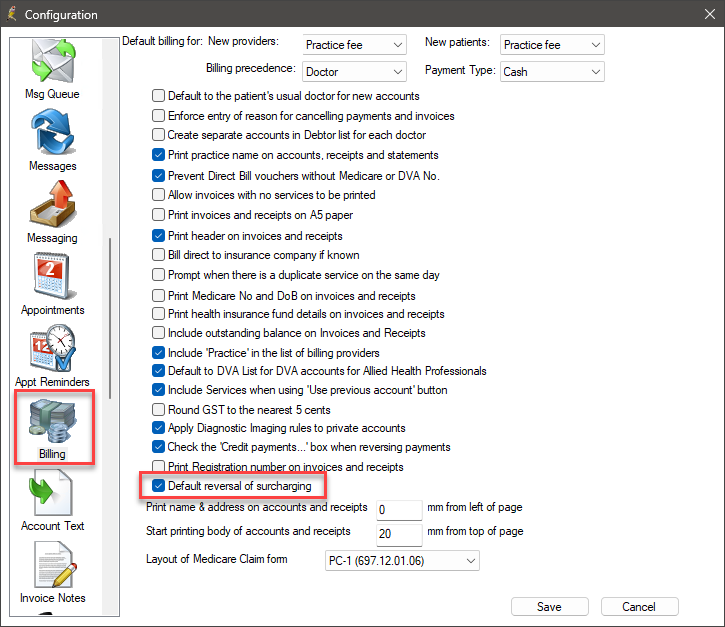
In Setup > Configuration > Billing, there is an option to enable a practice-wide setting titled Default reversal of surcharging.
When activated, the Reverse the Surcharge? check box will be automatically selected when you reverse a payment in the patient's billing history.
|
|
Is it possible to reverse a payment without crediting the patient's account and choose not to reverse the surcharge? |
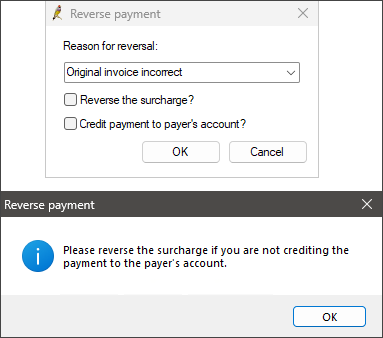
No. If both the Credit payment to payer's account? and Reverse the surcharge? check boxes are not ticked, you will be prompted with the following message: 'Please reverse the surcharge if you are not crediting the payment to the payer's account'
To cancel the invoice, you must also reverse the surcharge. |
- Select Management > Patient Billing History from the Bp Premier main screen.
- Search for and select the patient from the Billing History screen.
- Tick the Show Payments / Deposits check box at the top of the screen.
- Select the payment to be reversed and click Reverse.
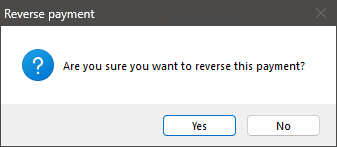
- Click Yes when Bp Premier prompts 'Are you sure you want to reverse this payment?'.
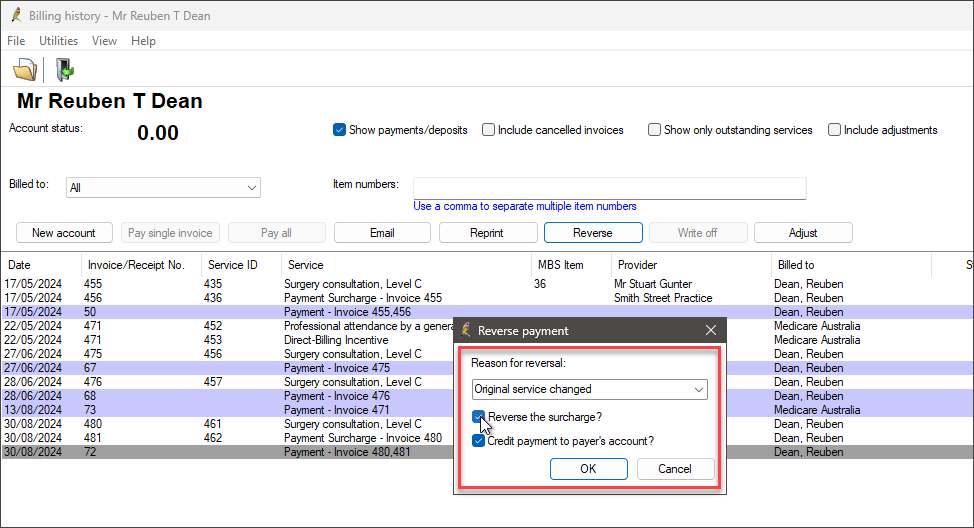
- The Reverse payment screen will appear. Enter a Reason for reversal, or select a reason from the drop-down menu.
- To reverse the payment surcharge, tick Reverse the surcharge?
- Leave the Credit payment to payer's account? check box ticked. This check box creates a Deposit in the patient's account.
- Click OK to return to the Patient Billing History screen.
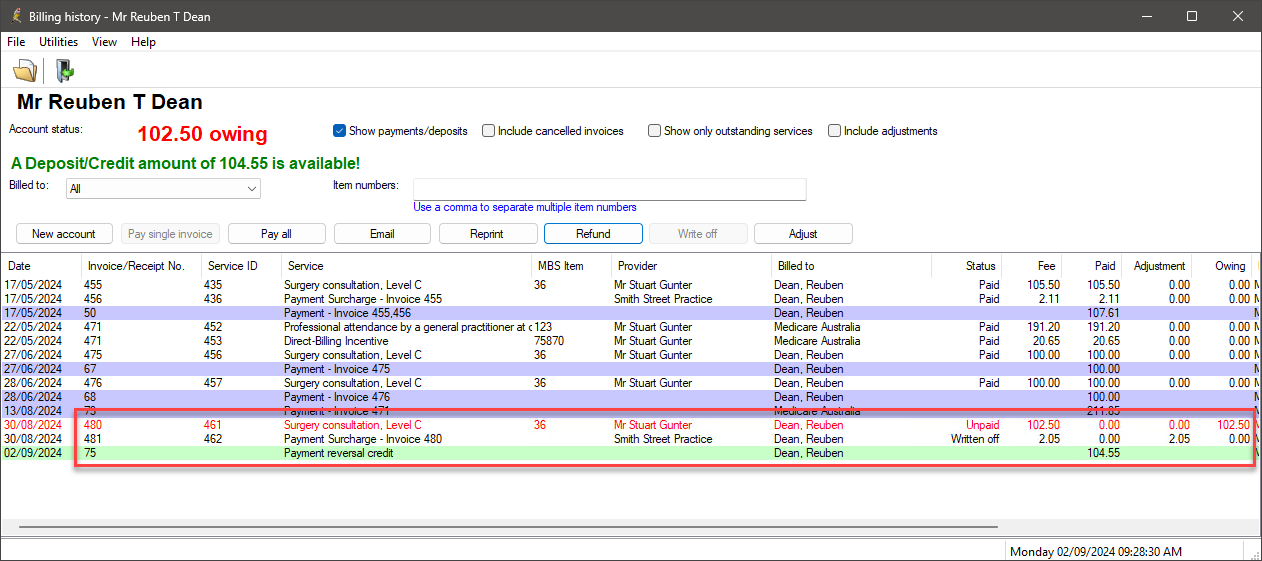
- Any related invoices will change status to ‘Unpaid’, so that the invoice can be adjusted, cancelled or payment re-entered.
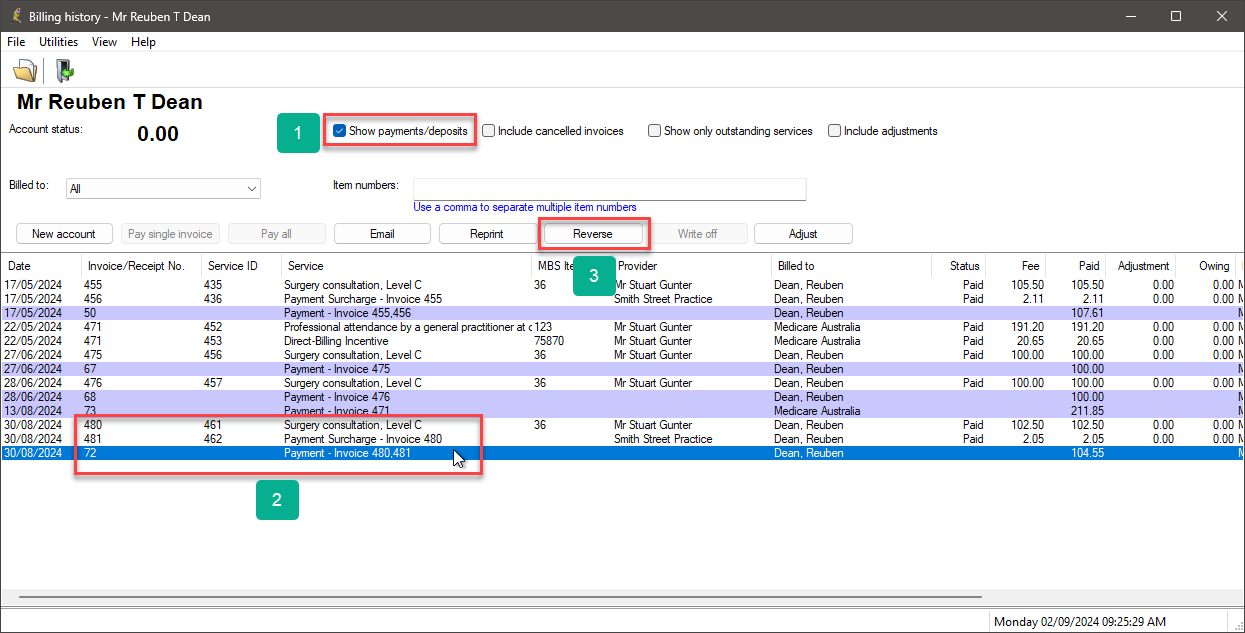
The payment surcharge invoice will be written off, and the payment reversal credit will be shaded green.
- Select Management > Patient Billing History from the Bp Premier main screen.
- Search for and select the patient from the Billing History screen.
- Tick the Show Payments / Deposits check box at the top of the screen.
- Select the payment to be reversed and click Reverse.
- Click Yes when Bp Premier prompts 'Are you sure you want to reverse this payment?'.
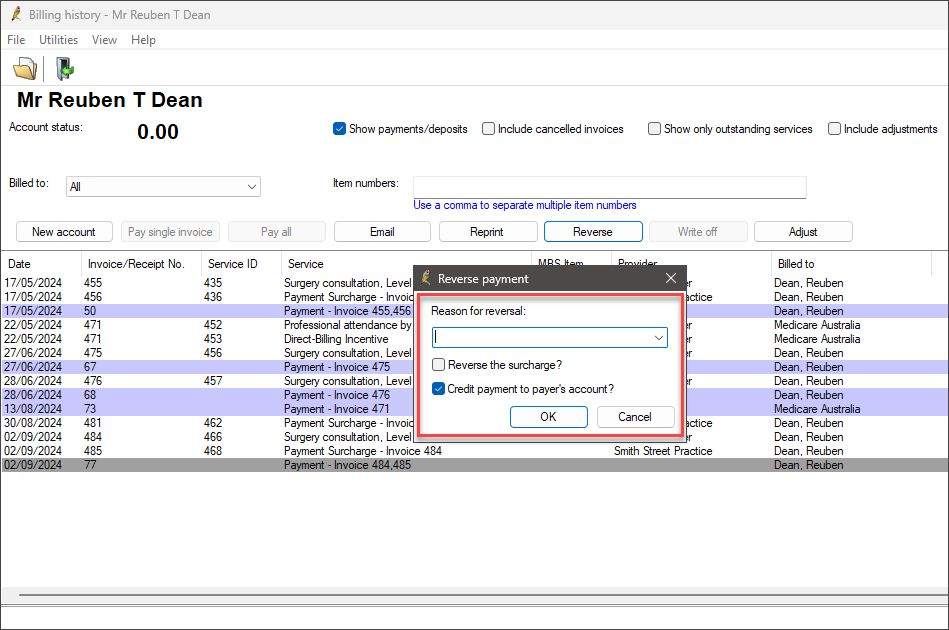
- The Reverse payment screen will appear. Enter a Reason for reversal, or select a reason from the drop-down menu.
- Leave the Reverse the Surcharge check box unticked.
- Leave the Credit payment to payer's account? check box ticked. This check box creates a Deposit in the patient's account.
- Click OK to return to the Patient Billing History screen.
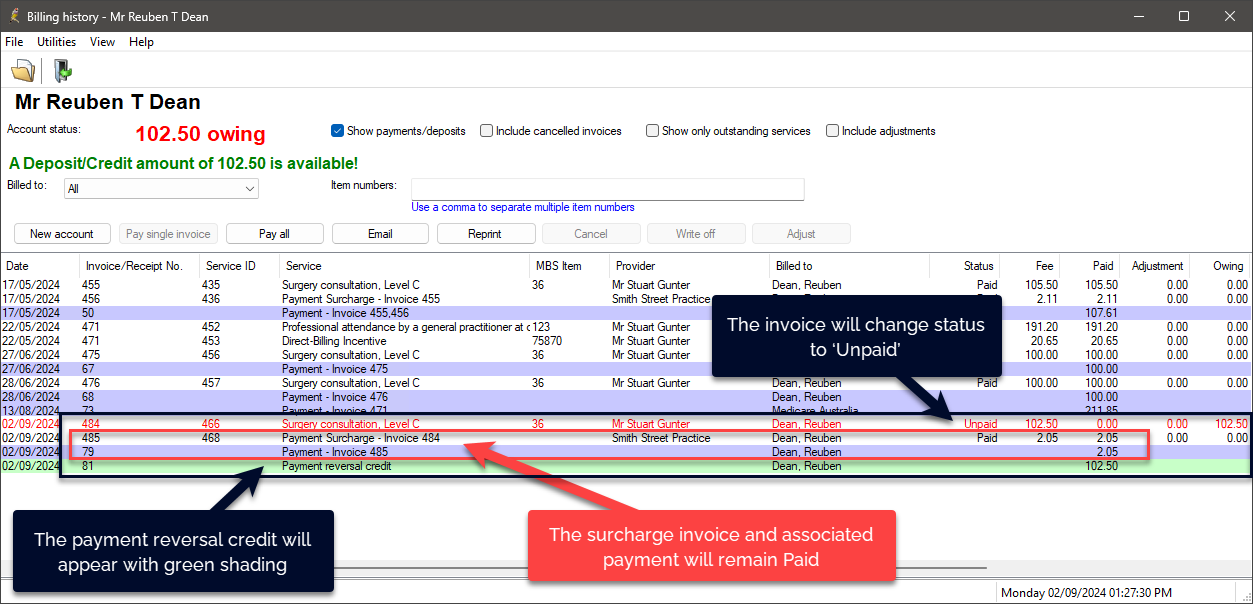
- Any related invoices will be marked as Unpaid, so that the invoice can be adjusted, cancelled or payment re-entered.
The Payment reversal credit will appear with green shading, while the Surcharge invoice and associated payment will remain paid.
Information correct at time of publishing (03 September 2024).



 AU
AU 