

Applies to:
Users of Bp Premier, Health Identifier (HI) Services, Medicare Web Services, and PRODA B2B devices.
How to install the PRODA TLS Security Update utility silently.
How to check if the PRODA TLS Security Update utility has already been run.
Notification
Services Australia has advised that support for Transport Layer Security (TLS) versions 1.0 and 1.1 will cease from 5 May 2026. The following services will only function if TLS 1.2 or later is enabled:
- Medicare/DVA
- Health Identifiers (HI) Service
- PRODA
This change is being implemented in line with advice from the Australian Signals Directorate. These services will cease to function from 5 May 2026 for any practice that continues to use TLS 1.0 or 1.1.
Without this update, errors will occur when attempting to access the listed services.
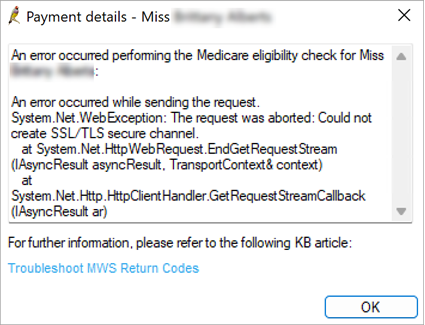
Action Required
PRODA TLS Security Update Utility
The utility must be run by a user with Administrator access on the Bp Premier database server and all client workstations.
- Close Bp Premier before running the PRODA Transport Layer Security (TLS) security update utility.
- Click here to download the utility, or download from the Bp Premier Downloads page on the Best Practice Software website under the heading Utility: PRODA Transport Layer Security (TLS) security update.
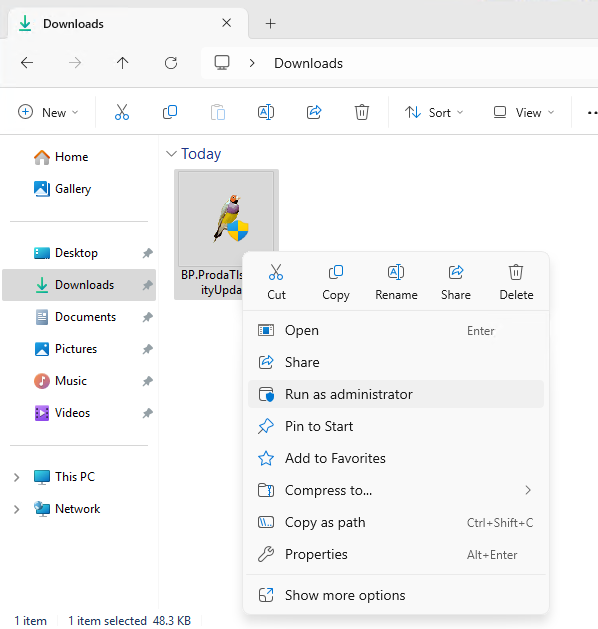
- From your Downloads folder, right-click the downloaded utility and select Run as administrator. The utility will launch.
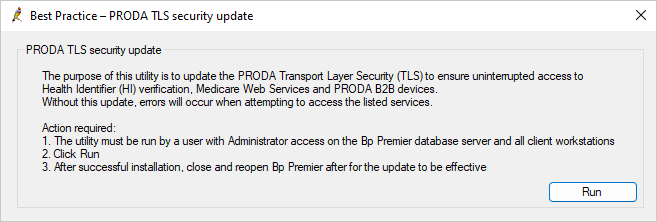
- Click Run from the PRODA TLS Security Update utility.
TIP If you are having issues with eRx or ePrescribing after the utility has been run, close Bp Premier and Run as administrator.
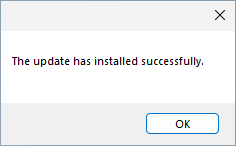
Installation successful
The update has installed successfully.
No changes required
If no changes are required or the utility has already been run, the utility will prompt the user and display the files where changes are already present.
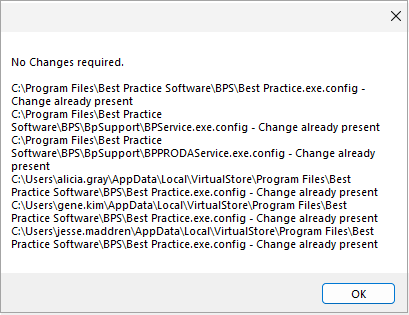
How to check for a successful installation
The utility will adjust three different config files:
- Best Practice.exe.config in C:\Program Files\Best Practice Software\BPS,
- BPPRODAService.exe.config in C:\Program FIles\Best Practice Software\BPS\BPSupport,
- BPService.exe.config in C:\Program FIles\Best Practice Software\BPS\BPSupport.
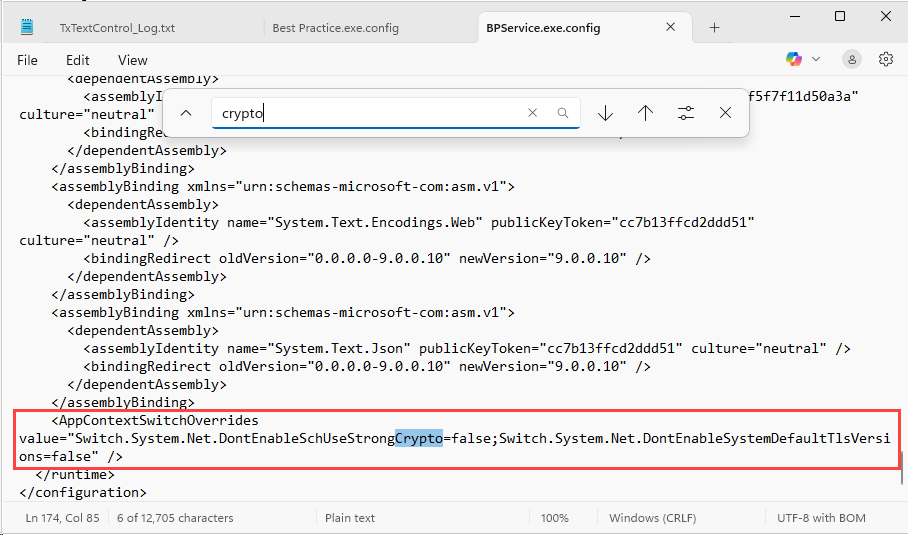
The utility will add this line to each config file:
<AppContextSwitchOverrides value="Switch.System.Net.DontEnableSchUseStrongCrypto=false;Switch.System.Net.DontEnableSystemDefaultTlsVersions=false"/>
-
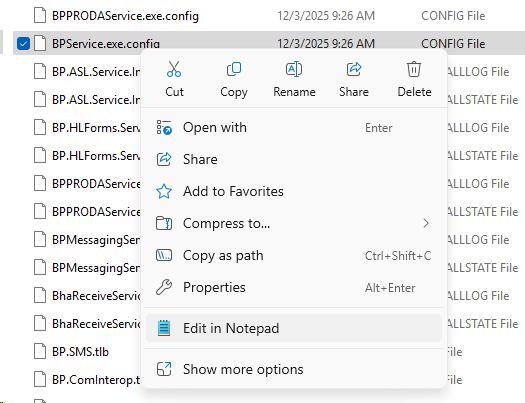
To ensure the installation has run successfully, open any of the previously mentioned files in their respective locations by right-clicking and selecting Edit In or Open with Notepad.
-
With the config file open in Notepad, hold down Ctrl+F on your keyboard to open Control Find. Search for 'crypto' and press enter on your keyboard.
-
If the <AppContextSwitchOverrides /> line containing <Crypto=false;> exists, the PRODA TLS Security utility has been run successfully.
Installation unsuccessful
An error has occurred. Contact Best Practice Premier Support on 1300 401 111 for further assistance and provide the:
-
Error message information, and

-
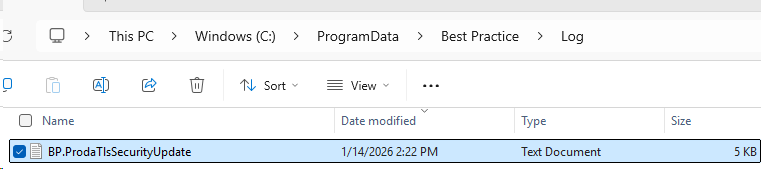
Utility logs from C:\ProgramData\BestPractice\Log\Bp.ProdaTlsSecurityUpdate.txt.
Run the PRODA TLS Security Update Utility Silently
IMPORTANT Silent installations are a non-standard installation. Users of this feature should be familiar with command line usage. Access to the C:\ folder is required.
Prerequisites:
-
The Command Prompt is to be run by a user with Administrator access.
-
Download the utility, or download from the Bp Premier Downloads page on the Best Practice Software website under the heading Utility: PRODA Transport Layer Security (TLS) security update.
Run the Utility silently from Command Prompt
-
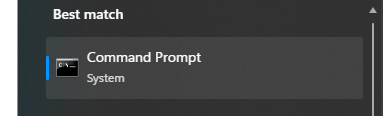
Open the Command Prompt tool by searching 'Command', 'CMD', or 'Command Prompt' from the task bar and selecting Command Prompt.
- From within Command Prompt, enter the path where the utility is located, followed by '<utilityname>.exe' and '/s'. In the example below, the utility is located in C:/Users/<UserName>/Downloads. Use backslashes \ instead of forward slashes / to separate files as forward slashes are used for command flags.
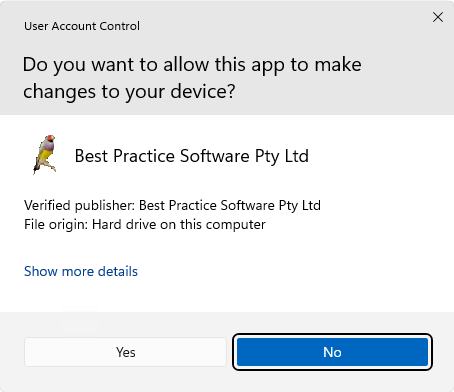
- Click 'Yes' if User Account Control asks you to allow Best Practice to make changes to your device.
- The utility has now installed silently and no further prompts will appear. To double-check if the utility has installed successfully, refer to the instructions above.

Last updated: 24 April 2026



 AU
AU 