
These release notes describe the changes made to Bp Premier since Oxford SP1 build 1.14.1.1129.
|
Release Date |
02 November 2026 |
|
Release version |
Bp Premier version Oxford SP2 1.14.2.1135. |
|
Notes last updated |
27 October 2026 |
|
Which version can I upgrade from? |
You can upgrade to version Oxford SP2 (1.14.2.1135) from Bp Premier version Orchid SP1 Revision 1 (1.12.1.1023) or later. To check the current program version that you have installed, select Help > About. |
|
Which data update do I need? |
You must install the August 2026 Data Update or later before you can upgrade to version 1.14.2.1135. However, Best Practice Software recommend making sure you have the most recent Data Update installed before you run a program upgrade. |
|
Which database and operating system versions are supported? |
Windows operating system Windows 10 Pro or higher is supported. Microsoft Windows Server 2016 and higher is supported. Microsoft SQL Server 2019 and higher is supported. |
|
When should I upgrade? |
Best Practice Software recommend running the program upgrade outside of business hours. |
|
How do I upgrade? |
Brief upgrade instructions are included in this document. |
Upgrade to Oxford SP2 1.14.2.1135
You must have the August 2026 data update or later installed before you upgrade to Oxford SP2 1.14.2.1135.
- Back up your Bp Premier database before running the upgrade.
- Synchronise all workstations in remote database mode with the Bp Premier server before you upgrade.
- Download and run the latest Drug Update on your Bp Premier server computer.
- Log all users out of the server and all clients before you upgrade.
- Download and run the Oxford SP2 1.14.2.1135 update on your server and all clients.
- Log back in to Bp Premier and resume use.
Where do I find more information?
Select  from the main screen of Bp Premier or select Help > Online from Bp Premier to open the Knowledge Base from any main screen toolbar.
XSLT WebView Deprecation
Google is removing support for XSLT (Extensible Stylesheet Language Transformations) from Chromium on 17 November 2026. Chromium is the engine behind the Google Chrome browser. Microsoft's WebView2, which is also built on Chromium, will lose this support too.
Bp Premier uses WebView2 to display CDA documents, such as those from My Health Record and UHG (Medibridge) requests. These documents are XML files that rely on an XSL stylesheet supplied by the Australian Digital Health Agency (ADHA) to display correctly.
When you open My Health Record and some result files or UHG requests in Bp Premier, you may see the following message:

"This site uses XSLT; that functionality is being removed from this browser very soon. When that happens, this page will likely no longer display correctly. You might be able to install a browser extension that allows you to continue viewing it. Otherwise, you should contact the maintainer of the site for further information."
This has been resolved in Bp Premier Oxford SP2. The update will automatically resolve the issue, there is no action to be taken.
Enhancements
Vaping history
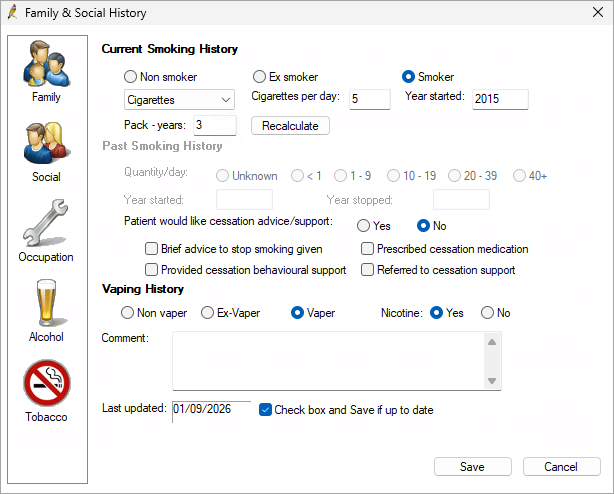
In Bp Premier Oxford SP2, users are able to record a patient's Vaping history.
- Select a current Smoking status of Non smoker, Ex smoker, or Smoker.
- Select Non vaper to disable the Nicotine field. Select Ex-vaper or Vaper to enable the Nicotine field.
- For current or ex vapers, select Yes or No for Nicotine.
- Click Save to update the patient's vaping history. The Social history section of the screen will be updated and a note will be inserted into Today's notes.
- Updates have been made to the Word Processor to add vaping values to the Smoking Status and Smoking history database value fields.
- A Vaping dropdown has been added to Utilities > Search > Family/Social for search queries relating to vaping.
- In the patient information header at the top of the Patient record, the Tobacco field will display vaping details.
Reset database password
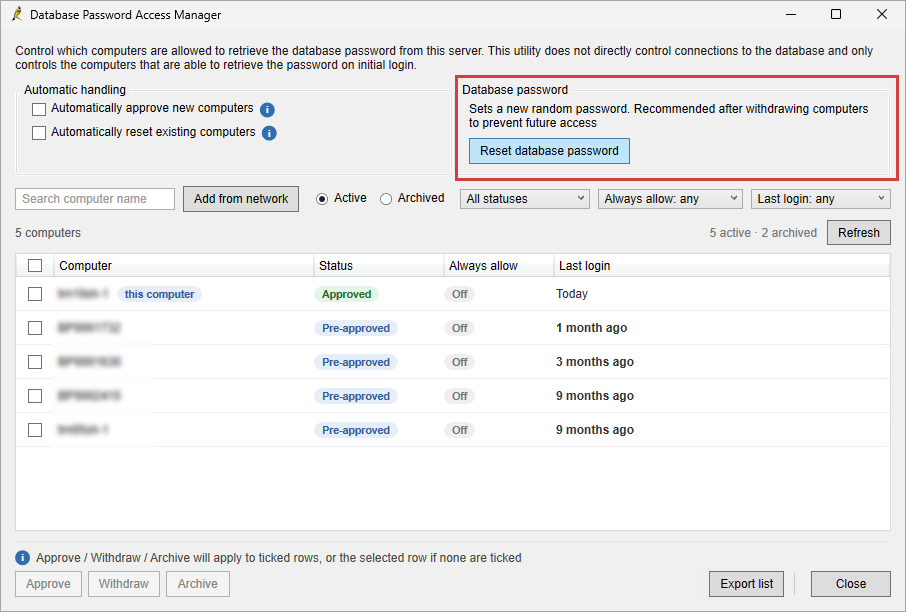
Users can now manually reset the database password to completely remove access to the database for withdrawn computers.
- From the Bp Premier main screen, go to Setup > Config > Database > Manage database password access.
- Click the Reset database password button.
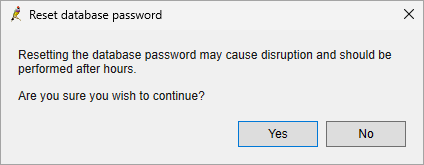
- A warning will ask if you wish to continue. Click Yes to reset the database password.
Allied Health improvements
Allied Health Practitioners are a clinical community of high importance to the health system in general, and represent an important voice amongst the practitioners and practices utilising Best Practice Software products today.
The following improvements have been made to Bp Premier to cater to the needs of our Allied Health Practitioners:
- Ability to record HPI-I number
- Non-clinical users are able to view My Health Record data
- Additional AHP user categories are able to upload an Event Summary
- Improvements made to My Health Record Access Code window.
HPI-I recording
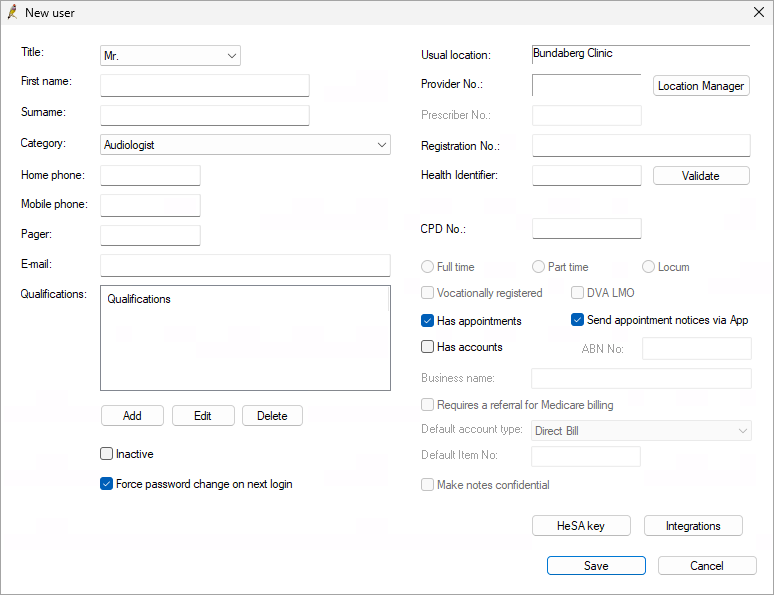
Additional Allied Health Professional (AHP) user categories of Audiologist, Counsellor, Clinical Pharmacist, and Radiographer are now able to record and validate a Health Identifier (HPI-I) in Bp Premier.
Access to My Health Record data for non-clinical users
The following table outlines which My Health Record options are available to view for different user categories.
|
Ability to record Health Identifier (HPI-I) |
My Health Record Access Permissions |
My Health Record Access to View |
|---|---|---|
|
Yes |
Yes |
|
|
No
|
Yes |
|
Event Summary upload
Allied Health Professional (AHP) user categories (Audiologist, Counsellor, Clinical Pharmacist, and Radiographer) with a validated Health Identifier (HPI-I) can now upload an Event Summary to My Health Record.
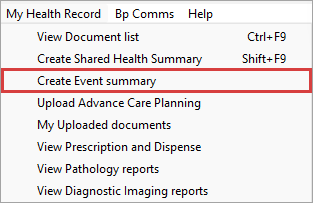
Updated Access Code window
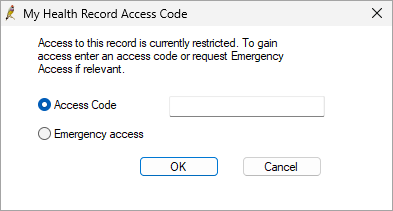
The My Health Record Access Code window has been updated to improve the Access Code and Emergency access options.
When accessing restricted patient records or documents in My Health Record, two radio buttons will be visible in the My Health Record Access Code window, with no option pre-selected.
Select the Access Code radio button to enter the code in the field. The OK button will then be enabled to transmit the code.
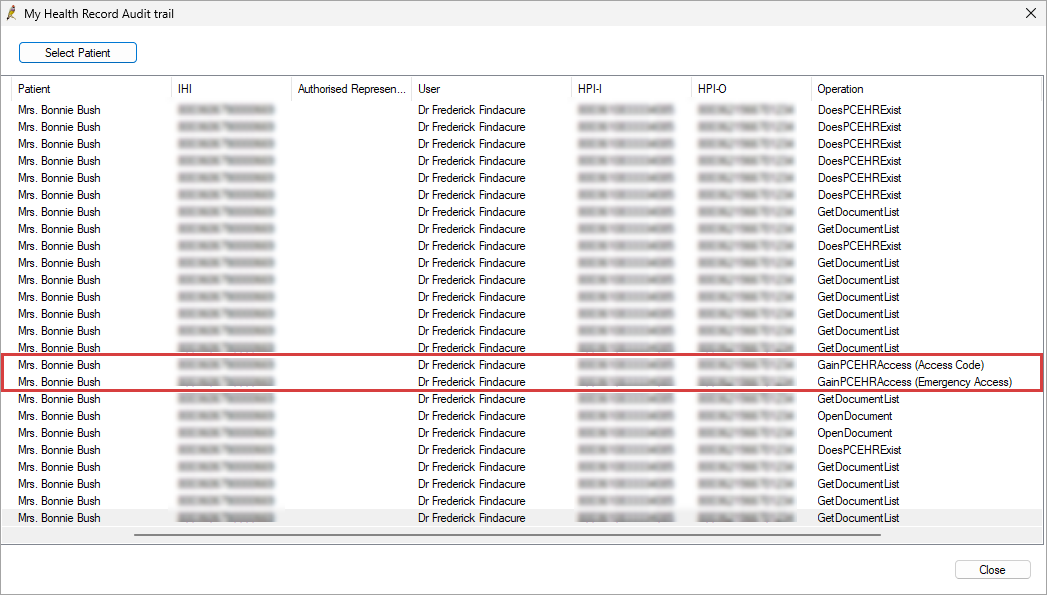
In the My Health Record Audit trail screen, the Operation column will reflect if an Access Code or Emergency Access has been used.
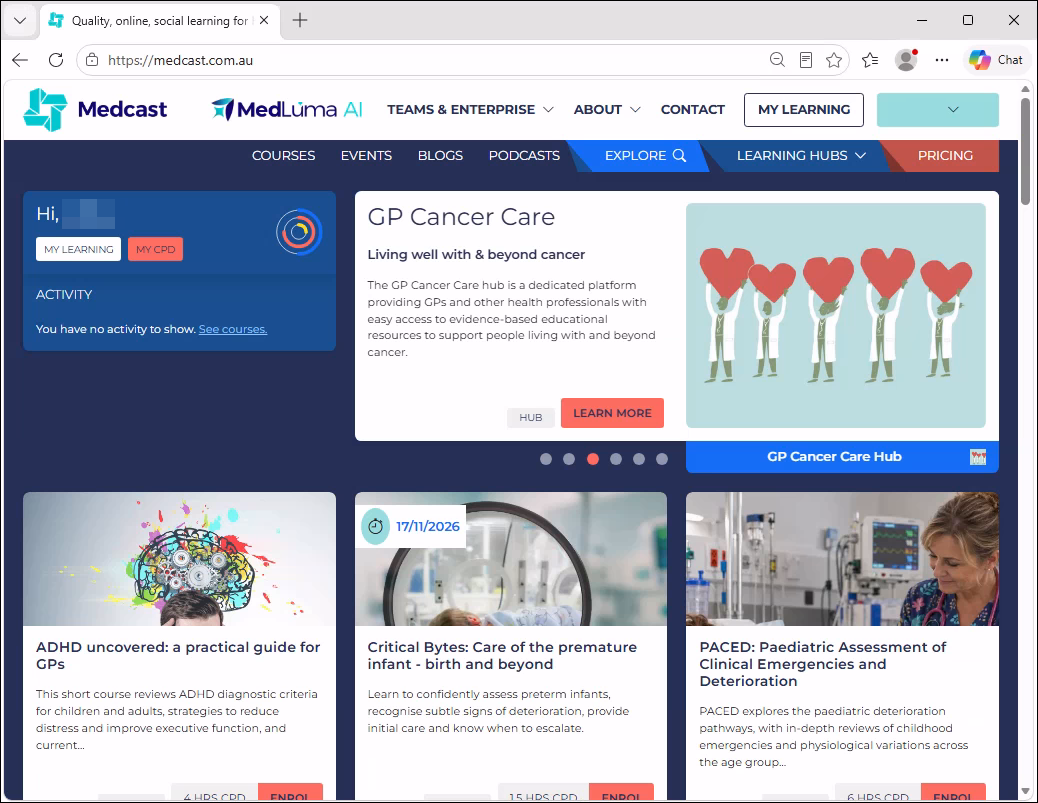
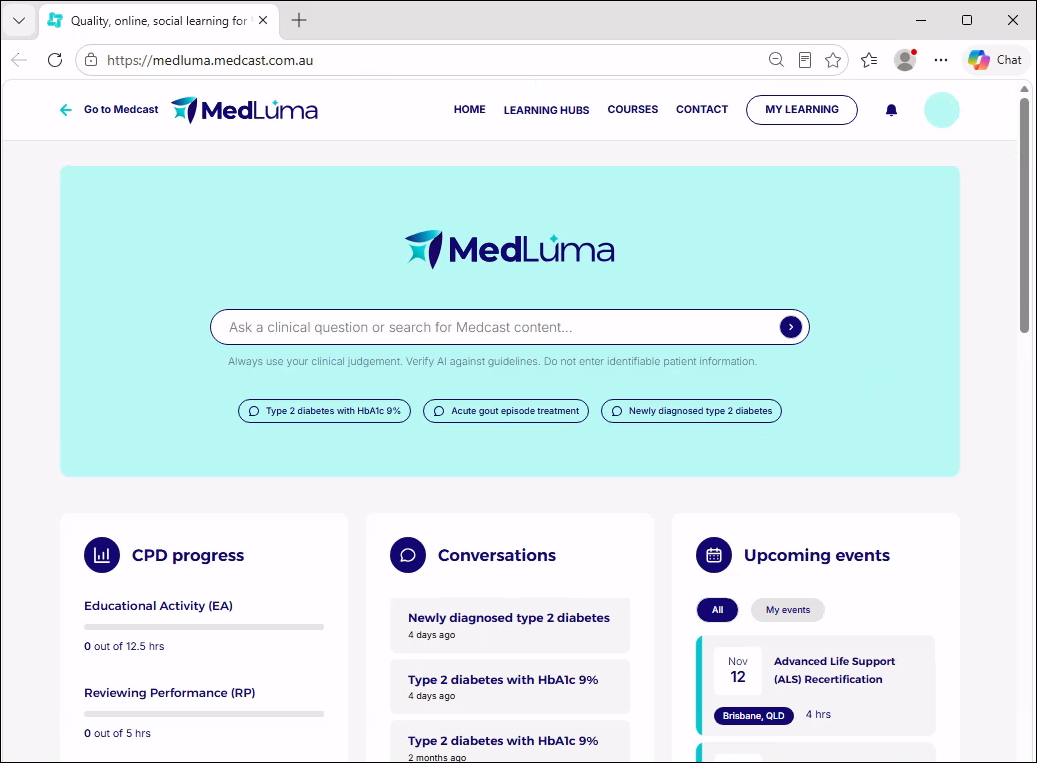
Medcast and MedLuma AI Integration
Configure Bp Premier for Medcast and MedLuma and launch the platform from the Bp Premier main screen or the patient record.
- Medcast is an Australian organisation known for delivering accredited clinical education, continuing professional development (CPD) and governed clinical guidance. It provides access to courses, webinars, learning hubs and other professional development activities. It also maintains each user’s learning history and CPD record.
- MedLuma is an AI-powered clinical knowledge and learning tool designed for Australian healthcare professionals. It helps you quickly find referenced, current and relevant medical information grounded in trusted clinical sources as you work, while supporting your ongoing learning and continuing professional development. MedLuma is designed to support, not replace, your clinical judgement. You can earn RACGP-accredited CPD hours for learning activities you complete after a MedLuma search.
|
|
|
TIP See the Knowledge Base article Medcast in Bp Premier for more information.
Compliance
ePrescribing Conformance Profile 3.0.1 and eRx REST API Updates
Updates have been made to ePrescribing in Bp Premier in accordance with the ePrescribing Conformance Profile 3.0.1 released by the Australian Digital Health Agency (ADHA). The eRx REST API has also been integrated into Bp Premier including workflows for eRx registration management inside the software.
These enhancements bolster security, improve audit capabilities, and streamline the management of prescriptions, ensuring a more efficient and safe user experience.
eRx Integration into Bp Premier
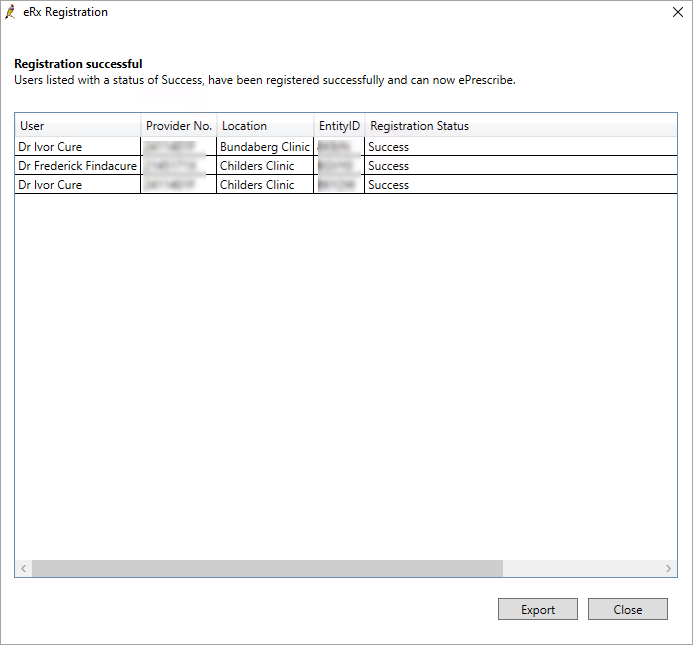
The registration process for eRx Script Exchange has been streamlined in Bp Premier Oxford SP2, significantly reducing the steps required for practices to complete outside the software.
In previous versions of Bp Premier, users needed to complete eRx registration for each prescriber via the eRx website and wait for the registration to be processed. The Entity ID was then sent to Best Practice Software, who passed it on to the practice before they could enter the information into Bp Premier in the eRx setup utility.
In Bp Premier Oxford SP2, users can now register prescribers with eRx and manage registrations via the new ePrescribing tab found in the Configuration settings.
TIP See Configure eRx Script Exchange in Oxford SP2 for further instructions.
ePrescribing Configuration tab
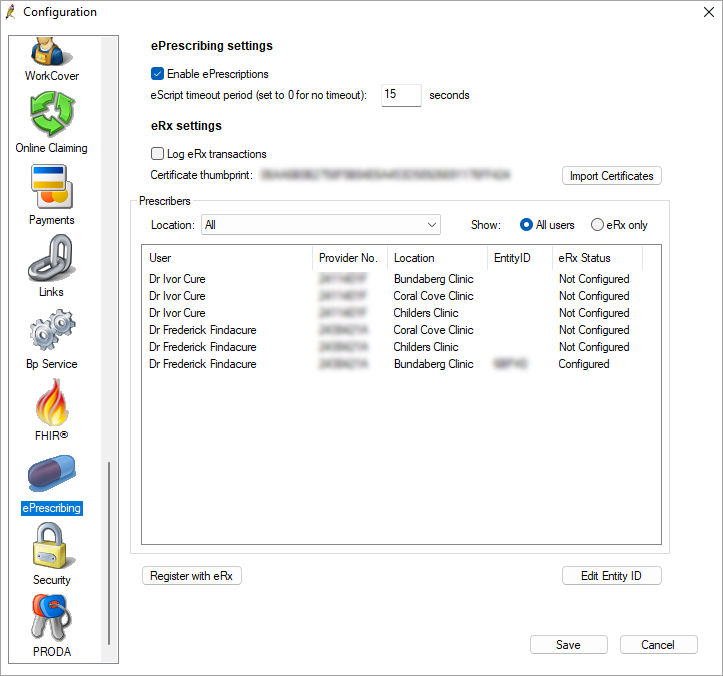
A new ePrescribing tab in the Setup > Configuration options has been added to Bp Premier.
- Under the ePrescribing settings, users can Enable ePrescriptions and set an eScript timeout period from this tab.
- Under the eRx settings, users can manage eRx registration and certificates.
Send to Pharmacy updates for NSW practices
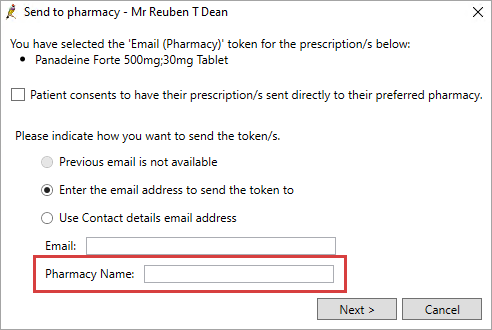
Where the prescribing facility is located in New South Wales, an additional text box field, Pharmacy Name, will be displayed. The Pharmacy Name field has a maximum limit of 50 characters.
The Pharmacy Name field is optional; the eScript will still be sent if it is not provided.
Note to Pharmacist
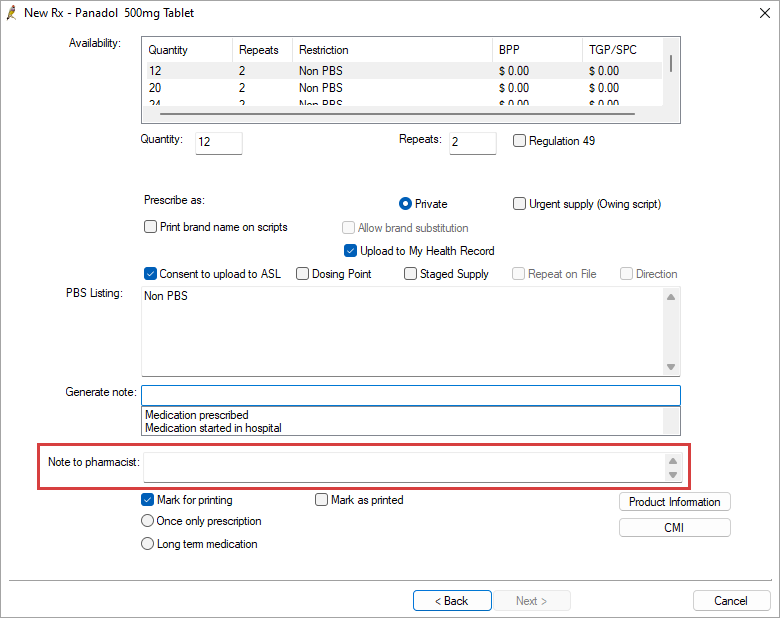
A new Note to pharmacist free text field has been added below the General note field in the third Current Rx screen. The information entered in this field is transmitted with the eScript.
User inactivity timeout
To meet the ADHA ePrescribing Conformance requirements, updates have been made to the User inactivity timeout setting in Setup > Configuration > Security including:
- The User inactivity timeout no longer has a checkbox and the input is always enabled.
- If the setting was not previously enabled the value will be set to 15 minutes by default.
- If the setting was previously enabled and set to a value greater than 120 minutes the value will be set to 120 minutes.
- If the setting is updated and the value is not between 1-120 minutes a warning will prompt the user ‘The inactivity timeout period must be between 1 and 120 minutes’.
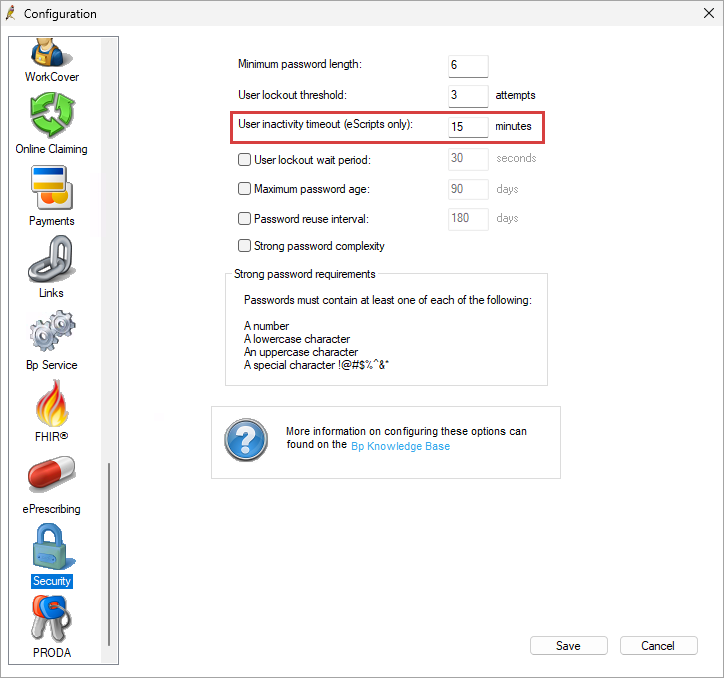
When the User inactivity timeout period is met, users will need to re-authenticate their log in details.
Details added to Verify eScript window
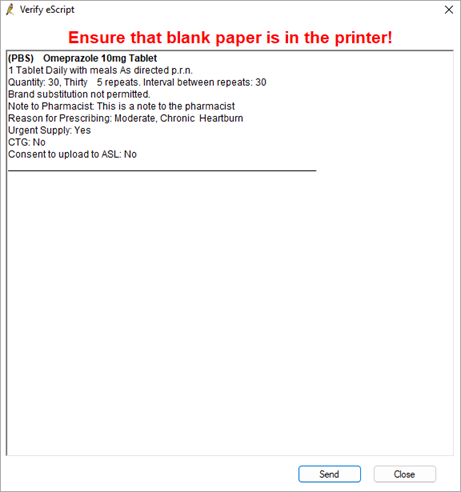
Updates have been made to the Verify eScript window to display the following fields:
|
If selected or entered |
Always displays |
|---|---|
|
|
Other enhancements
|
Bp Function |
Release Notes |
Key |
|---|---|---|
|
Assignment of Benefit |
Updates have been made to the Follow up assignment of benefit remove deceased or inactive patients from the list when the checkboxes to show inactive or deceased patients are unselected. |
83475 |
|
Bp Ports Setup Utility |
In previous versions of Bp Premier, updating ports in the Database Connector Service could only be done via a silent command line switch. This has been updated so when the Bp Ports Utility is opened, the Database Connector Service is visible for selection. |
84213 |
|
ePrescribing |
Updates have been made to eScripts in Bp Premier to allow the user to cancel repeats for a prescription when cancelling an eScript. |
83162 |
|
ePrescribing |
When sending eScript to Email (Other) or Email (Pharmacy) the cursor would not automatically default to the input field requiring users to click in the field before typing. This has been updated to place the cursor in the input field by default reducing the number of clicks a user needs to make. |
83617 |
|
ePrescribing |
Updates have been made to the error messages for Bad gateway requests, the wording will now display "There was a problem transmitting the eScript! Submission is unsuccessful because the PDS is unavailable. Would you like to print a paper prescription?". |
85048 |
|
eRx users |
The Change button has been removed from the eRx users utility as this is now configured in the ePrescribing tab from Setup > Configuration. |
83582 |
|
Inbox |
In previous versions of Bp Premier, some users experienced an issue where actioning results from the Inbox could lead to blank entries in the database. The workflow has been updated to notify the user of a failed database commit and prompt the user to try again. |
84556 |
|
Installer |
The Bp Premier installer has been updated with improvements to reduce the time it takes to run the New Reports Setup when upgrading or installing. |
84772 |
|
Lyrebird |
Updates have been made to Lyrebird Scribe in Bp Premier to improve the stability and performance of the integration. |
84519 |
|
MySL |
In previous versions of Bp Premier when selecting View MySL the screen would display only 20 records at a time. This limit has been removed to display all medications for a patient. |
83176 |
|
NASH Certificates |
Updates have been made to the way NASH Certificates are imported due to updates from Services Australia. |
78207 |
|
National Prescribing Service (NPS) |
Updates have been made to remove NPS Radar documents and NPS Patient Education Material from Bp Premier.
|
82315 |
|
Patient Details |
Updates have been made to the Health Identifier field in the Patient Details screen. Once the HI number has been validated and updated to reflect what is stored with the HI Service, the value cannot be edited. |
81858 |
|
Remote Database |
Updates have been made to the Remote Database workflow to cater for the Database Connector updates. |
83765 |
|
Security Audit |
A new column has been added to the Security Audit utility found in Bp Utilities to record user logins, prescribing schedule 8 medications, and inactivity timeouts for eScripts. |
83139 |
|
Setup Third Party Integration Utility |
Updates have been made to the Setup Third Party Integrations Utility to allow users to enable legacy partners that do not use the HALO API. The user will be prompted with the following warning: You are about to enable a legacy integration that does not use the Halo API. Legacy integrations may increase the risk of security vulnerabilities. Do you wish to continue? |
84686 |
Bug fixes
|
Bp Function |
Release Notes |
Key |
|---|---|---|
|
Assignment of Benefit |
Updates have been made to Bp Premier to allow a Post Assignment of benefit form to be sent via SMS to a mobile number entered in the free text field from the Account details screen for patients that do not have a mobile or home phone number entered in the Patient details screen. |
83211 |
|
Assignment of Benefit |
Updates have been made to Bp Premier to allow a Pre Assignment of benefit form to be sent via SMS to a mobile number entered in the free text field from the Pre-Assignment of Benefit screen for patients that do not have a mobile or home phone number entered in the Patient details screen. |
83212 |
|
Assignment of Benefit |
An error has been resolved where the Location ID on a Post Assignment of benefit form for the selected location was not correctly populated on the form. |
83469 |
|
Assignment of Benefit |
When using the Send Assignment of Benefit Form Requests Utility and sending multiple requests where the same mobile number was used, the Duplicate appointments window would appear blank and a callstack error would occur when selecting Send All forms. This error has been resolved. |
83474 |
|
Assignment of Benefit |
When Prompt for Printer was selected in the Printer settings for Assignment of benefit forms and a printed Assignment of benefit form was generated, when switching between windows the Prompt for Printer interface would be hidden, and Bp Premier would be in a locked state. This error has been resolved. |
83485 |
|
Assignment of Benefit |
When editing details of an invoice in the Account details screen accessed from Online claiming or the Patient billing history, the Assignment of Benefit fields would not function correctly. This issue has been resolved. |
83545 |
|
Assignment of Benefit |
When printing a pre or post assignment of benefit form with Prompt for printer enabled in Setup printers, Bp Premier would not prompt the user to select a printer and the default printer was used. This issue has been resolved. |
84712 |
|
Billing history |
In previous versions of Bp Premier an error would occur when attempting to email a receipt for Deposit or a Deposit reversal credit. This issue has been resolved. |
73846 |
|
Complex Accounts |
An error has been resolved for users running Bp Premier Oxford where a callstack error would occur causing Bp Premier to crash when selecting Add Another to add additional items to complex account. |
83840 |
|
Database search |
When using the Database search for Immunisations and clicking Add after deselecting an immunisation, a callstack error would occur causing Bp Premier to close. This error has been resolved. |
80788 |
|
ePrescribing |
An error has been resolved where an unexpected pharmacy name would be sent with an eScript. |
81845 |
|
ePrescribing |
Updates have been made to Bp Premier to resolve issues with ASL tokens duplicating if the service encountered errors or network issues when the token was due to refresh. This could often result in the database table growing to the point that the database size limits for SQL express were reached and clinics were unable to use Bp Premier. |
80319 |
|
ePrescribing |
An error has been resolved where the previous Pharmacy Name was transmitted with eScripts that did not have a Pharmacy Name specified. |
81845 |
|
ePrescribing |
Update have been made to Bp Premier to resolve issues with ePrescription timeouts. |
82809 |
|
ePrescribing |
An issue has been resolved where reprinting a printed eScript token from Past prescriptions when logged in as a different provider than the original prescriber would result in the reprinted eScript token being printed with the logged in provider’s details. |
84541 |
|
Immunisations |
When using the Prevnar 20 vaccine for Pneumococcus in the Childhood immunisation schedule for a patient under 8 years of age with an Ethnicity of Aboriginal and/or Torres Strait Islander, the Sequence field for the 12 month immunisation now correctly populates as 4. |
83601 |
|
HealthLink Online Forms |
When allergies/adverse drug reactions were removed from the patient record they would still populate in HealthLink Online forms. This error has been resolved. |
76937 |
|
HealthLink Online Forms |
An error has been resolved where the smoking history for a patient was incorrectly recorded in the HealthLink Online forms. |
81655 |
|
HealthLink Online Forms |
Resolved an issue that could occur in which Healthlink forms failed to load when retrieving uncompressed documents from Investigations. |
79207 |
|
Invoicing |
Workflows have been updated in Bp Premier regarding adjusting invoices:
|
83233 |
|
Invoicing |
Errors with stored adjusted claims have been resolved including:
|
83724 |
|
Location details |
When the SMS Alpha Tag field contained numerical characters in the Location details screen, any edits to this screen were prevented from being saved by a warning prompt “The SMS alpha tag can only contain characters a-z, A-Z, hyphens and spaces.” Users can now save updates to the Location details screen without issue. |
77553 |
|
Log Utilities |
When launching the View ePrescription Log or View MWS Log utilities users encountered a callstack error. This error has been resolved. |
82186 |
|
MIMS |
An error has been resolved where users where unable to access MIMS in Remote Database mode. |
84439 |
|
National Cancer Screening Registry |
When accessing the NCSR Hub from the Clinical record some users experienced an error after a Bp Premier update, “Token provided by BP Premier is invalid.” This error has been resolved. |
84709 |
|
Payments Utility |
Updates have been made to Bp Premier to resolve issues with users being unable to run the Payments Utility. |
84708 |
|
Reminders |
When creating a Reminder and entering text in the Reminder comments section that exceeded 100 characters an error would occur and the text would not be saved. Bp Premier has been updated to include a warning message “The text supplied must be less than 100 characters long” when the section contains characters over the limit. |
58289 |
|
Remote Database |
Updates have been made to Bp Premier to resolve errors that occurred when users attempted to download a Remote database. |
84085 |
|
Remote Database |
When saving from the Patient details screen in Remote Database mode users would experience an error upon clicking Save, "Invalid column name 'EnduringAOB'." this error has been resolved. |
84523 |
|
Samples Database |
Users running Oxford SP1 experienced an error when using the Samples database, "Could not find stored procedure 'BP_IsUserLockedOut'." This error has been resolved. |
84408 |
|
Waiting Room |
An issue has been resolved where Consultation notes were recorded as the incorrect provider due to the ability for a user to re-open a visit from the Waiting Room and save. Consultation notes can now only be re-opened by the user who created them. |
79001 |
Known Issues
|
Bp Function |
Issue |
Fixed In |
Key |
|---|---|---|---|
|
My Health Record |
When logged in to Bp Premier with a user account that does not have the ability to record an HPI-I number, an error will occur when attempting to access My Health Record, if it has not been previously accessed by a user with an HPI-I recorded. Workaround: A user with the ability to record an HPI-I number must open the patient's My Health Record to resolve the error. |
Not yet resolved. |
85531 |
|
HealthLink Forms |
When creating a new HealthLink form outside of the Clinical record from View > HealthLink Forms > File > New form a callstack error will occur. Workaround: Launch HealthLink forms from within the Clinical record. |
Not yet resolved. |
85428 |
|
Subpoena Tool |
The Copy To Clipboard button in the Subpoena PDF Export window does not copy the contents to the users clipboard when selected. This error is only applicable to CDA documents. |
Not yet resolved. |
85446 |



 AU
