

Applies to: Practices using Bp Premier version Oxford SP1.
Description
Bp Premier Oxford SP1 includes enhanced security measures for database access. As part of the update, a new Windows service — the Best Practice Database Connector — will be installed on your server. This ensures that every instance of Bp Premier now uses a unique database access password for each Practice, with these passwords now securely stored within the Practice environment.
What does this mean for your practice?
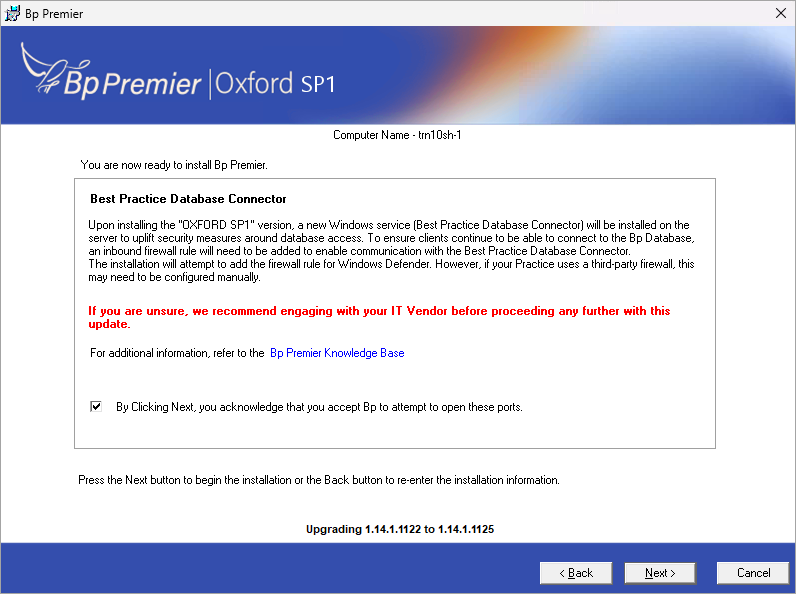
During installation, you'll see a screen referencing the Best Practice Database Connector. To keep client machines connected to your Bp Database, an inbound firewall rule needs to be added to allow communication with this service:
- If your Practice uses Windows Defender Firewall, the installer will attempt to add this rule automatically — no action needed.
- If your Practice uses a third-party firewall, this rule may need to be configured manually. If you're unsure which firewall your practice uses, or how to configure firewall rules, we recommend contacting your IT vendor before installing this update.
Resolution
Steps to be taken on the server:
- Open the Start menu on your Windows desktop and search for 'windows firewall'.
- Click to run Windows Defender Firewall with Advanced security.
- Check that Bp - Database Connector has been added and enabled in Inbound Rules.
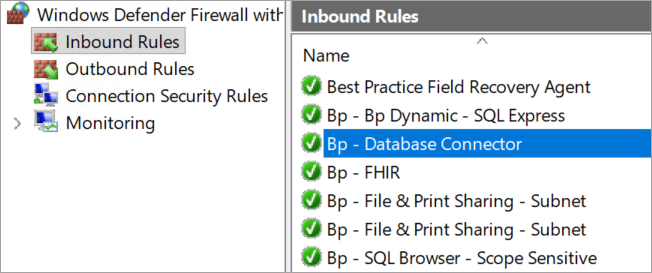
If the Bp - Database Connector rule has not been added and enabled:
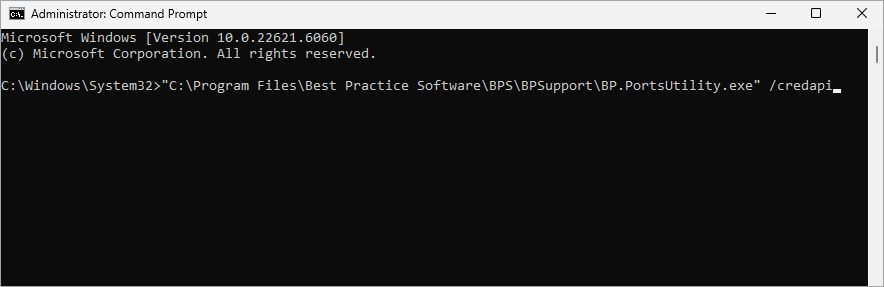
- Open the Start menu on your Windows desktop and search for 'cmd'.
- Right-click Command Prompt and select Run as Administrator.
- Type the following prompt and hit the Enter key: "C:\Program Files\Best Practice Software\BPS\BPSupport\BP.PortsUtility.exe" /credapi
- Return to Windows Defender Firewall with Advanced security and Refresh to confirm the Bp - Database Connector rule has been added.
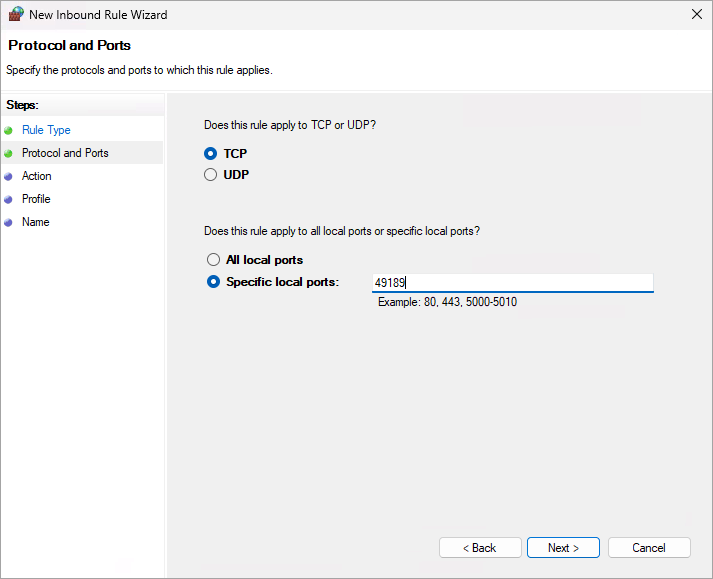
- Create a new Inbound Rule to add Allow the connection for Port 49189.
Last updated :23 September 2026



 AU
AU 