
These release notes describe the changes made to Bp Premier since Oxford build 1.14.0.1114.
NOTE This release includes the new features, enhancements, and bug fixes from the Oxford 1.14.0.1114 release as well as the changes listed in this document. Please review the Oxford release notes for more information on the changes included in these two releases.
IMPORTANT If you have already upgraded to Bp Premier Oxford SP1 Version 1.14.1.1128 you do not need to upgrade to 1.14.1.1129
|
Release Date |
04 September 2026 |
|
Release version |
Bp Premier version Oxford SP1 1.14.1.1129. |
|
Notes last updated |
18 August 2026 |
|
Which version can I upgrade from? |
You can upgrade to version Oxford SP1 (1.14.1.1129) from Bp Premier version Orchid SP1 Revision 1 (1.12.1.1023) or later. To check the current program version that you have installed, select Help > About. |
|
Which data update do I need? |
You must install the April 2026 Data Update or later before you can upgrade to version 1.14.1.1129. However, Best Practice Software recommend making sure you have the most recent Data Update installed before you run a program upgrade. |
|
Which database and operating system versions are supported? |
Windows operating system Windows 10 Pro or higher is supported. Microsoft Windows Server 2016 and higher is supported. Microsoft SQL Server 2016 and higher is supported. |
|
When should I upgrade? |
Best Practice Software recommend running the program upgrade outside of business hours. |
|
How do I upgrade? |
Brief upgrade instructions are included in this document. |
Upgrade to Oxford SP1 1.14.1.1129
You must have the April 2026 data update or later installed before you upgrade to Oxford SP1 1.14.1.1129.
- Back up your Bp Premier database before running the upgrade.
- Synchronise all workstations in remote database mode with the Bp Premier server before you upgrade.
- Download and run the latest Drug Update on your Bp Premier server computer.
- Log all users out of the server and all clients before you upgrade.
- Download and run the Oxford SP1 1.14.1.1129 update on your server and all clients.
- Log back in to Bp Premier and resume use.
Where do I find more information?
Select  from the main screen of Bp Premier or select Help > Online from Bp Premier to open the Knowledge Base from any main screen toolbar.
Bp Premier Oxford SP1 Installation Guide
This guide explains pre- and post installation procedures to ensure the success of the Bp Premier Oxford SP1 Upgrade.
IMPORTANT See Upgrade Installation Guide for more information.
Reporting Tool, Payment Utility, and NCSR Utility Updates
To support compatibility with the Oxford SP1 release, updates to the Bp Premier Reporting Tool, the Bp Payments Utility, and the NCSR Utility have been released.
The changes include compatibility with Oxford SP1, and backwards-compatibility with past Bp Premier versions including Oxford, Spectra SP1 Revision 3, and below.
NOTE Workstations requiring each utility should be updated prior to the installation of Oxford SP1 via the relevant steps below.
The Bp Premier Reporting Tool is used for multiple functions, including MyMedicare registration list updates, and nKPI and PIPQI data extraction and reporting, and is typically installed on administrator workstations.
For workstations with the tool installed, the update will be automatically applied when it is launched.
NOTE Further information on versions can be viewed on the Bp Premier Reporting Tool Release Notes page.
The Bp Payments Utility is used for HICAPS and Commbank Smart Health payment integrations, and is typically installed on administrator workstations.
For workstations with the utility installed, an auto-update prompt will be presented similar to the example below.
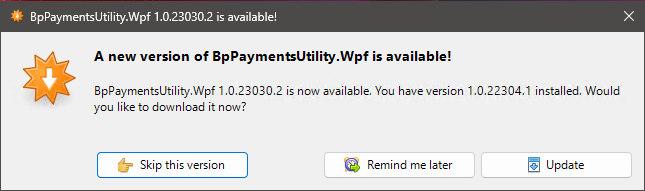
This update prompt must be accepted by a user with administrator rights to successfully download and install the new version of the Bp Payment Utility.
NOTE Further information on Bp Payment Utility versions can be viewed on the Bp Payments Utility Release Notes page.
The NCSR Utility is used for interacting with the National Cancer Screening Register, and is typically installed on clinical workstations.
On your practice server, update the FHIR API to the latest version, from Setup > Utilities > FHIR > Update FHIR API.
For workstations with the NCSR Utility installed, the update will be automatically applied when the logged in user has administrator rights.
NOTE For all other user logins, the update can be downloaded and installed by following the instructions on the Set up NCSR Integration page.
Security Update: Best Practice Database Connector
This release includes enhanced security measures for database access. As part of the update, a new Windows service — the Best Practice Database Connector — will be installed on your server. This ensures that every instance of Bp Premier now uses a unique database access password for each Practice, with these passwords now securely stored within the Practice environment.
Why this matters
Cyber-attacks targeting healthcare providers continue to increase. Strengthening database access controls is a critical step in protecting patient information. We strongly recommend applying this update – and all future security updates – as soon as practicable.
What does this mean for your practice?
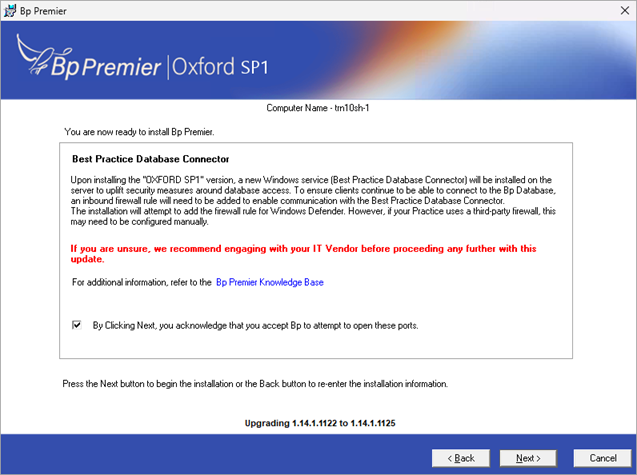
During installation, you'll see a screen referencing the Best Practice Database Connector. To keep client machines connected to your Bp Database, an inbound firewall rule needs to be added to allow communication with this service:
- If your Practice uses Windows Defender Firewall, the installer will attempt to add this rule automatically — no action needed.
- If your Practice uses a third-party firewall, this rule may need to be configured manually. If you're unsure which firewall your practice uses, or how to configure firewall rules, we recommend contacting your IT vendor before installing this update.
Manually configure firewall for Windows Defender
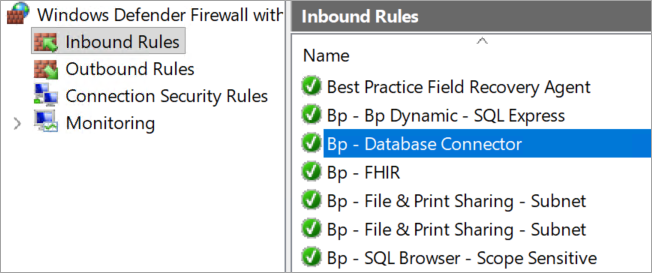
See the support article Manually configure firewall rule for Windows Defender for instruction on how to manually configure Windows Defender firewall to allow communication with the Best Practice Database Connector.
Troubleshooting the Bp Premier Oxford SP1 installation
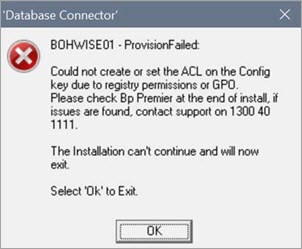
See the Troubleshooting Bp Premier Oxford SP1 Installation article for a table containing errors and warnings that the user may experience on updating to Bp Premier Oxford SP1 and the action to take.
Troubleshooting medical devices after update
Due to the security enhancements made to Oxford SP1, you may experience errors with your medical devices (such as ECG, Spirometry, or Blood Pressure devices) connecting and importing data to Bp Premier after updating.
If you experience any issues:
- Contact your device manufacturer for support in the first instance.
- Follow the instructions on the Bp Premier Knowledge Base to Use a medical device without an interface.
Enhancements
Database Password Access Manager
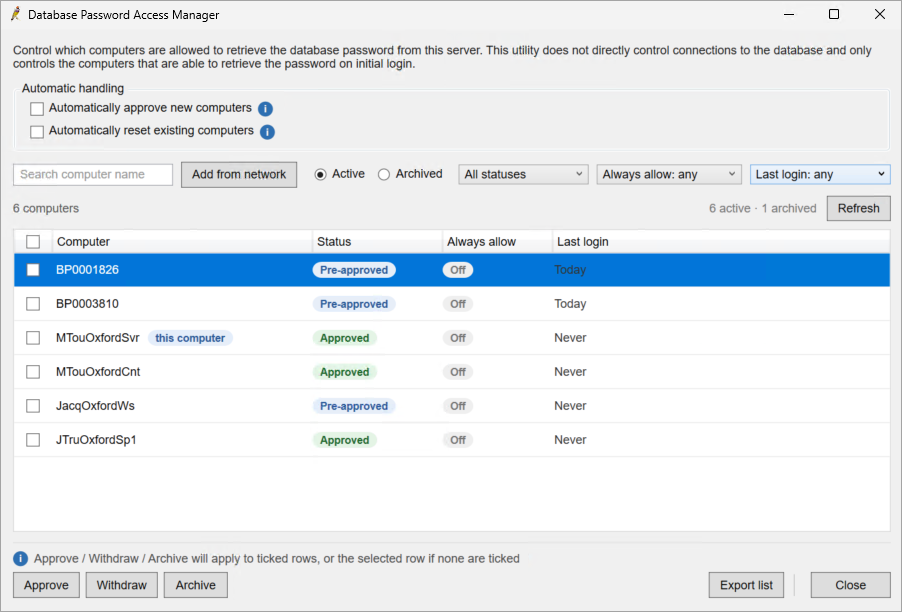
The Database Password Access Manager is a Bp Premier desktop utility that lets a practice administrator control which computers are allowed to retrieve database credentials from the server. A workstation will not be able to connect to the Bp Premier database unless they are approved in the utility.
NOTE This utility does not control access to the workstations ability to connect to the database.
Which computers will be pre-approved automatically after upgrading?
All workstations that have previously accessed the Bp Premier database within the last 12 months should be automatically in a pre-approved state upon upgrade to Oxford SP1. In some circumstances, workstations may need to be approved following their first login attempt after upgrading.
Computer names are recorded differently in the Database Password Access Manager depending on the circumstance. The computer name may be recorded as either the local client, or the virtual machine.
If you practice uses virtual machines, only the virtual machine requires approval. The local client that the virtual machine is launched from does not need to be approved in the Database Password Access Manager, though the computer name may still display in the list of computers. These local client computers can be safely archived or withdrawn.
How do I approve a computer?
When a new PC attempts to connect to the Bp Premier database, it will be in a Pending state. Once the user approves the PC from the utility, it will move to the Pre-approved state. When the PC attempts to connect to the Bp Premier database in the Pre-approved state, it will be granted access and updated to Approved.
NOTE To use the Database Password Access Manager, users must have the Setup/Configuration permission set to Add/Edit/Delete and be running a supported version of Bp Premier.
To approve a new computer:
- Launch Bp Premier on the new computer. The computer will be moved to a Pending state.
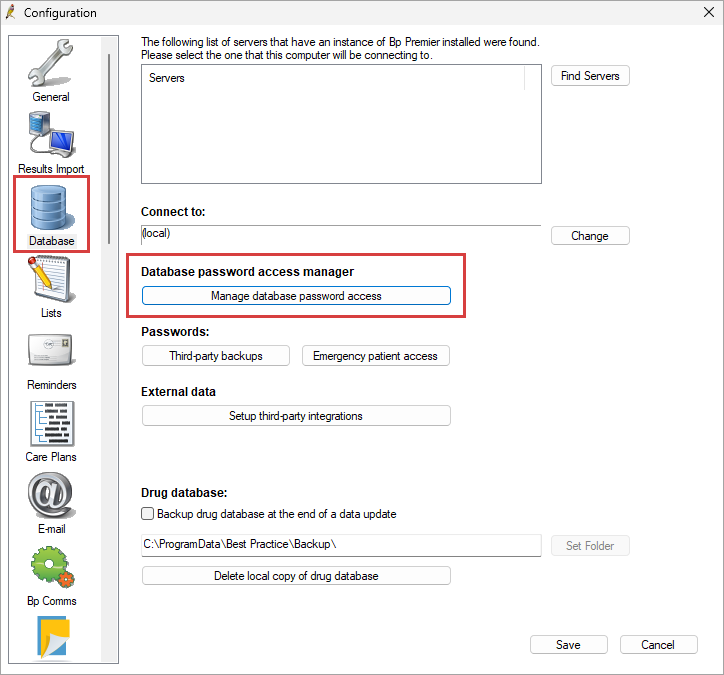
- From the Bp Premier main screen, go to Setup > Config > Database > Manage database password access.
- The Database Password Access Manager will launch.
- Locate the computer with a Pending status and click Approve. The new computer will be moved to a Pre-approved state.
- From the new computer, launch Bp Premier again. The new computer will be moved to an Approved state and can now access the Bp Premier database.

Compliance
Assignment of Benefit
On the 18th of June it was announced that the Government has revised the Assignment of Benefit transition timeline, as published here. Key changes include:
- From 1 July, verbal consent will be available in all settings for 12 months.
- Enduring assignment of benefit will be an option for all MyMedicare registered patients, residents of aged care facilities and patients attending Aboriginal Community Controlled Health Organisations (ACCHOs) from 1 July 2026 – brought forward from April 2027.
- Patients attending ACCHOs will be able to have enduring assignment at multiple sites.
- Compliance will not commence until regulatory changes are complete and will begin with prevention and education.
- There will be a 12-month transition period, during which there is a commitment to work with the profession on the changed approach and explore other options to further reduce the administrative burden on both GP practices and patients while ensuring the integrity of Medicare is maintained.
Assignment of Benefit Configuration
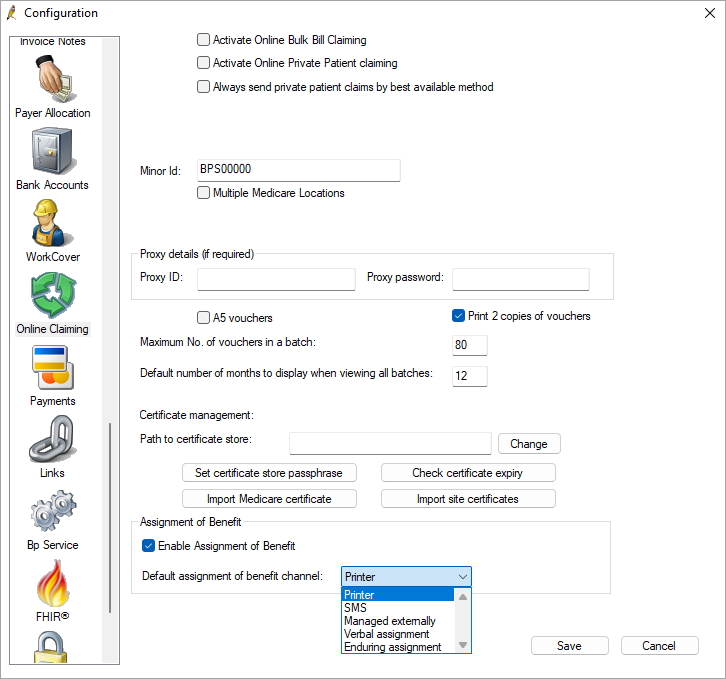
- Assignment of Benefit can now be enabled from Setup > Configuration > Online Claiming. Once enabled it cannot be disabled. Restart Bp Premier to see changes.
- Verbal and Enduring consent can now be set as the Default assignment of benefit channel. This setting has been moved from the Billing tab.
TIP See Set up Assignment of Benefit for more information.
Enduring Assignment of Benefit in the Patient Details
An Enduring Assignment of Benefit checkbox has been added to the Patient details screen. Select this checkbox if the patient has enduring assignment of benefit consent.
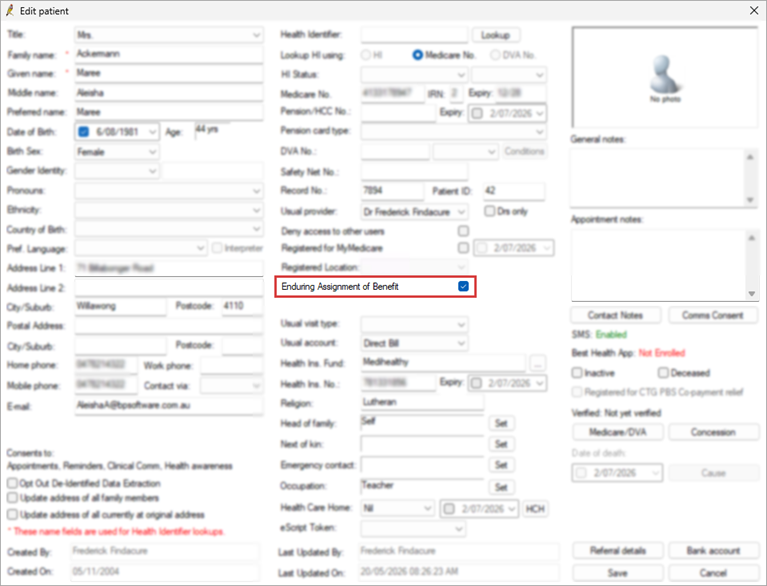
When invoicing an appointment in the Account details screen for a patient with Enduring Assignment of Benefit enabled in the patient record, the option will be selected by default.
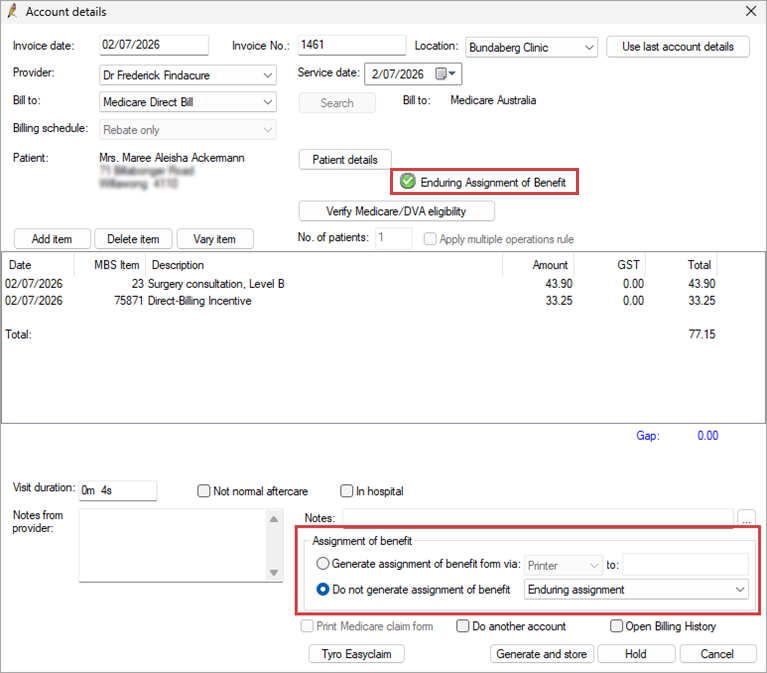
TIP See Do not generate an Assignment of Benefit form for more information.
Bug fixes
|
Bp Function |
Release Notes |
Key |
|---|---|---|
|
Assignment of Benefit |
When using the Bulk Resend utility from the Follow up assignment of benefit screen, if a mobile number was updated in the Patient details the Bulk Resend would send the form to the original mobile number that it was sent to. A prompt has been added to notify the user if a mobile number has been updated. |
83470 |
|
Assignment of Benefit |
An error has been resolved where if Prompt for Printer was disabled in the default printer settings, when printing an Assignment of benefit form the Prompt for Printer screen would still appear. |
83480 |
|
Assignment of Benefit |
When generating a printed assignment of benefit form, if the printer interface was left open and the Follow up assignment of benefit screen was closed, a callstack error would occur and Bp Premier would crash. This error has been resolved. |
83484 |
|
Assignment of Benefit |
When using the Bulk resend from the Follow up assignment of benefits screen the Contact note generated would display the Recorded by user as Practice and not the user who sent the SMS via Bulk resend. This error has been resolved. |
83556 |
|
Assignment of Benefit |
When Print 2 copies of vouchers is enabled in Setup > Configuration > Online Claiming and printing an assignment of benefit form, only one copy would print. This error has been resolved. |
83577 |
|
Assignment of Benefit |
Assignment of benefit forms were not correctly fitted to the page when printing with A5 vouchers enabled in Setup > Configuration > Online Claiming:
These issues have been resolved. |
83579 |
|
Assignment of Benefit |
If an invoice was linked to an Assignment of Benefit form with a status of Delivery failed it would stay in the All outstanding results of the Follow up Assignment of Benefit screen when the invoice was cancelled. This issue has been resolved. |
83614 |
|
Assignment of Benefit |
An issue has been resolved where Approved Pre-assignment of benefits were marked as Voided when Managed externally by a third party and processed in Bp Premier. |
83824 |
|
Assignment of Benefit |
An error has been resolved for users running Bp Premier Oxford where invoices created with a date after 01 July 2026 would not be visible when creating batches. |
83883 |
|
Assignment of Benefit |
Updates have been made to the way Assignment of Benefit requests with a Delivery failed status are handled:
|
83940 |
|
Assignment of Benefit |
When Print 2 copies of vouchers is enabled in Setup > Configuration > Online Claiming and printing an assignment of benefit form, only one copy was printed. This issue has been resolved. |
83577 |
|
Bulk Document Importer |
When scanning and merging PDF files using the Bulk Document Importer some users encountered a callstack error that would cause the BDI tool to crash. This error has been resolved. |
83650 |
|
Online Claiming |
An error has been resolved where Bp Premier would still prompt the user to generate a Post assignment of benefit form when Adjusting a claim with Assignment of Benefit disabled. |
83876 |
|
Online Claiming |
When adjusting a Medicare or DVA voucher a fatal callstack error would occur. This error has been resolved. |
84543 |
Known Issues
|
Bp Function |
Issue |
Fixed In |
Key |
|---|---|---|---|
|
Installation |
When installing Bp Premier Oxford SP1 from an ISO file and selecting a custom install location in the Wizard, the installation will fail. |
Not yet resolved. |
84871 |
|
Installation |
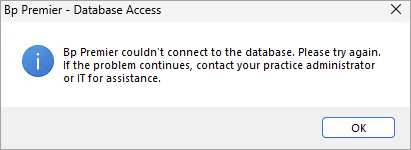
Some Bp Premier users have reported connection issues between the server and client, and between third-party integrations using the HALO link, after running the Oxford version Service Pack 1 (SP1) Program Update. "Bp Premier couldn't connect to the database. Please try again. If the problem continues, contact your practice administrator or IT for assistance."
Follow the instructions in Troubleshooting Bp Premier Oxford SP1 Installation to Run the Update Database utility and Restart Halo Link Service in sequence to resolve the issue. |
Not yet resolved. |
84825 |
|
Assignment of Benefit |
When creating an invoice or adjusting an invoice and adding item numbers that do not match the Basic Service Description in the Pre-assignment of benefit agreement, Bp Premier will prompt the user to generate a new Post assignment of benefit form but the pre-assignment of benefit is still available to select. If the pre-assignment of benefit form is selected Bp Premier will not generate a new post assignment of benefit form for the additional item numbers. |
Not yet resolved. |
84103 |
|
Assignment of Benefit |
When printing a pre or post assignment of benefit form with Prompt for printer enabled in Setup printers, Bp Premier will not prompt the user to select a printer and the default printer will be used. |
Not yet resolved. |
84712 |
|
Allergies / Adverse Drug Reactions |
When adding a new reaction and using the tab key to navigate through the available fields the tab order is not in a logical sequence. |
Not yet resolved. |
85290 |



 AU
AU 