
Oxford SP2
Release date: 02 November 2026
Vaping history
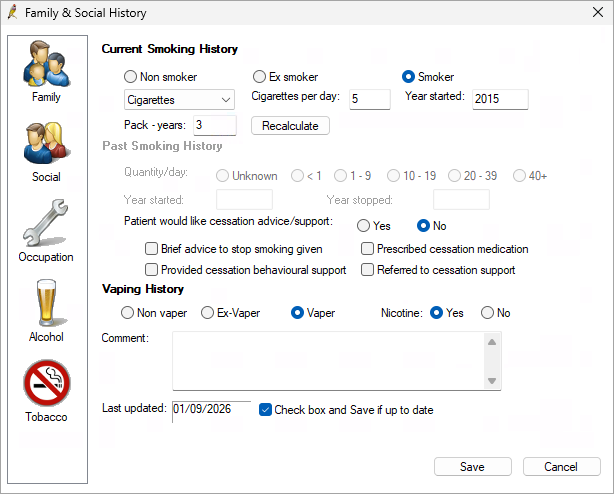
In Bp Premier Oxford SP2, users are able to record a patient's Vaping history.
- Select a current Smoking status of Non smoker, Ex smoker, or Smoker.
- Select Non vaper to disable the Nicotine field. Select Ex-vaper or Vaper to enable the Nicotine field.
- For current or ex vapers, select Yes or No for Nicotine.
- Click Save to update the patient's vaping history. The Social history section of the screen will be updated and a note will be inserted into Today's notes.
- Updates have been made to the Word Processor to add vaping values to the Smoking Status and Smoking history database value fields.
- A Vaping dropdown has been added to Utilities > Search > Family/Social for search queries relating to vaping.
- In the patient information header at the top of the Patient record, the Tobacco field will display vaping details.
Reset database password
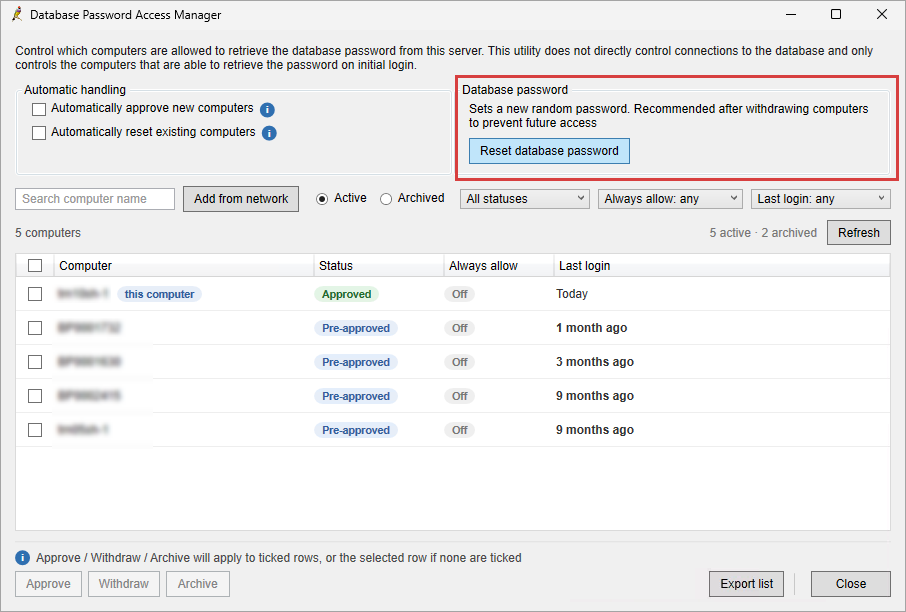
Users can now manually reset the database password to completely remove access to the database for withdrawn computers.
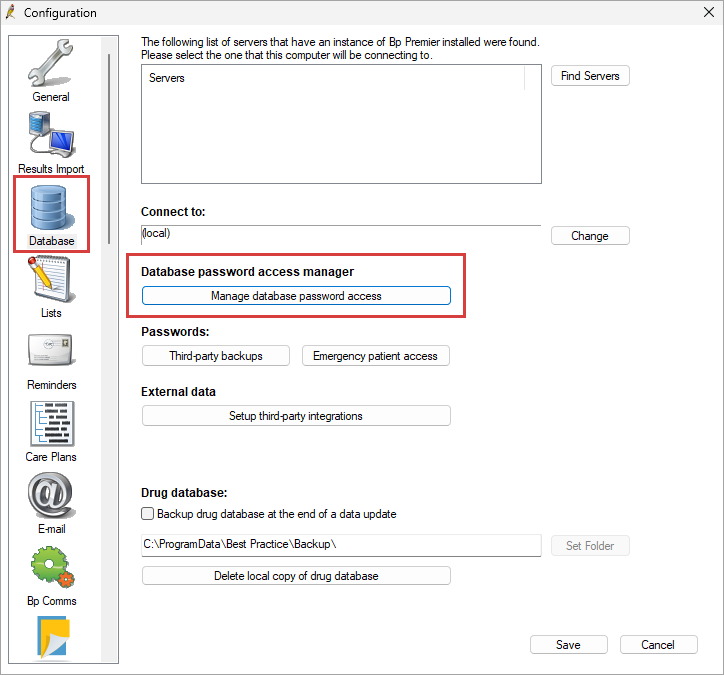
- From the Bp Premier main screen, go to Setup > Config > Database > Manage database password access.
- Click the Reset database password button.
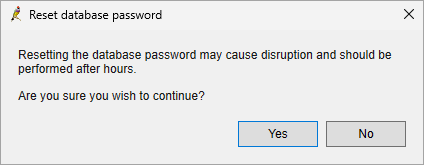
- A warning will ask if you wish to continue. Click Yes to reset the database password.
Allied Health improvements
Allied Health Practitioners are a clinical community of high importance to the health system in general, and represent an important voice amongst the practitioners and practices utilising Best Practice Software products today.
The following improvements have been made to Bp Premier to cater to the needs of our Allied Health Practitioners:
- Ability to record HPI-I number
- Non-clinical users are able to view My Health Record data
- Additional AHP user categories are able to upload an Event Summary
- Improvements made to My Health Record Access Code window.
HPI-I recording
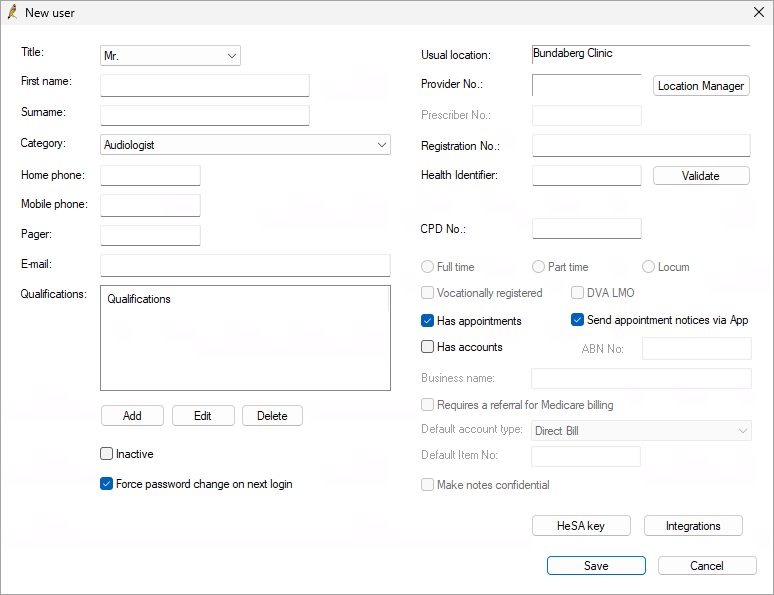
Additional Allied Health Professional (AHP) user categories of Audiologist, Counsellor, Clinical Pharmacist, and Radiographer are now able to record and validate a Health Identifier (HPI-I) in Bp Premier.
Access to My Health Record data for non-clinical users
The following table outlines which My Health Record options are available to view for different user categories.
|
Ability to record Health Identifier (HPI-I) |
My Health Record Access Permissions |
My Health Record Access to View |
|---|---|---|
|
Yes |
Yes |
|
|
No
|
Yes |
|
Event Summary upload
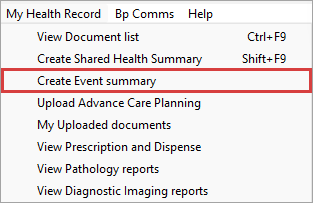
Allied Health Professional (AHP) user categories (Audiologist, Counsellor, Clinical Pharmacist, and Radiographer) with a validated Health Identifier (HPI-I) can now upload an Event Summary to My Health Record.
Updated Access Code window
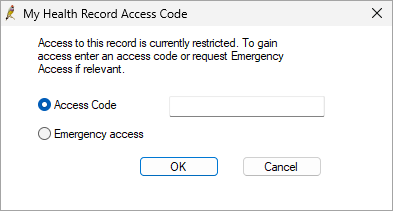
The My Health Record Access Code window has been updated to improve the Access Code and Emergency access options.
When accessing restricted patient records or documents in My Health Record, two radio buttons will be visible in the My Health Record Access Code window, with no option pre-selected.
Select the Access Code radio button to enter the code in the field. The OK button will then be enabled to transmit the code.
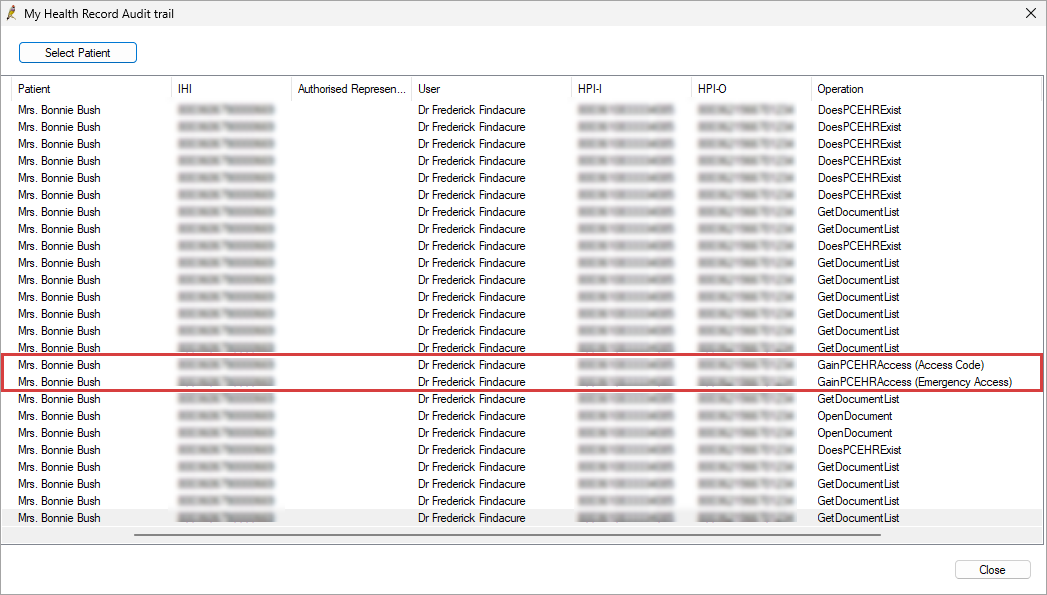
In the My Health Record Audit trail screen, the Operation column will reflect if an Access Code or Emergency Access has been used.
Medcast and MedLuma AI Integration
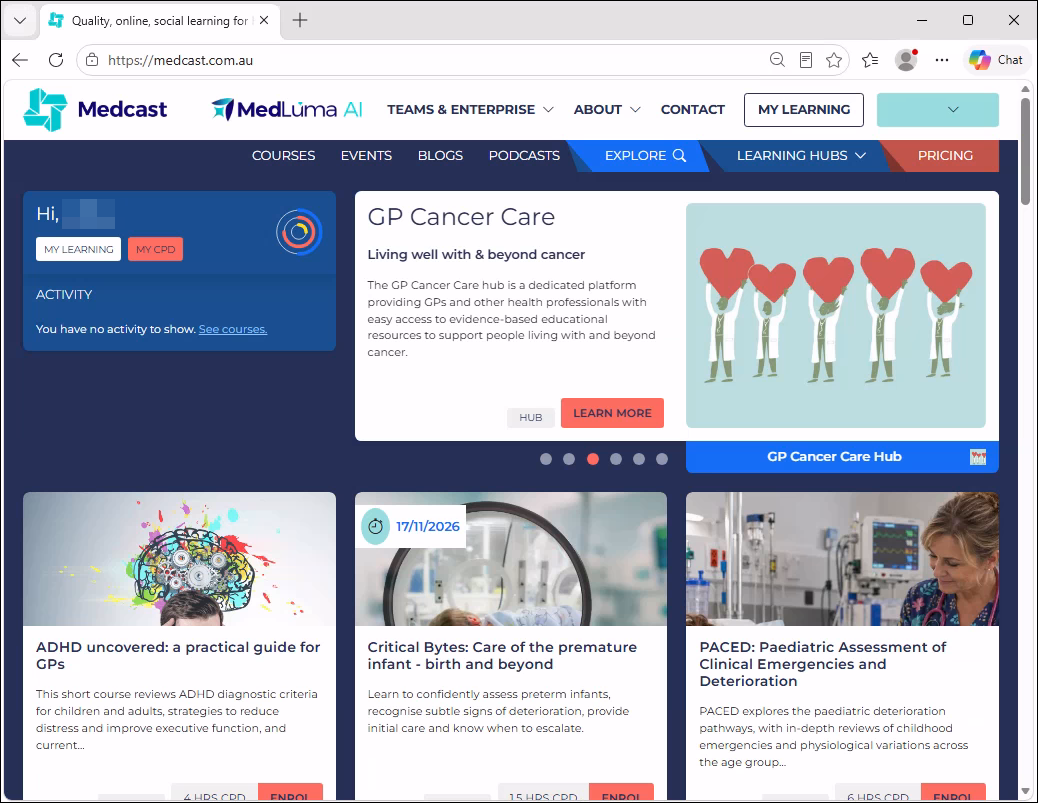
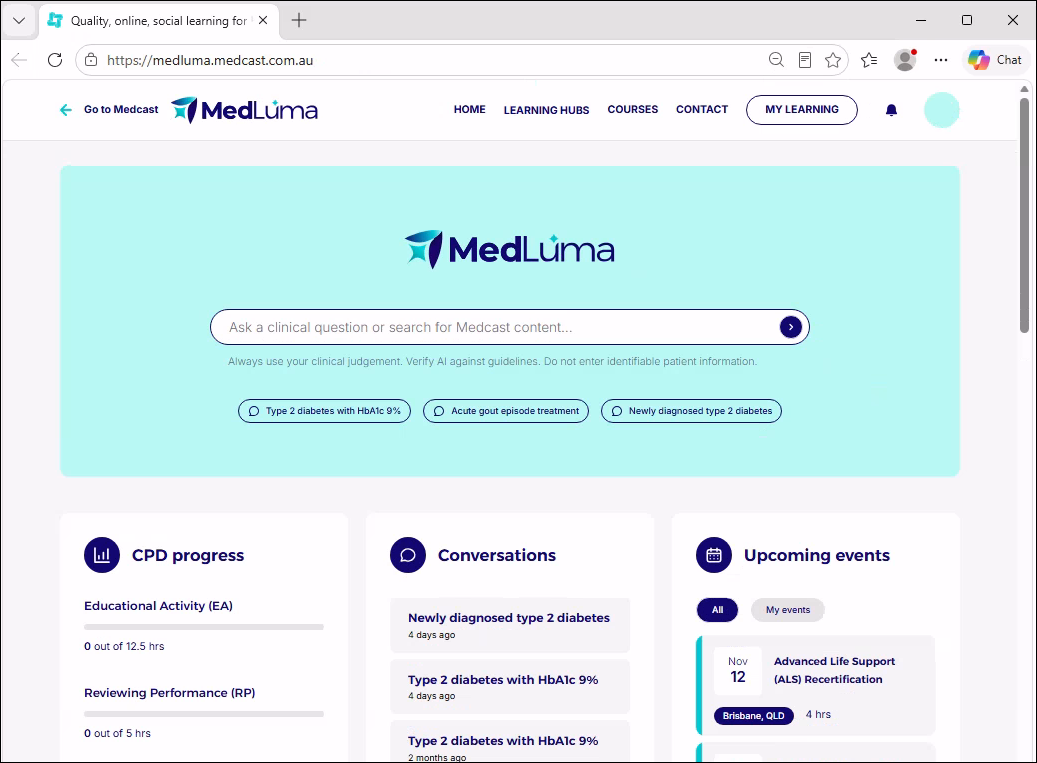
Configure Bp Premier for Medcast and MedLuma and launch the platform from the Bp Premier main screen or the patient record.
- Medcast is an Australian organisation known for delivering accredited clinical education, continuing professional development (CPD) and governed clinical guidance. It provides access to courses, webinars, learning hubs and other professional development activities. It also maintains each user’s learning history and CPD record.
- MedLuma is an AI-powered clinical knowledge and learning tool designed for Australian healthcare professionals. It helps you quickly find referenced, current and relevant medical information grounded in trusted clinical sources as you work, while supporting your ongoing learning and continuing professional development. MedLuma is designed to support, not replace, your clinical judgement. You can earn RACGP-accredited CPD hours for learning activities you complete after a MedLuma search.
|
|
|
TIP See the Knowledge Base article Medcast in Bp Premier for more information.
ePrescribing Conformance Profile 3.0.1 and eRx REST API Updates.
Updates have been made to ePrescribing in Bp Premier in accordance with the ePrescribing Conformance Profile 3.0.1 released by the Australian Digital Health Agency (ADHA). The eRx REST API has also been integrated into Bp Premier including workflows for eRx registration management inside the software.
These enhancements bolster security, improve audit capabilities, and streamline the management of prescriptions, ensuring a more efficient and safe user experience.
eRx Integration into Bp Premier
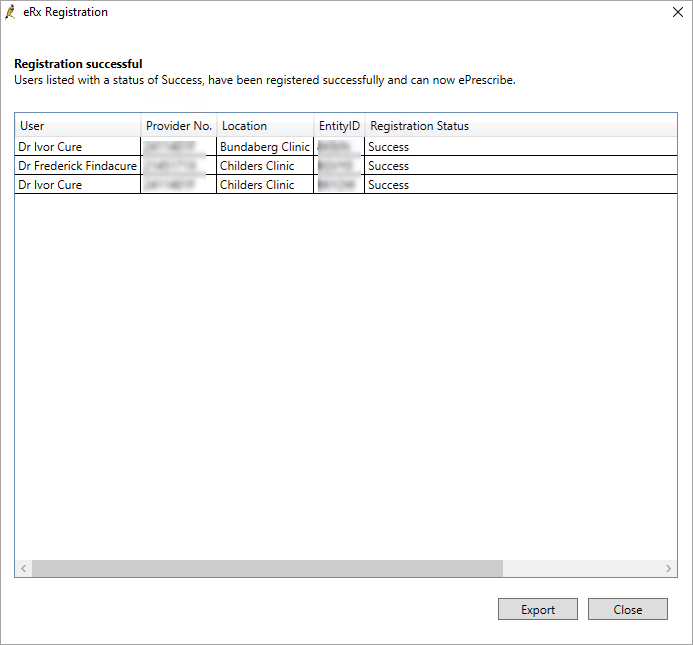
The registration process for eRx Script Exchange has been streamlined in Bp Premier Oxford SP2, significantly reducing the steps required for practices to complete outside the software.
In previous versions of Bp Premier, users needed to complete eRx registration for each prescriber via the eRx website and wait for the registration to be processed. The Entity ID was then sent to Best Practice Software, who passed it on to the practice before they could enter the information into Bp Premier in the eRx setup utility.
In Bp Premier Oxford SP2, users can now register prescribers with eRx and manage registrations via the new ePrescribing tab found in the Configuration settings.
TIP See Configure eRx Script Exchange in Oxford SP2 for further instructions.
ePrescribing Configuration tab
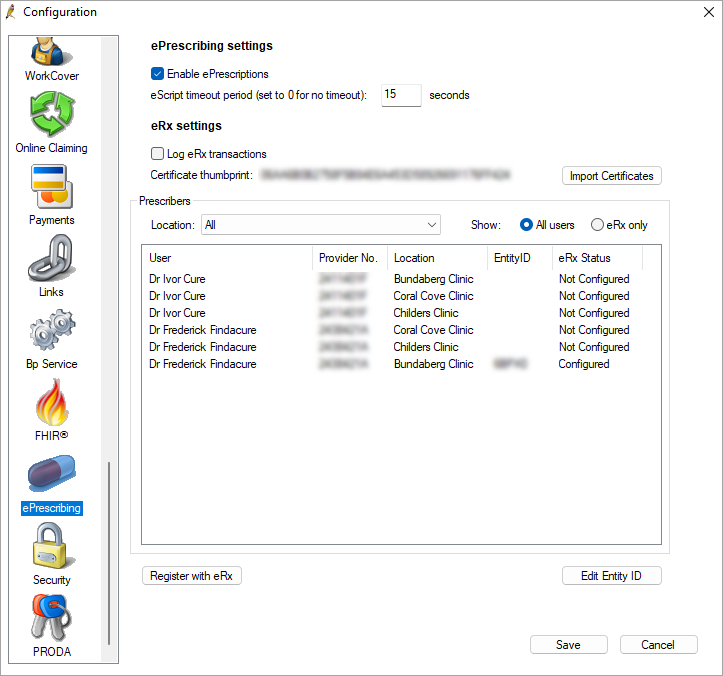
A new ePrescribing tab in the Setup > Configuration options has been added to Bp Premier.
- Under the ePrescribing settings, users can Enable ePrescriptions and set an eScript timeout period from this tab.
- Under the eRx settings, users can manage eRx registration and certificates.
Send to Pharmacy updates for NSW practices
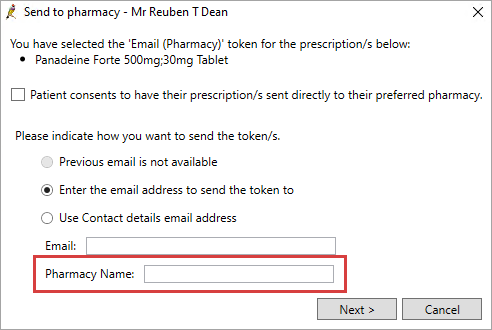
Where the prescribing facility is located in New South Wales, an additional text box field, Pharmacy Name, will be displayed. The Pharmacy Name field has a maximum limit of 50 characters.
The Pharmacy Name field is optional; the eScript will still be sent if it is not provided.
See Create and Send Electronic Prescriptions for more information.
Note to Pharmacist
A new Note to pharmacist free text field has been added below the General note field in the third Current Rx screen. The information entered in this field is transmitted with the eScript.
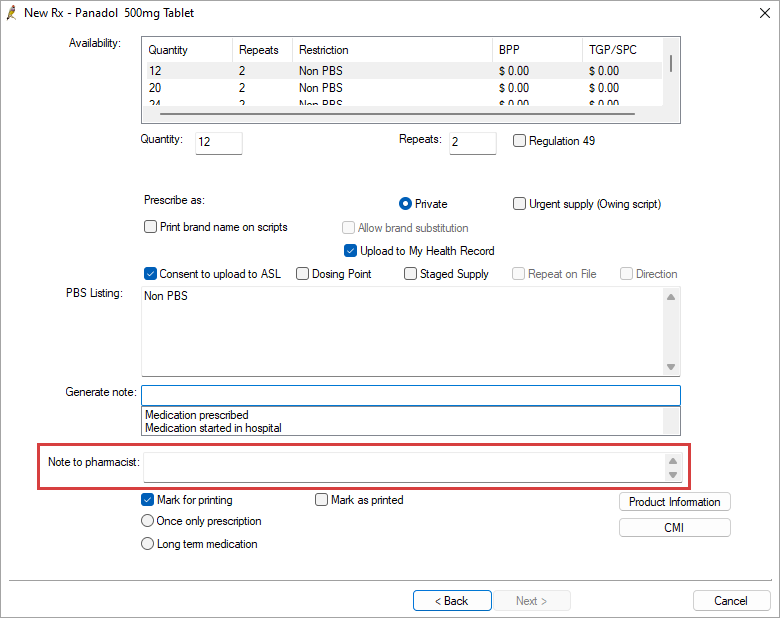
See Add, Edit or Cease a Prescription (Rx) for more information.
User inactivity timeout
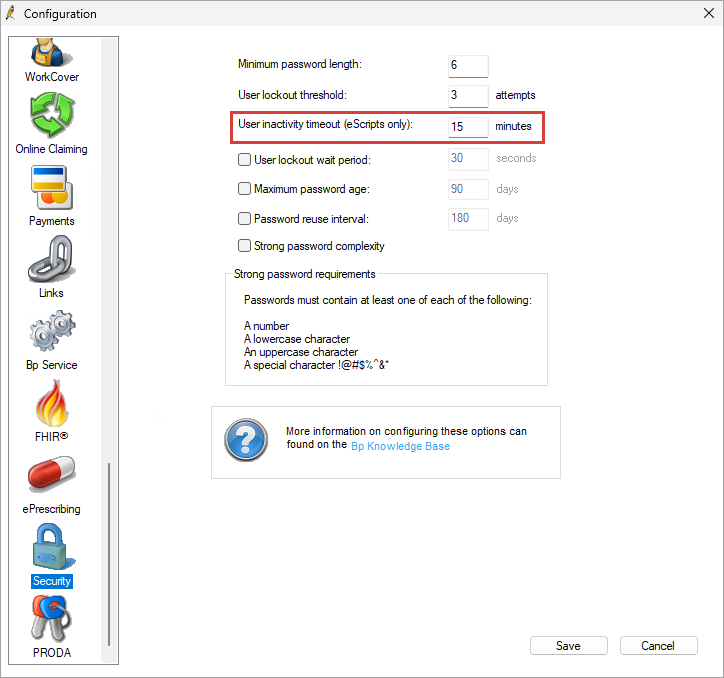
To meet the ADHA ePrescribing Conformance requirements, updates have been made to the User inactivity timeout setting in Setup > Configuration > Security including:
- The User inactivity timeout no longer has a checkbox and the input is always enabled.
- If the setting was not previously enabled the value will be set to 15 minutes by default.
- If the setting was previously enabled and set to a value greater than 120 minutes the value will be set to 120 minutes.
- If the setting is updated and the value is not between 1-120 minutes a warning will prompt the user ‘The inactivity timeout period must be between 1 and 120 minutes’.
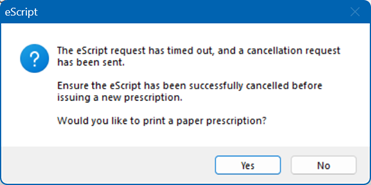
If the eScript timeout period is met, the user will be prompted with the following message:
"The eScript request has timed out, and a cancellation request has been sent. Ensure the eScript has been successfully cancelled before issuing a new prescription. Would you like to print a paper prescription?".
See Manage password and access security for more information.
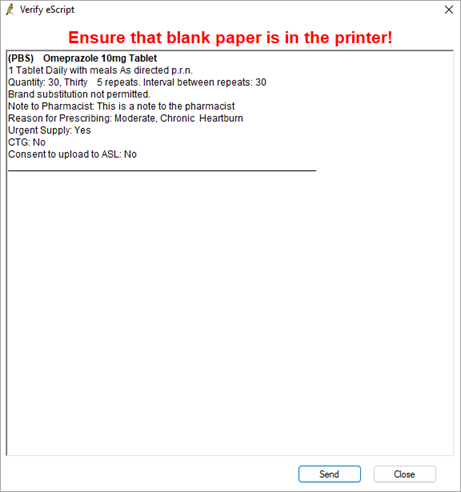
Details added to Verify eScript window
Updates have been made to the Verify eScript window to display the following fields:
|
If selected or entered |
Always displays |
|---|---|
|
|
Oxford SP1
Release date: 19 August 2026
Bp Premier Installation Guide
This guide explains pre- and post installation procedures to ensure the success of the Bp Premier Upgrade.
IMPORTANT See Upgrade Installation Guide for more information.
Reporting Tool, Payment Utility, and NCSR Utility Updates
To support compatibility with the Oxford SP1 release, updates to the Bp Premier Reporting Tool, the Bp Payments Utility, and the NCSR Utility have been released.
The changes include compatibility with Oxford SP1, and backwards-compatibility with past Bp Premier versions including Oxford, Spectra SP1 Revision 3, and below.
IMPORTANT Workstations requiring each utility should be updated prior to the installation of Oxford SP1 via the relevant steps below.
The Bp Premier Reporting Tool is used for multiple functions, including MyMedicare registration list updates, and nKPI and PIPQI data extraction and reporting, and is typically installed on administrator workstations.
For workstations with the tool installed, the update will be automatically applied when it is launched.
NOTE Further information on versions can be viewed on the Bp Premier Reporting Tool Release Notes page.
The Bp Payments Utility is used for HICAPS and Commbank Smart Health payment integrations, and is typically installed on administrator workstations.
For workstations with the utility installed, an auto-update prompt will be presented similar to the example below.

This update prompt must be accepted by a user with administrator rights to successfully download and install the new version of the Bp Payment Utility.
NOTE Further information on Bp Payment Utility versions can be viewed on the Bp Payments Utility Release Notes page.
The NCSR Utility is used for interacting with the National Cancer Screening Register, and is typically installed on clinical workstations.
On your practice server, update the FHIR API to the latest version, from Setup > Utilities > FHIR > Update FHIR API.
For workstations with the NCSR Utility installed, the update will be automatically applied when the logged in user has administrator rights.
NOTE For all other user logins, the update can be downloaded and installed by following the instructions on the Set up NCSR Integration page.
Security Update: Best Practice Database Connector
This release includes enhanced security measures for database access. As part of the update, a new Windows service — the Best Practice Database Connector — will be installed on your server. This ensures that every instance of Bp Premier now uses a unique database access password for each Practice, with these passwords now securely stored within the Practice environment.
Why this matters
Cyber-attacks targeting healthcare providers continue to increase. Strengthening database access controls is a critical step in protecting patient information. We strongly recommend applying this update – and all future security updates – as soon as practicable.
What does this mean for your practice?
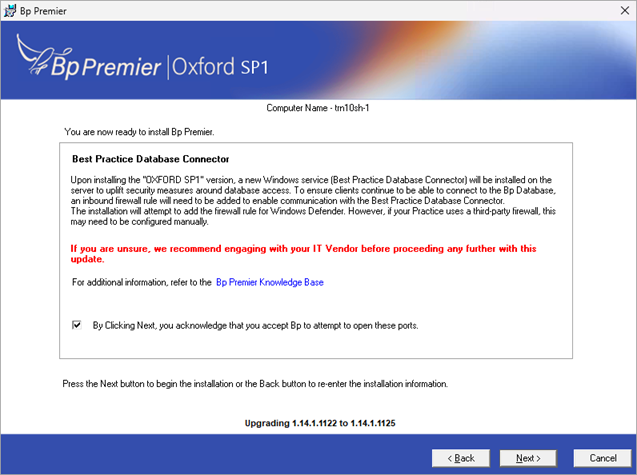
During installation, you'll see a screen referencing the Best Practice Database Connector. To keep client machines connected to your Bp Database, an inbound firewall rule needs to be added to allow communication with this service:
- If your Practice uses Windows Defender Firewall, the installer will attempt to add this rule automatically — no action needed.
- If your Practice uses a third-party firewall, this rule may need to be configured manually. If you're unsure which firewall your practice uses, or how to configure firewall rules, we recommend contacting your IT vendor before installing this update.
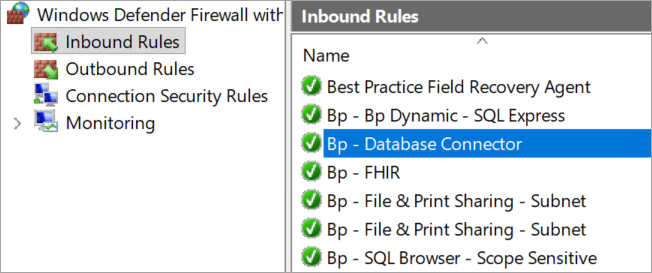
Manually configure firewall for Windows Defender
See the support article Manually configure firewall rule for Windows Defender for instruction on how to manually configure Windows Defender firewall to allow communication with the Best Practice Database Connector.
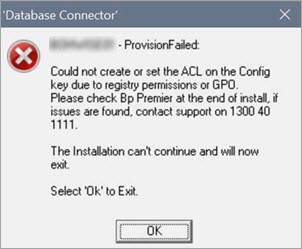
Troubleshooting the Bp Premier Oxford SP1 installation
See the Troubleshooting Bp Premier Oxford SP1 Installation article for a table containing errors and warnings that the user may experience on updating to Bp Premier Oxford SP1 and the action to take.
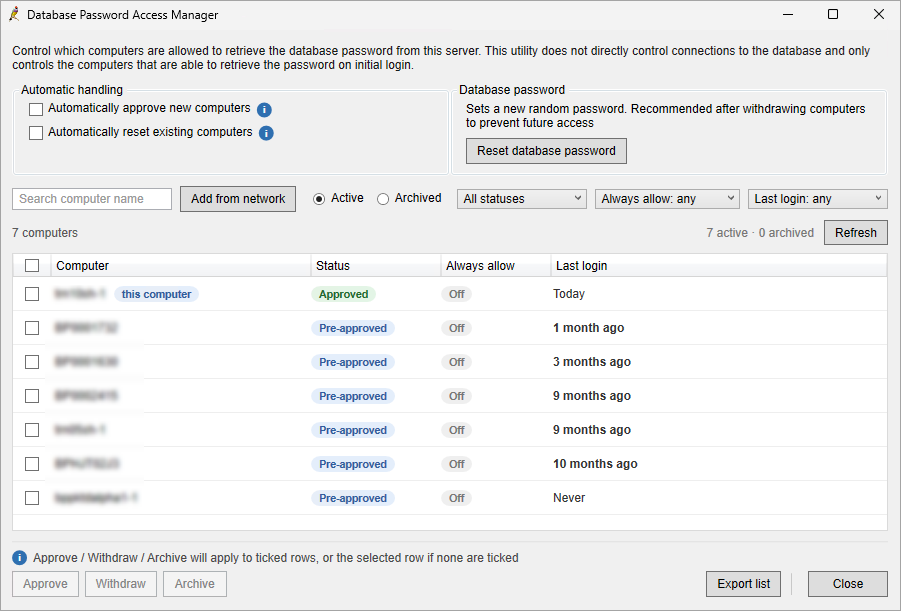
Database Password Access Manager
The Database Password Access Manager is a Bp Premier desktop utility that lets a practice administrator control which computers are allowed to retrieve database credentials from the server. A workstation will not be able to connect to the Bp Premier database unless they are approved in the utility.
IMPORTANT This utility does not control access to the workstations ability to connect to the database.
Which computers will be pre-approved automatically after upgrading?
All workstations that have previously accessed the Bp Premier database within the last 12 months should be automatically in a pre-approved state upon upgrade to Oxford SP1. In some circumstances, workstations may need to be approved following their first login attempt after upgrading.
Computer names are recorded differently in the Database Password Access Manager depending on the circumstance. The computer name may be recorded as either the local client, or the virtual machine.
If you practice uses virtual machines, only the virtual machine requires approval. The local client that the virtual machine is launched from does not need to be approved in the Database Password Access Manager, though the computer name may still display in the list of computers. These local client computers can be safely archived or withdrawn.
How do I approve a computer?
When a new PC attempts to connect to the Bp Premier database, it will be in a Pending state. Once the user approves the PC from the utility, it will move to the Pre-approved state. When the PC attempts to connect to the Bp Premier database in the Pre-approved state, it will be granted access and updated to Approved.
NOTE To use the Database Password Access Manager, users must have the Setup/Configuration permission set to Add/Edit/Delete and be running a supported version of Bp Premier.
To approve a new computer:
- Launch Bp Premier on the new computer. The computer will be moved to a Pending state.
- From the Bp Premier main screen, go to Setup > Config > Database > Manage database password access.
- The Database Password Access Manager will launch.
- Locate the computer with a Pending status and click Approve. The new computer will be moved to a Pre-approved state.
- From the new computer, launch Bp Premier again. The new computer will be moved to an Approved state and can now access the Bp Premier database.

Assignment of Benefit
On the 18th of June it was announced that the Government has revised the Assignment of Benefit transition timeline, as published here. Key changes include:
- From 1 July, verbal consent will be available in all settings for 12 months.
- Enduring assignment of benefit will be an option for all MyMedicare registered patients, residents of aged care facilities and patients attending Aboriginal Community Controlled Health Organisations (ACCHOs) from 1 July 2026 – brought forward from April 2027.
- Patients attending ACCHOs will be able to have enduring assignment at multiple sites.
- Compliance will not commence until regulatory changes are complete and will begin with prevention and education.
- There will be a 12-month transition period, during which there is a commitment to work with the profession on the changed approach and explore other options to further reduce the administrative burden on both GP practices and patients while ensuring the integrity of Medicare is maintained.
Assignment of Benefit Configuration
- Assignment of Benefit can now be enabled from Setup > Configuration > Online Claiming. Once enabled it cannot be disabled. Restart Bp Premier to see changes.
- Verbal and Enduring consent can now be set as the Default assignment of benefit channel. This setting has been moved from the Billing tab.
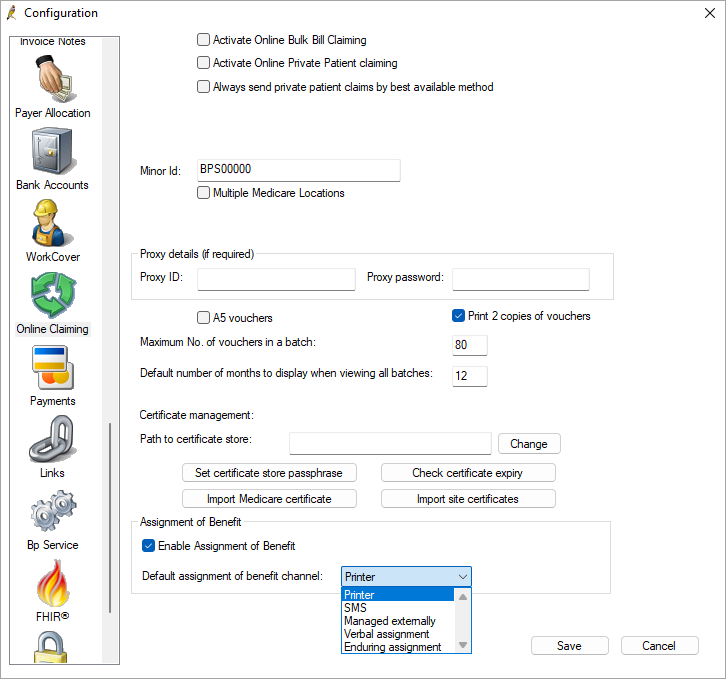
TIP See Set up Assignment of Benefit for more information.
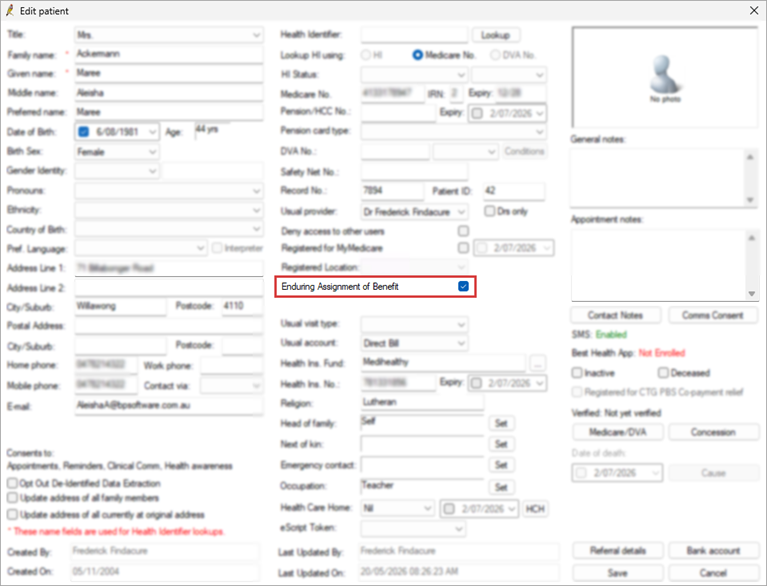
Enduring Assignment of Benefit in the Patient Details
An Enduring Assignment of Benefit checkbox has been added to the Patient details screen. Select this checkbox if the patient has enduring assignment of benefit consent.
When invoicing an appointment in the Account details screen for a patient with Enduring Assignment of Benefit enabled in the patient record, the option will be selected by default.
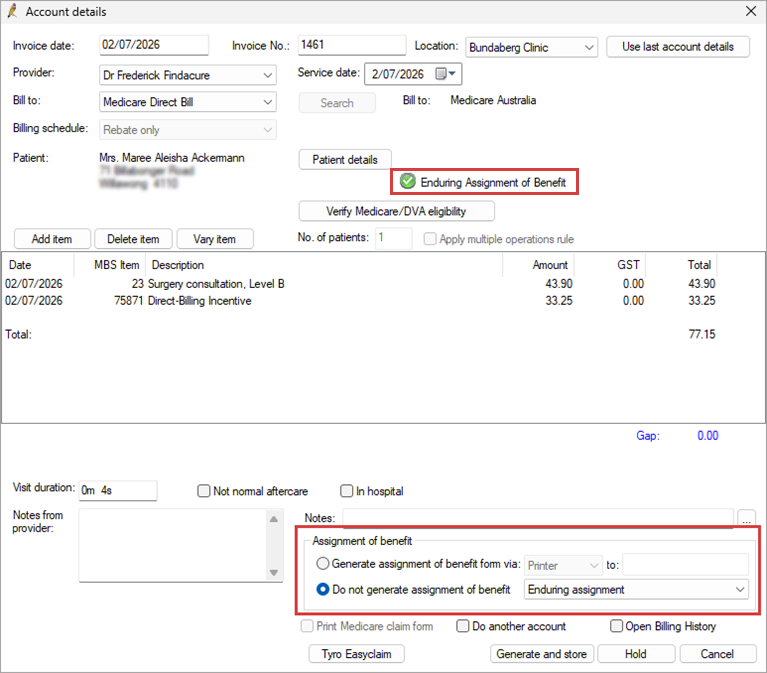
TIP See Do not generate an Assignment of Benefit form for more information.
Oxford
Release date: 09 June 2026
IMPORTANT This release is no longer available to download due to the Australian Government and Department of Health, Disability and Ageing changes to the Assignment of Benefit (AoB) reforms announcement on the 18th of June. Please read this article for more information.
MySL Date Created
Updates have been made to the Date Created field in the View MySL field in accordance with ADHA compliance. Up to Spectra SP1 Revision 3, the Date Created column in MySL responds differently to two scenarios:
- For new prescriptions, the Date Created will generally be the Date the medication was initially prescribed.
- If the doctor prescribed the medication with repeats, the Date Created will be updated to reflect the Date the repeat was last dispensed from the pharmacy.
This has been resolved in Bp Premier Oxford to always show the original prescription date.
Australian Immunisation Register
From 20 October 2025, changes to the Australian Immunisation Register (AIR) took effect. A new option for 'Route of Administration' has been added. Nasal, as a Route of Administration, is currently only valid for one vaccine: FluMist.

National Immunisation Program
From 1 September 2025, changes were introduced to the National Immunisation Program.
Prevenar 20
Based on the advice from Australian Technical Advisory Group on Immunisation (ATAGI), the government has made changes to the National Immunisation Program. Prevenar 20 was introduced into the NIP to replace Prevenar 13 and Pneumovax 23 on the childhood and adolescence schedule.
Pneumococcal vaccines
The current recommended dose (3) given at 6 months of age will be expanded to include all Aboriginal and/or Torres Strait Islander children, irrespective of location if the following conditions are met:
- The individual is under 5 years of age
- The individual is Aboriginal and/or Torres Strait Islander OR the individual has a risk condition for Pneumococcal disease.
Bulk Bill Claim Date Updates
From 05 September 2025 the following Bulk Bill claims will not be accepted by Medicare:
- Claims with a Medical Event Date greater than 2 years in the past for service rendered before 5 September 2025.
- Claims with a Medical Event Date greater than 1 year in the past for service rendered on or after 5 September 2025.
When creating a new online claiming batch only vouchers with eligible claiming dates will populate in the batch.
Assignment of Benefits Reforms 1 July 2026
Assignment of Benefit process is going digital from 1 July 2026. Assignment of Benefit (AoB) refers to the process by which a patient authorises Medicare to pay their benefit directly to the healthcare provider, rather than reimbursing the patient.
IMPORTANT On the 18th of June it was announced that the Government has revised the Assignment of Benefit transition timeline. Please read this article for more information.
Some of the key changes being introduced include:
-
Electronic Forms: Providers will be able to generate and send electronic forms via SMS to patients to assign their benefits through web forms on their own devices.
-
Pre and Post-Assignment Flexibility: New digital options will allow benefits to be assigned when booking a service (pre-assignment) or after a service has occurred (post-assignment), rather than strictly during the attendance.
-
Basic Service Description: For episodic pre-assignment agreements, a 'basic service description' will be the minimum required information. Approximately 4,600 MBS items have been mapped into 16 categories (e.g., GP – Standard, Specialist – Procedure) to provide patients with meaningful information while maintaining flexibility for providers.
-
Record Retention: Providers will be required to retain a copy of the completed/signed agreement for 2 years.
TIP For more information see the Australian Government Department of Health, Disability and Ageging (DoHDA) website or the Bp Premier Knowledge Base landing page for all of our Assignment of Benefit resources.
Drug Prescription Authority Requirements/Medicare Rx User interface improvements
When prescribing a drug that requires authority, users need to copy and paste multiple details to the authority's website. To improve this process, the Patient Medicare No and Authority Form No are now able to be copied to the users clipboard. A copy icon is displayed next to these information strings for visibility.

Family & Social History
From Family & Social History > Tobacco, Current Smoking History will now display Pack years. This value is calculated from the Cigarettes per day field and the Year started field. This value can be recalculated and updated.

Chronic Condition Management Claiming Logic
As part of the ongoing support for the Chronic Condition Management (CCM) changes introduced on 1 July 2025, Bp Premier has enhanced the claiming logic that was released in version Spectra SP1 Revision 3. See the table below for additional rules added to Bp Premier.
|
Workflow |
Item |
Rule |
|---|---|---|
|
When finalising a visit and adding any CCM items. |
965/392 |
Can not be billed within the preceding 12-month period unless extenuating circumstances exist. |
|
92029/92060 |
||
|
When adjusting or creating an invoice and adding any CCM items. |
965/392 |
Cannot be billed within the preceding 12-month period unless extenuating circumstances exist. |
|
92029/92060 |
||
|
92030/92061 |
Cannot be billed within the preceding 3-month period unless extenuating circumstances exist. |
Low Memory Warning
Updates have been made to Bp Premier to appropriately warn the user when Bp Premier is running on low memory and that existing windows must be closed before more can be opened.

Bp eHealth Certificate Import Tool
Enhancements have been made to the Bp eHealth Certificate Import Tool, simplifying the user interface, improving error handling, and improving capability. This enhancement allows users to update the NASH certificate on both the Bp Premier and eRx gateway via the eRx REST API for their default location.

Enhancements to optimise the WorkCover QLD setup process
The Install Certificates button has been removed from the WorkCover QLD Setup screen; Digital SSL certificates are no longer required to be installed on each workstation used for sending invoices to WorkCover QLD.
Bp Premier will connect to the WorkCover QLD API and obtain the required SSL certificates with each request to Upload Invoice to WorkCover QLD, ensuring that the correct certificate is used each time an invoice is sent.
Long Acting Contraceptives (LARCs) Discontinued Operation Fee Window
When MBS item 82206 is added to an invoice in conjunction with an 82201 or 82202, selecting Add or double clicking on the item number will launch the Discontinued Operation Fee Window.
Enter the MBS item number of the discontinued operation (82201 or 82202) in the Search field and click OK to apply the Discontinued procedure fee (50%) to the invoice.

Information correct at time of publishing (19 June 2026).


 AU
