
This article explains how to use the Follow up Assignment of benefit screen to manage sent Assignment of Benefit requests.
IMPORTANT On the 18th of June it was announced that the Government has revised the Assignment of Benefit transition timeline. Please read this article for more information.
To manage completed, pending and outstanding Assignment of Benefit requests, Bp Premier Oxford has introduced a Follow up Assignment of Benefit window in Bp Premier. This screen looks and feels similar to the Follow up sent reminders screen.
Access the Follow up Assignment of Benefit window from:
- Appointment Book > View > Follow up Assignment of benefit.
- Bp Premier main screen > Management > Follow up Assignment of benefit.
- Management > Online claiming > Direct bill batch > Follow up Assignment of benefit.
NOTE To access the Follow up Assignment of Benefit screen in Bp Premier, users must have the Direct Billing permission set to Add/Edit/Delete.
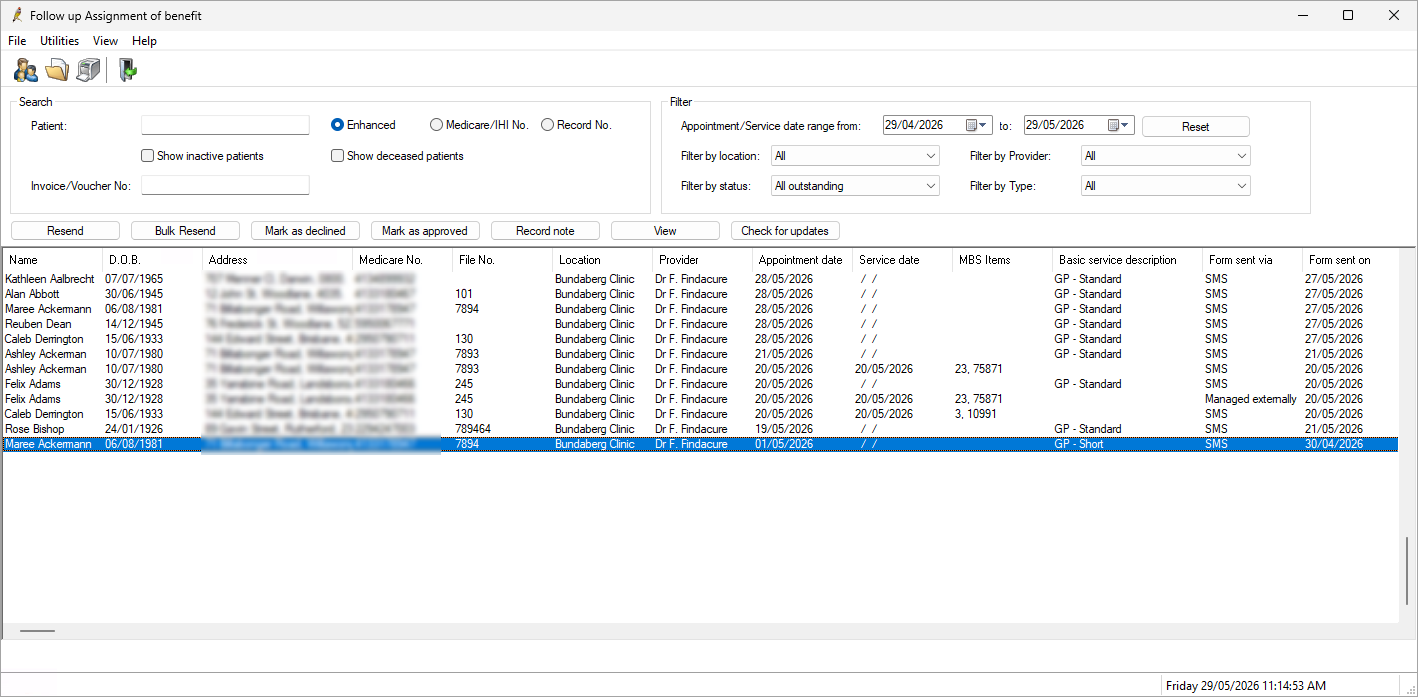
Search options
|
Search |
Description |
|---|---|
|
Patient |
Search by patient name. |
|
Medicare/IHI No. |
Search by patient Medicare or IHI number. |
|
Record No. |
Search by patient file number. |
|
Show inactive patients |
Displays inactive patients in the results list. |
|
Show deceased patients |
Displays patients marked as deceased in the results list. |
|
Invoice/Voucher No. |
Search by invoice or voucher number. |
Filter options
|
Filter |
Description |
|---|---|
|
Appointment/Service date range from / to |
Shows request forms created in the specified date range. |
|
Filter by location |
Shows request forms filtered by the selected location(s). |
|
Filter by provider |
Shows request forms filtered by the selected provider(s). |
|
Filter by status |
Filter by status of All, All outstanding (Pending and Delivery failed), Pending, Approved, Declined, Void, Delivery failed. By default the Follow up assignment of benefit screen will launch with All outstanding as the filtered status. |
|
Filter by Type |
Filter by Pre- or Post Assignment of benefit. |
|
Reset |
Resets all filters to the default state. |
Right-click menu options
|
Menu option |
Description |
|---|---|
|
Resend Assignment of benefit form |
Open the Resend Assignment of benefit screen. |
|
Mark as declined |
Updates the Status of the request to Declined. Only printed assignment of benefit forms can be manually marked as declined. |
|
Mark as approved |
Updates the Status of the request to Approved. Only printed assignment of benefit forms can be manually marked as approved. |
|
Record note |
Opens the Contact note screen. |
|
View completed form |
Generates a preview screen of a completed Assignment of Benefit form sent via SMS. |
|
Patient demographics |
Opens the Edit patient screen for the patient in the selected record. |
|
Patient billing history |
Opens the Billing history screen for the patient in the selected record. |
Resend Assignment of Benefit forms
Assignment of benefit requests can be resent by SMS or printed via paper form from the Follow up assignment of benefit screen. Requests managed externally can also be resent from Bp Premier in cases where it is requested by the patient or managed externally was selected by mistake.
Resend a single Assignment of Benefit request form
- Highlight the record and click the Resend button, or
- Right-click and select Resend Assignment of benefit form.
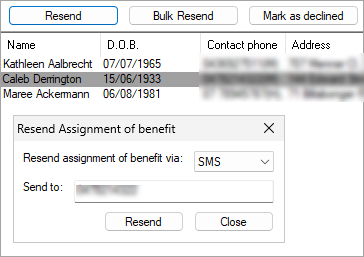
Select SMS or Printer from the dropdown selection and click Resend.
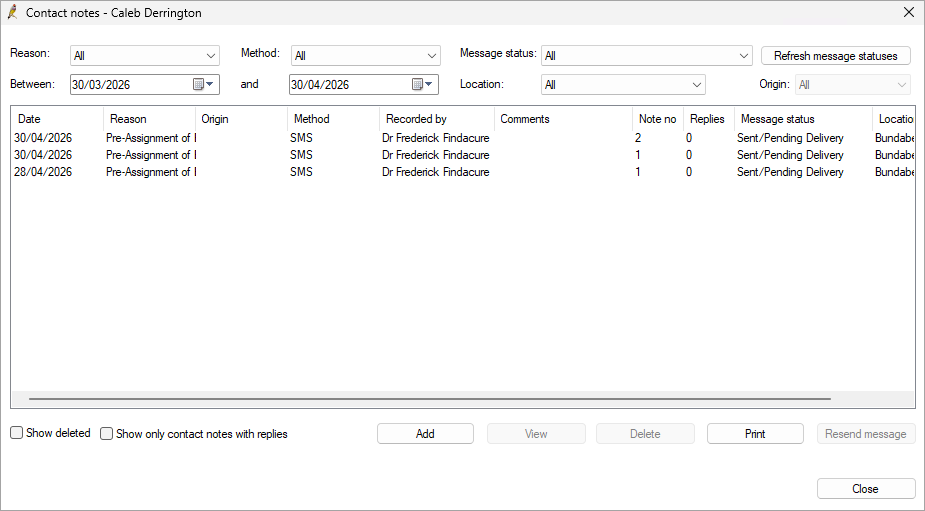
- If SMS is selected, the mobile number that was previously used to generate the SMS will be pre-populated. If the mobile number of the recipient has changed or you want to resend the form to a different mobile number, ensure that the mobile number is updated accordingly.
- When a form is being sent or resent via SMS, Bp Premier will automatically generate a Contact note and update the number of Attempts.
Bulk Resend Assignment of Benefit request forms
- Set the Filters to include the requests you would like to bulk resend, such as a specific date range and a specific doctor to reduce the number of SMS to be generated at once.
- Click the Bulk Resend button, or go to File > Bulk resend assignment of benefit requests.
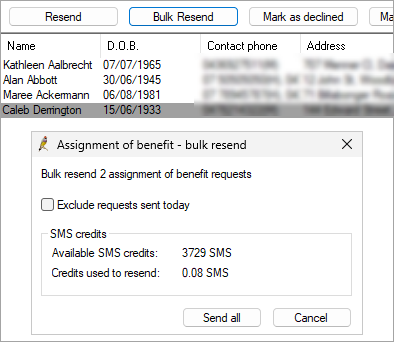
If you don’t want to resend assignment of benefit that were generated today, ensure the checkbox to Exclude requests sent today is selected.
The total number of assignment of benefits requests available to resend and the credits used to resend via SMS will be shown on screen.
Select Send all to bulk resend the request forms. Bp Premier will automatically generate a Contact note and update the number of Attempts for each record.
NOTE When using Bulk Resend, SMS messages will be resent to the same mobile number that they were originally sent to. If the mobile number of the recipient has changed or you want to resend the form to a different mobile number, ensure that the mobile number is updated accordingly and use the individual Resend option to resend the SMS to the intended recipient.
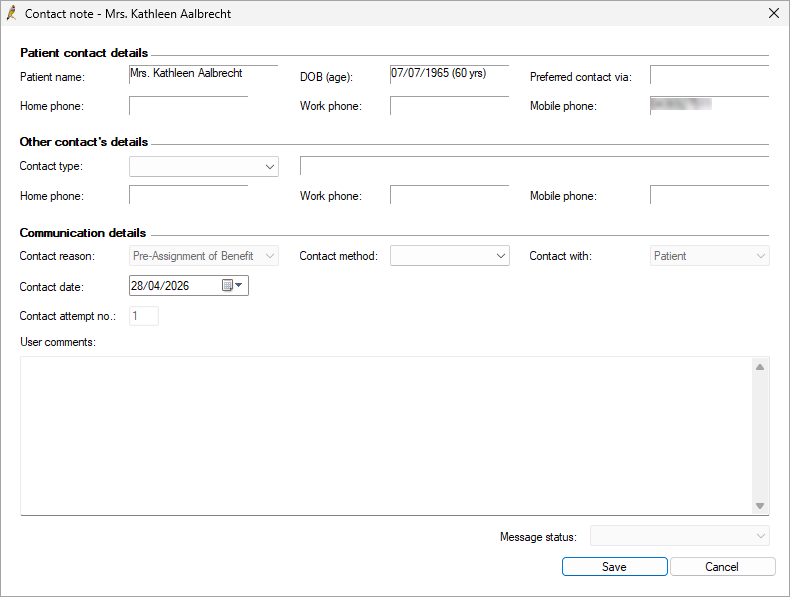
Record a Contact note
Recording a Contact note from the Follow up Assignment of benefit screen will set the Contact reason as Pre- or Post-Assignment of Benefit.
When a contact note with one of these Contact reason types is saved, the number of Attempts seen in the columns of the Follow up Assignment of Benefit screen will increase by one count.
Print a list of Assignment of Benefit request forms
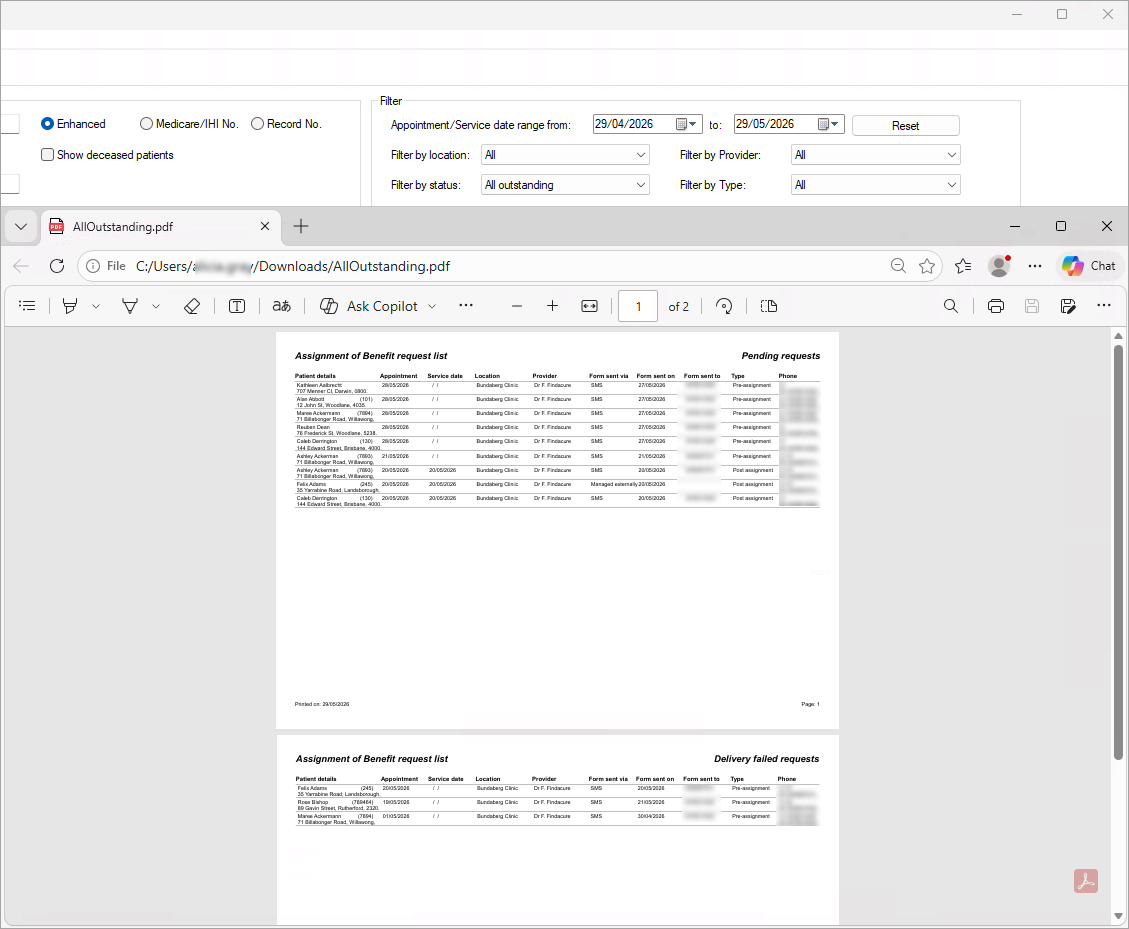
To print a list of the filtered requests, go to File > Print list from the Follow up Assignment of benefit screen.
Only Accepted, Declined and Outstanding records included in filtered list will be visible in the printout (Voided records will not be printed).
Manually check for updates of the Assignment of Benefit status
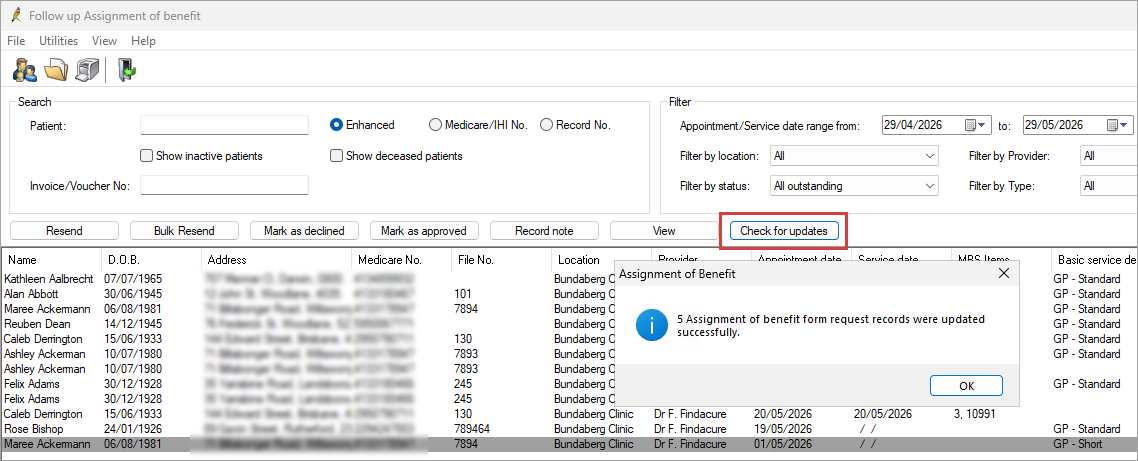
Users can retrieve the most recent statuses at any time without waiting for the routine check. In the Follow up assignment of benefit screen, selecting Check for updates refreshes the AoB status of all records displayed and the Appointment book icons.
Requests managed externally via Bp Premier integrated partners
Third parties integrated with Bp Premier will be able to add and update assignment of benefit records in the Follow up Assignment of benefit screen. These records will display in the Follow up assignment of benefit screen with the value ‘Managed externally’ in the Form sent via column. The status of these requests will be updated by the third parties.

These requests cannot be manually marked as approved or declined. You can use the Resend option for Managed Externally requests to print the request form or send as an SMS from Bp Premier.
View a completed form
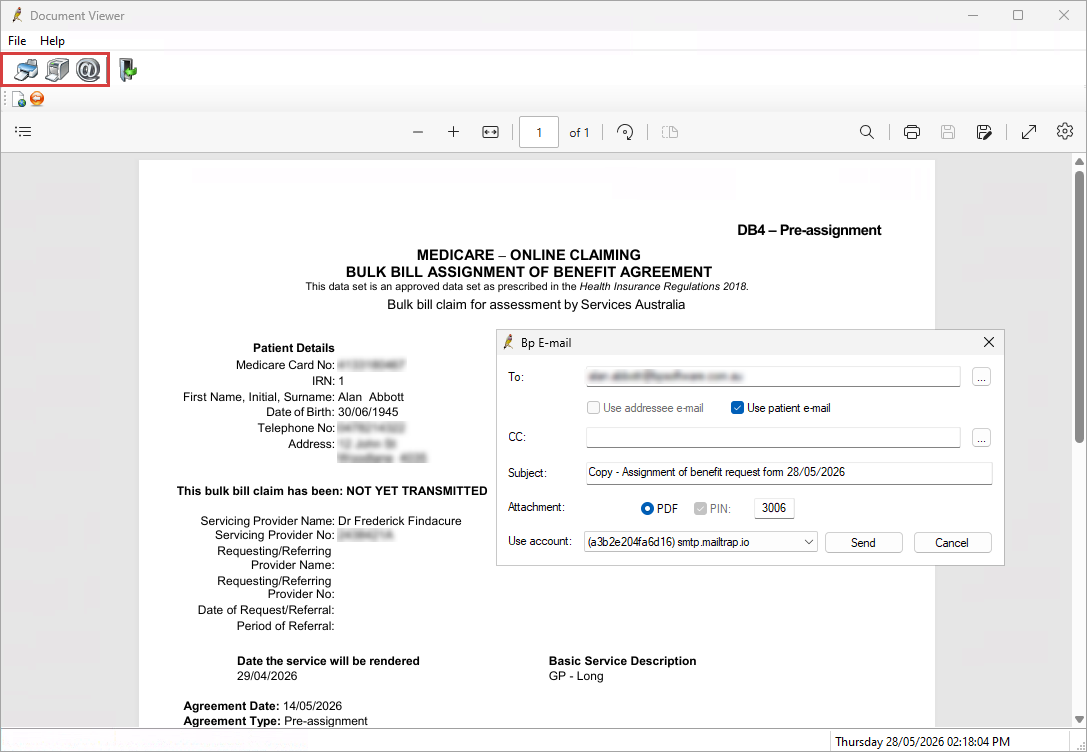
You can view, print or email an approved form sent from Bp Premier via SMS. Highlight the record and click the View button.
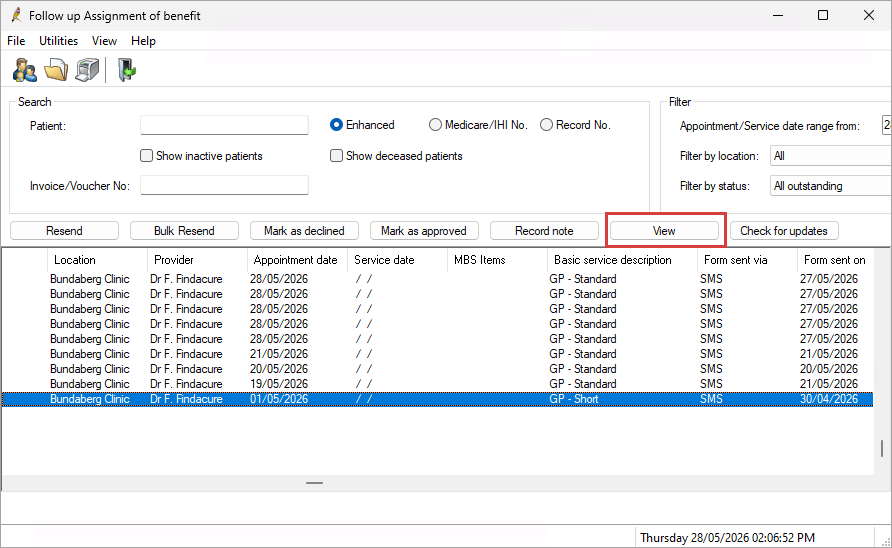
Use the buttons in the top left-hand corner of the screen to Print, Print page, or Email the document. These options are also available from the File menu.
Last updated: 05 June 2026.



 AU
AU 