
This article explains how to generate a new Assignment of Benefit for a rejected online claim from Medicare. If you need assistance in sending claims to Medicare or setting up Online Claiming, see Online Claiming: Direct Bill.
IMPORTANT On the 18th of June it was announced that the Government has revised the Assignment of Benefit transition timeline. Please read this article for more information.
Change an item number for a rejected claim and generate a new post assignment of benefit form
Before a claim rejected by Medicare can be resubmitted for processing, a new Post Assignment of Benefit must be collected from the patient.
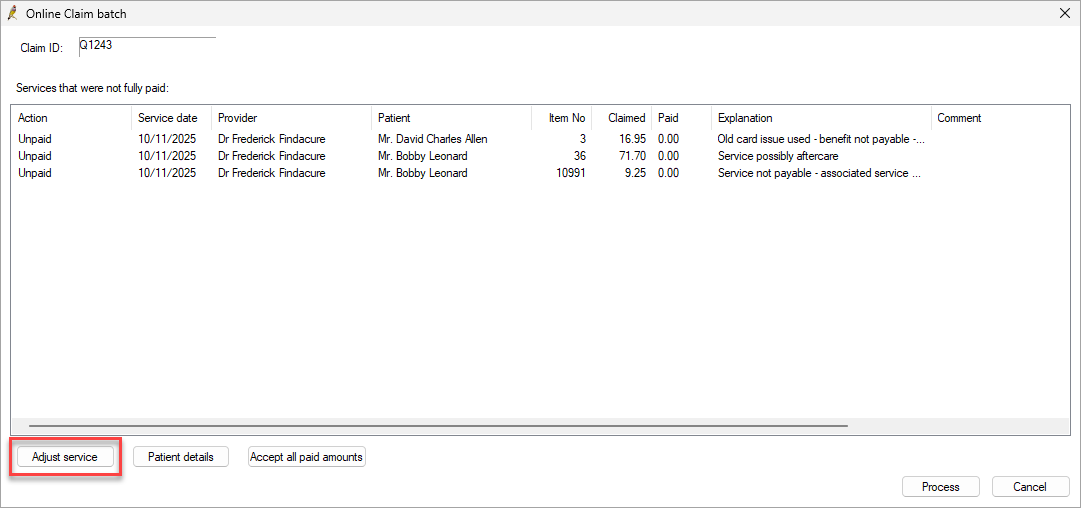
- Go to Management > Online Claiming.
- From the Online Claim batch screen, double click on the rejected batch.
- Select a claim to adjust and click the Adjust service button.
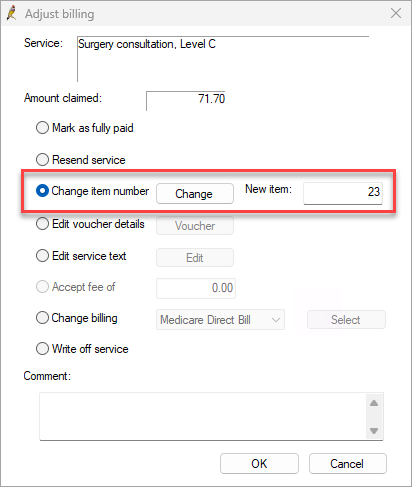
- Select the Change item number radio button, and then click Change.
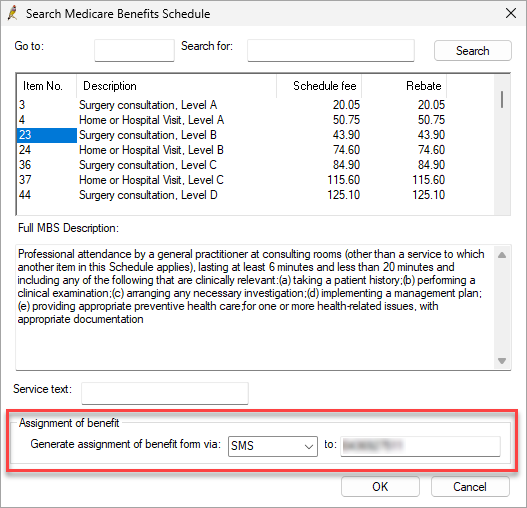
- Select a new item number from the Search Medicare Benefits Schedule screen.
- Ensure the correct Item No. and details are correct. Click OK.
- Click OK from the Adjust billing screen.
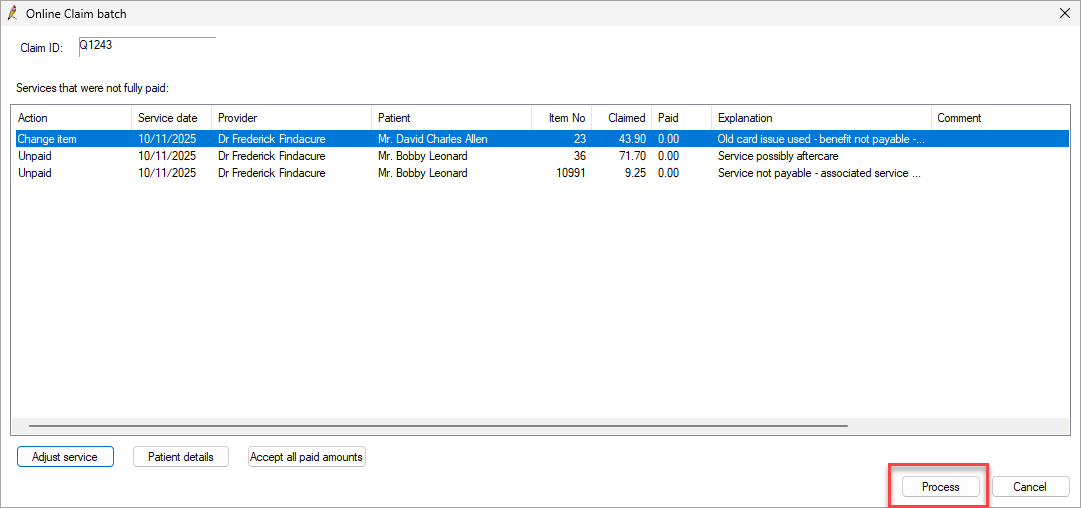
- Click Process from the Online Claim batch screen.
- If SMS is selected as the generation method the Online Claiming Post Assignment of Benefit Form Bp Comms template will be sent to the patient(s).
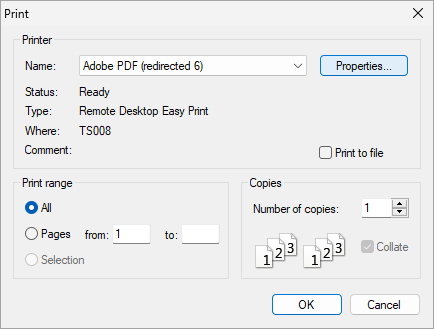
- If Printer is selected as the generation method, the Print screen will appear. Ensure the correct printer is selected and click OK. The Post assignment of benefit form(s) will be printed.
TIP The Assignment of benefit generation method will be the default. See Set up Assignment of Benefit for more information on how to set a default Assignment of Benefit generation channel.
NOTE If SMS is selected and the patient doesn’t have a mobile number recorded or number of the recipient has changed, ensure this is updated in the patient demographics accordingly prior to attempting to generate the SMS. If the patient doesn’t have a mobile number recorded, only the ‘Printer’ option will be available.
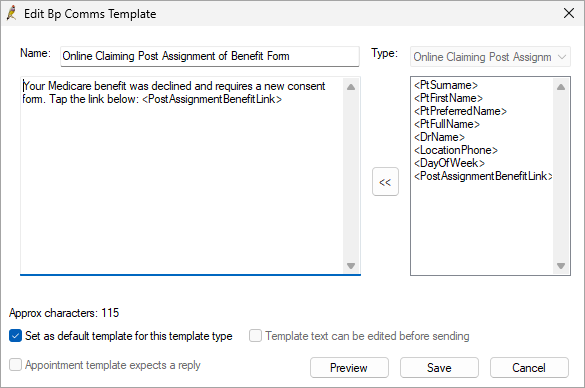
NOTE No changes can be made to the phone number the SMS is sent to or the template when adjusting claims from the Online claim batch screen. The template can be edited from Setup > Configuration > Templates.
Last updated: 15 June 2026.



 AU
AU 